

You can connect a PS5 controller to an Android phone or tablet using Bluetooth and play supported games without carrying a PlayStation console. Sony lists Android 12 or later among the operating systems that support the DualSense wireless controller, but successful Bluetooth pairing and actual game-controller support are two different things. Here is the setup process and how to identify what is going wrong.
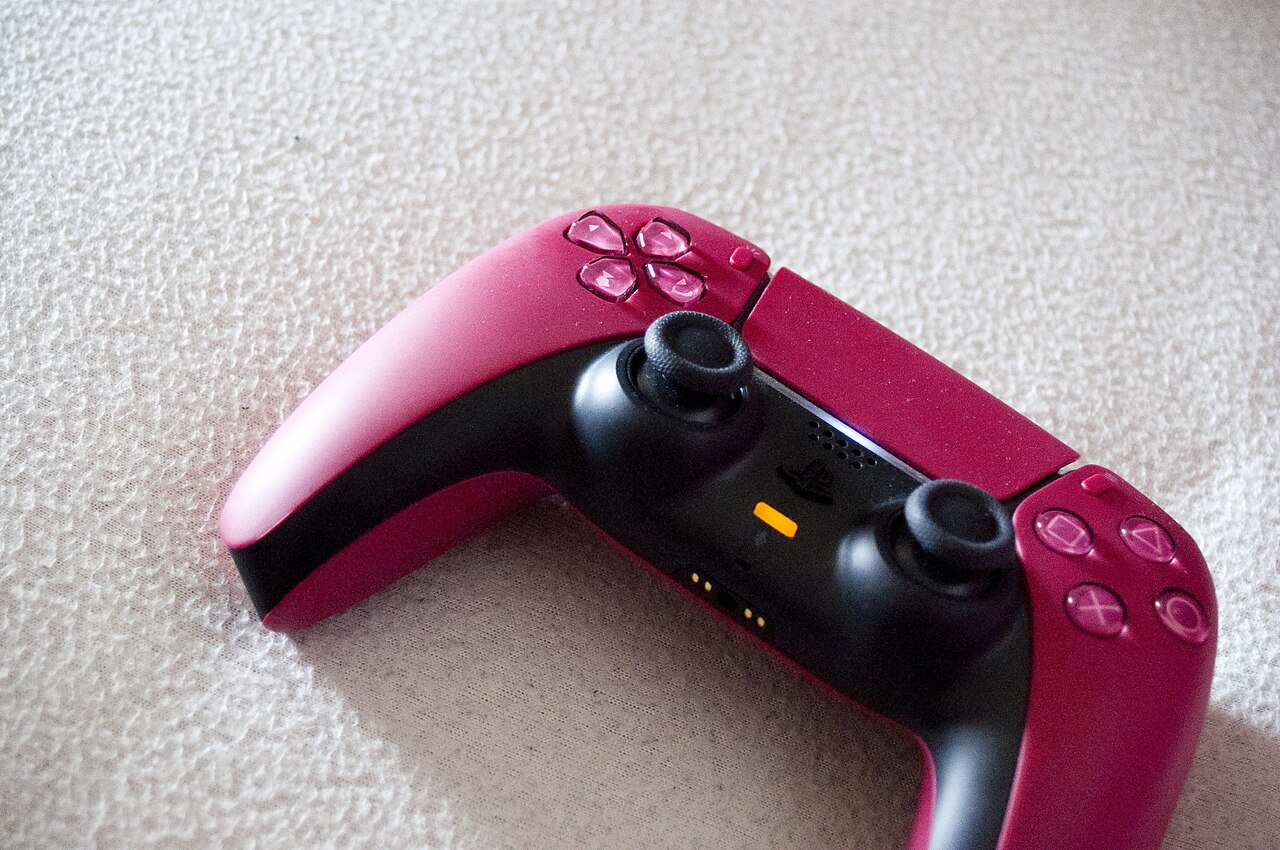
Does a PS5 DualSense controller work on Android?
Yes, on supported phones and tablets. PlayStation’s official compatibility guide specifies Android 12 or later for Bluetooth and USB connections. That establishes basic controller support at the operating-system level. A particular Android game must also implement controller input before the DualSense can control it.
Do not assume every mobile game accepts a controller, or that the DualSense will reproduce its full PS5 experience. Sony specifically says adaptive triggers, haptic feedback, the built-in microphone and speaker, and headset-jack features are not fully available on Android mobile devices.
How to connect a PS5 controller to Android using Bluetooth
Step 1: Switch the DualSense off
If the controller is still on, press and hold the PS button until its player indicator turns off. Unplug any USB cable. Turn on Bluetooth in your Android phone’s settings.
Step 2: Put the controller into pairing mode
Hold the controller’s Create button—the small button near the upper-left side of the touchpad—and, while keeping it held, press and hold PS. Release when the light bar starts blinking. This is Sony’s standard first-time Bluetooth pairing procedure, not a factory reset.
Step 3: Select the controller on Android
On many Android phones, open Settings > Connected devices > Pair new device. Other manufacturers may label the menu Connections > Bluetooth or something similar. Select the controller when it appears in the available devices list, then approve any on-screen pairing prompt. The displayed device name can vary by Android build.
Step 4: Try a game that supports gamepads
Open a compatible game and check its controller-input settings. Test ordinary movement and selection. Do not judge the pairing as failed merely because Android’s home screen, keyboard or an individual touchscreen-only game does not respond to thumbsticks. Some games only enable controller support after you enter gameplay.
Can you use a USB-C cable instead?
Sony also documents USB connectivity with compatible Android devices. If your phone supports the necessary USB host functionality, try a suitable data-capable USB-C cable and check whether the game recognizes the controller. An adapter may be needed depending on the phone’s connector. A charge-only cable can supply power without carrying controller data, so cable quality matters.
Bluetooth is usually the simpler starting point for handheld gaming. Wired support can differ across devices and games, so it is not a guaranteed fix for an app that lacks controller functionality.
PS5 controller not pairing with Android? Fix it in order
Check Android version and controller power
Open your phone’s Settings > About phone page to confirm the Android version. Sony lists Android 12 as the baseline for DualSense compatibility. Charge the controller if it has been unused for a long time, then return it to pairing mode with Create + PS.
Remove a stale Bluetooth connection
If your phone previously paired with the controller, look for it in the list of saved Bluetooth devices and choose Forget or Unpair. Turn the controller off, start pairing mode again, and try a fresh connection. Disconnect the controller from a nearby console or computer if that device is currently using it.
Separate connection issues from game issues
If Android shows the controller as connected but one game ignores the buttons, test another game known to support external controllers. Review the game’s own device-support documentation. A generic “controller mapper” app is not automatically required and may introduce privacy, reliability or game-policy risks.
Keep device software up to date
Update Android through the device maker’s normal settings. Controller firmware can also matter; follow Sony’s supported controller-update methods rather than installing unofficial firmware files or random driver packages from search ads. If Bluetooth remains unreliable, restart the phone and check for wireless interference before assuming hardware failure.
How to switch back to PlayStation 5
Depending on how your controller is configured, you may need to reconnect it to the PS5 with a supported USB data cable and press the PS button to establish the console connection. Newer DualSense firmware can support saved device pairings, but the available shortcut depends on the controller’s firmware and Sony’s current instructions. Consult PlayStation’s official pairing page for the procedure on your controller.
If you also game on Windows, see AVARIXO’s published PS5 controller-to-PC setup guide for the differences between PC Bluetooth detection and game support.
FAQ
Will DualSense work on Android 11?
Sony’s official supported baseline is Android 12. An older version may behave differently and should not be described as officially supported.
Does Android support PS5 adaptive triggers and haptic feedback?
Not in the same way as a PS5. Sony states that adaptive triggers and DualSense haptic feedback are not supported on Android mobile devices.
Does pairing a DualSense to Android erase anything from the PS5?
No. Bluetooth pairing is separate from console storage and does not delete saved games or PS5 accounts.
Why does the controller connect but no buttons work?
The game may not support external controllers or may need an in-game setting. Check Android’s Bluetooth connection state and the game’s documented input support before resetting hardware.

Other Articles

How to Clean a Laptop Keyboard Safely Without Damaging the Keys
How to Pair a Nintendo Switch Controller: Joy-Con and Pro Fixes
