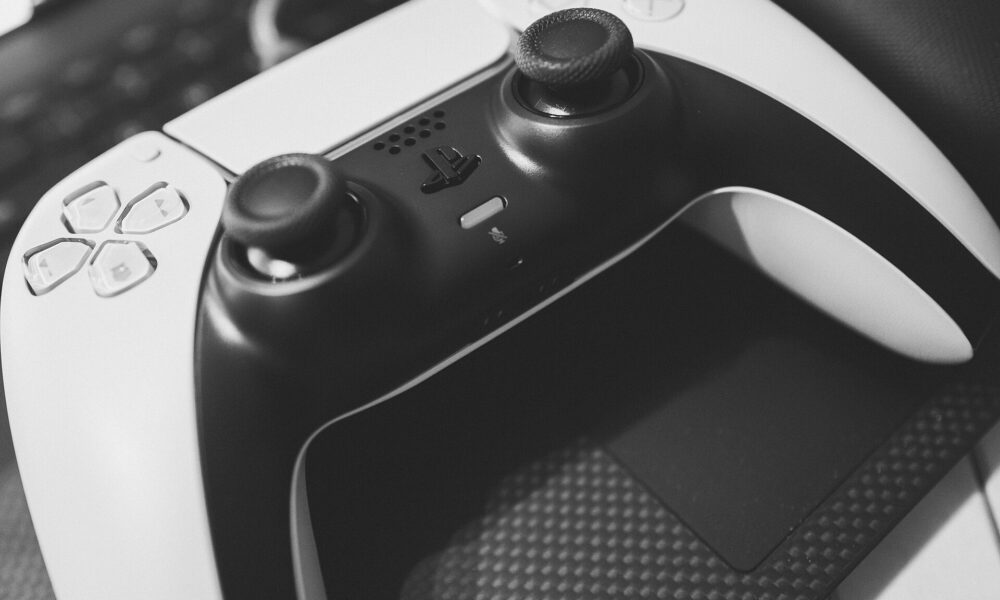

Connecting a PS5 controller to a PC takes only a few steps, but getting Windows to recognize a DualSense does not always mean every game will use it automatically. You can use a USB data cable for the simplest first test or pair a compatible Windows computer by Bluetooth. If the controller connects but does nothing in a game, check that game’s controller support and Steam Input settings before installing unfamiliar utilities.
Method 1: Connect your DualSense with a USB cable
- Turn on your Windows PC and open a game or controller settings window.
- Connect the DualSense USB-C port to your PC with a USB cable that supports data, not just charging.
- Allow Windows a moment to recognize the controller. If it does not appear, try another USB port or known-good data cable.
- In Steam, open Settings → Controller to see whether the device is detected. A non-Steam game may have a separate controller setting.
A wired connection is a useful starting point because it removes Bluetooth pairing, wireless interference and battery charge as variables. It does not guarantee that every PC game will recognize the controller or support the same advanced features as a PlayStation 5.
Method 2: Pair a PS5 controller to Windows using Bluetooth
- Charge the controller enough to complete pairing, then unplug its USB cable.
- On Windows 11, open Settings → Bluetooth & devices and turn Bluetooth on.
- Select Add device → Bluetooth.
- On a standard DualSense, hold the Create button and the PS button together until the light flashes. Sony’s pairing instructions are the final authority if your firmware or model has a different pairing mode.
- Choose the controller when it appears in the Windows Bluetooth list, then complete pairing.
- Open a compatible game and check whether it responds.
See PlayStation’s official DualSense Bluetooth pairing guide for device-specific details and supported platforms.
USB vs Bluetooth: which should you choose?
| Connection | Best reason to use it | What to watch for |
|---|---|---|
| USB data cable | Simple first connection and troubleshooting | Charge-only cables and unsupported game features |
| Bluetooth | Wireless play without a cable | Pairing state, battery, interference and game support |
Controller connected, but not working in Steam?
Open Steam’s controller settings and check whether the device is detected. For an individual game, open its Properties and review the controller/Steam Input options. Steam Input can help some games interpret controller input, while other games work better with native controller support. Avoid enabling conflicting controller-remapping programs at the same time. When a game displays Xbox buttons even though you are holding a DualSense, it may simply be using generic controller prompts.
Fix a DualSense that will not pair
Windows never finds the controller
Make sure Bluetooth is actually available and enabled on the PC. Remove outdated Bluetooth entries, restart Bluetooth and repeat pairing with the correct button combination. Disconnect the controller from nearby previously paired devices if it keeps reconnecting elsewhere.
The controller charges but Windows does not detect it
Try a USB data cable, another port and a different supported game or input test. A cable that lights the charging indicator may not carry data.
Windows sees the controller, but one game ignores it
Check the game’s published controller support, the Steam Input configuration and whether the game is running through Steam. Some features—including adaptive triggers and advanced haptic effects—are game-dependent and may differ between USB and Bluetooth. Updating the controller firmware may help with supported fixes; follow our DualSense firmware update guide rather than using unverified downloads.
Frequently asked questions
Does every PC game support the PS5 controller?
No. Compatibility varies by game and launcher, and some titles require a controller translation layer.
Do I need Bluetooth to connect by USB?
No. A compatible USB data connection does not require Bluetooth.
Can I reconnect the controller to my PS5?
Yes, but you may need to select or establish the PS5 connection again. Follow Sony’s current pairing instructions.
Does pairing install special DualSense drivers?
Windows can detect supported controller input, but game-specific features and support differ. Do not download arbitrary ‘controller fix’ executables from advertisements.

Other Articles