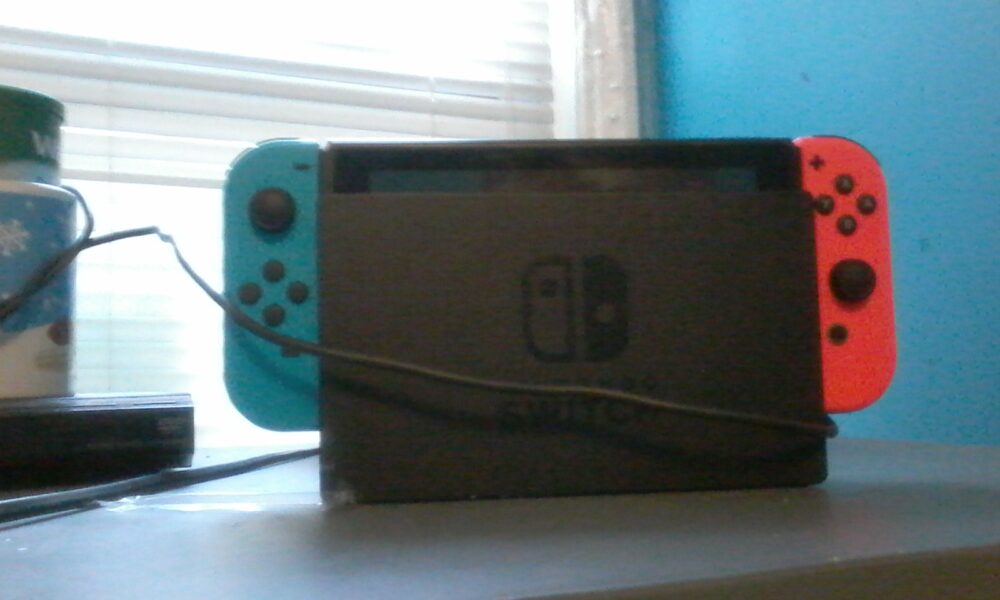

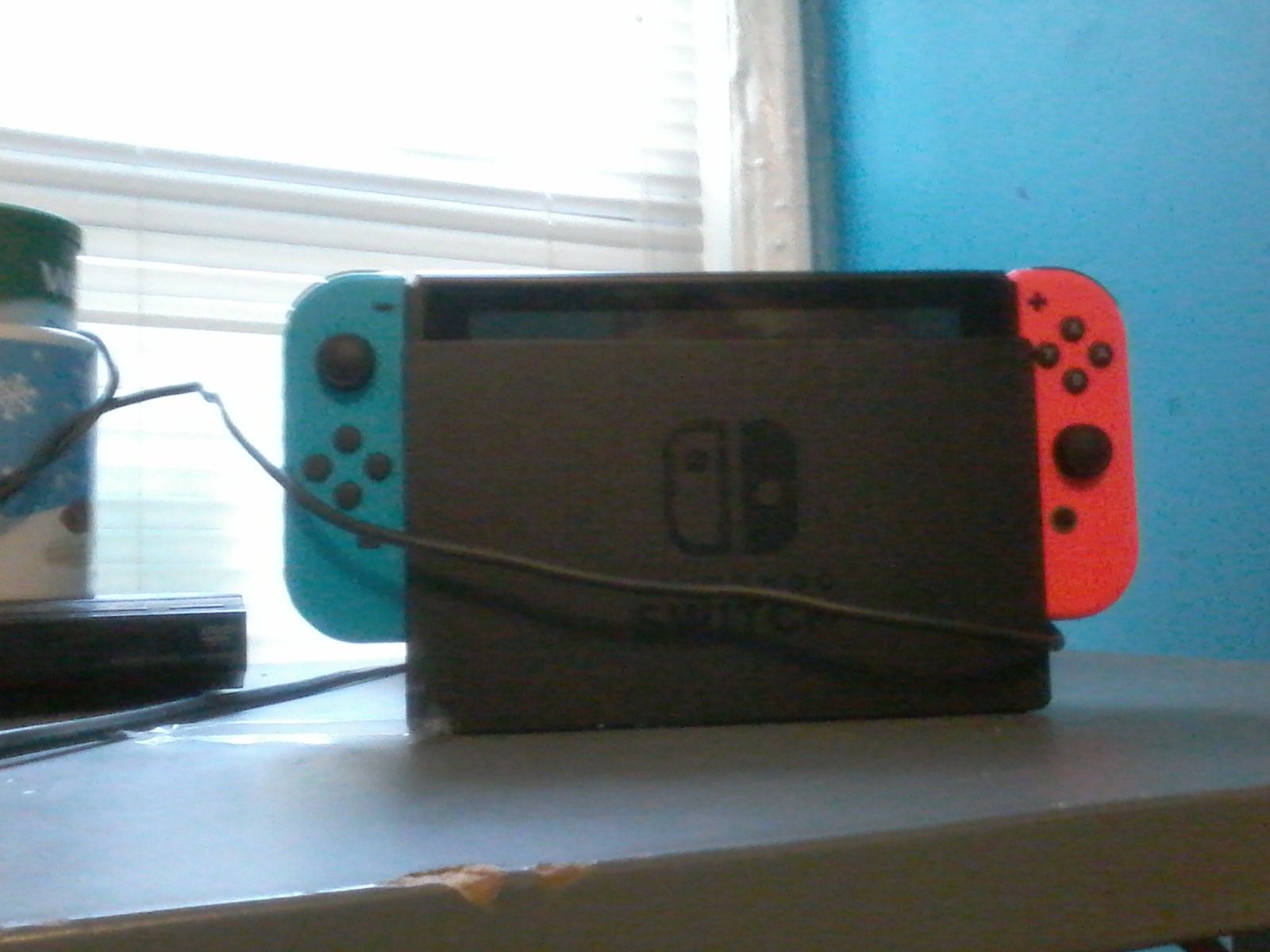
How to connect Nintendo Switch to TV is straightforward when you have the correct dock, power adapter and HDMI connection. The original Nintendo Switch and Nintendo Switch OLED support TV Mode; the Switch Lite does not. If the handheld works but the television says “No Signal,” a connection or power check is usually more useful than resetting the console.
Before You Start: Which Nintendo Switch Can Connect to a TV?
The standard Nintendo Switch and Nintendo Switch OLED Model can output a picture through a compatible Nintendo Switch dock. You need a dock, the Nintendo Switch AC adapter (HAC-002 in Nintendo’s US instructions), an HDMI cable and a TV or monitor with an HDMI input. Nintendo Switch Lite cannot output TV Mode video, even if you connect a USB-C-to-HDMI cable or put it in a third-party stand. This guide is for the original Switch and OLED model, not a Switch 2 setup.
How to Connect Nintendo Switch to TV in 7 Steps
- Open the dock’s rear cover. Put the dock on a stable, ventilated surface near your TV.
- Attach power. Plug the console’s Nintendo Switch AC adapter into the dock port labeled AC ADAPTER. Connect its other end directly to a wall outlet.
- Attach HDMI. Plug an HDMI cable into the dock’s HDMI OUT port, then connect the other end to an available HDMI port on the TV.
- Close the rear cover. Route cables without pulling tightly or pinching them.
- Prepare your controllers. Detach Joy-Con from the Switch if you want to use them wirelessly. Previously unpaired Joy-Con must first be registered to the console.
- Dock the console. Align the Switch so its screen faces the front of the dock, then lower it carefully into place. The built-in screen should turn off when TV Mode activates.
- Choose the TV input. Turn the television on and select the HDMI input number where the dock is connected. Wake the console if necessary and look for the HOME Menu.
These steps follow Nintendo’s official US setup guide. For an OLED model, the port layout and dock appearance differ slightly, but the power/HDMI/TV-input principle is the same.
Nintendo Switch Connected to TV but Showing No Signal?
First check the selected HDMI input. TVs often have multiple numbered HDMI sockets, and the remote may still be set to a streaming box or another console. If the dock LED behaves normally but the screen is blank, do not immediately assume the Switch is damaged.
Check the handheld display first
Remove the Switch from the dock. If its built-in screen is blank even while undocked, troubleshoot the console’s power or display rather than just HDMI output. If the handheld display works, continue with the TV and dock checks below.
Reconnect power and HDMI in a clean order
- Remove the console from the dock and switch the TV off.
- Unplug the dock’s AC adapter and HDMI cable. For a power reset, disconnect the AC adapter from both wall and dock for at least 30 seconds.
- Connect the Nintendo Switch AC adapter directly to a wall outlet, then connect HDMI directly from dock to television. Temporarily bypass receivers, splitters or converters.
- Turn on the TV, select the correct HDMI source, wake the Switch and place it back in the dock.
Nintendo recommends a closely related sequence in its blank-screen and TV-output troubleshooting guide. If the dock light keeps flashing or no picture appears after supported checks, the dock, cable, adapter, TV port or console may need further diagnosis.
Try one change at a time
Testing a known-working HDMI cable or a different HDMI port can isolate a cable or TV-input issue. Remove any bulky protective case that prevents the console from seating correctly in its dock. If you have access to an official compatible adapter and dock, testing one component at a time provides more useful evidence than swapping everything together. Stop using any adapter or cable that is visibly damaged.
Common Setup Mistakes to Avoid
| Symptom | Check first | Why it matters |
|---|---|---|
| TV says No Signal | Correct HDMI input and direct HDMI connection | The TV may be listening to another port. |
| Switch stays in handheld mode | Dock seating and AC adapter | TV Mode depends on the dock and suitable power. |
| Joy-Con buttons do not respond | Controller pairing | A TV connection does not automatically register every controller. |
| Using Switch Lite | Console model | Lite does not support TV Mode. |
| Video cuts out through an HDMI hub | Direct dock-to-TV cable | Removing intermediate devices simplifies diagnosis. |
For controller problems unrelated to HDMI, see our Nintendo Switch controller pairing guide. If the console will not charge at all, use our separate Nintendo Switch charging troubleshooting steps before blaming the TV.
Frequently Asked Questions
Can I connect Nintendo Switch to TV without a dock?
Nintendo’s supported TV Mode instructions use a compatible dock. A bare USB-C-to-HDMI cable should not be treated as a supported replacement. For reliable setup, use the dock and power components specified for your model.
Does Nintendo Switch Lite connect to a TV?
No. The Nintendo Switch Lite does not support TV Mode, according to Nintendo’s official support documentation.
Do I need the Nintendo Switch AC adapter to use the dock?
Nintendo’s US setup guidance specifies the Nintendo Switch AC adapter, model HAC-002. Some incompatible power sources can charge a handheld but fail to enable TV Mode correctly. Check your region’s official guidance before substituting accessories.
Why does the Switch screen turn black when docked?
That is normal when TV Mode is operating. The picture should appear on the TV’s selected HDMI input instead. If both screens are blank, check connections using the troubleshooting sequence above.
Will connecting to a TV delete games or saved data?
No. Docking to enter TV Mode is a display change, not a reset or data-transfer procedure. If you are moving data between two different systems, read our separate Nintendo Switch save-data transfer guide.
Reviewed October 11, 2026. Instructions checked against Nintendo’s published Switch and Switch OLED support pages; menus and compatible accessories can change with hardware revisions.

Other Articles

How to Put PS5 in Safe Mode: Two Beeps, Then Choose Safely
How to Clean PS5 Safely: Dust, Vents and What Not to Open