
Your Nintendo Switch is plugged in, yet its battery icon does not move—or the screen stays completely black. A Nintendo Switch not charging problem does not always mean a dead battery. An adapter that needs resetting, an empty battery, a bad outlet or a damaged connector can produce similar symptoms. The safest approach is to separate them without opening the console.

Quick answer: reset the adapter before doing anything drastic
For the original Nintendo Switch, Switch Lite and Switch OLED models, Nintendo’s official charging guide starts with two timed steps: unplug the AC adapter from both the outlet and console or dock for 30 seconds, then hold the console’s POWER button for 20 seconds. This is a forced shutdown, not a factory reset. Reconnect the adapter directly to the console and wall outlet, and press POWER once.
These instructions apply to the original Switch family, not automatically to Nintendo Switch 2. Use the support procedure for your exact model.
Follow these steps in order
1. Take the console out of the dock
If you normally charge through the dock, remove the handheld unit. Direct charging makes it easier to tell whether the dock is part of the problem. Leave accessories disconnected while you troubleshoot.
2. Reset the AC adapter for 30 seconds
Disconnect the adapter from both ends, not just from the console. Wait at least 30 seconds before connecting it again. Use Nintendo’s compatible adapter—model HAC-002 for the original Switch family in the US support instructions—and inspect the cable for cuts, severe bends or exposed wiring. Never keep using a visibly damaged power adapter.
3. Hold POWER for 20 seconds
Keep the POWER button held continuously for 20 seconds, then release. This stops a hung system that may seem unresponsive even when it has power. Connect the adapter directly to the wall and console, and briefly press POWER again.
4. Give a nearly empty battery time
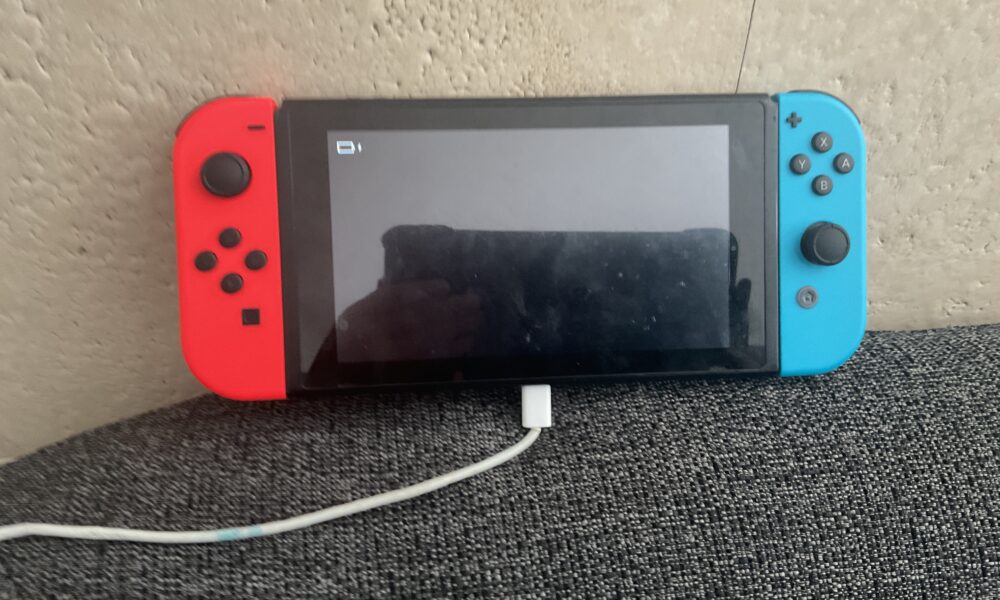
If the battery is deeply depleted, Nintendo says the display may initially remain dark, apart from a momentary charging indicator. Leave it on the correct charger for at least 30 minutes before trying to turn it on again. Avoid repeatedly disconnecting it every few seconds.
5. Rule out the wall outlet and dock
Try a different working wall outlet. If direct console charging works but dock charging does not, focus on the dock, its connections and its supported accessories rather than assuming the handheld battery is bad.
6. Look for visible connector damage—without probing the port
Check the USB-C connector and adapter plug under good light. Bent metal, corrosion, a loose port or unusual heat are reasons to stop and request service. Do not insert pins, metal picks, liquids or DIY repair tools into the port.
7. Use the adapter test to narrow down the fault
Nintendo’s support flow suggests testing the compatible AC adapter with another supported Nintendo accessory, such as a Pro Controller or charging stand. If it powers another device but not the Switch, that evidence helps distinguish a console-side fault from an adapter fault. It is not a definitive electrical test.
What each symptom may mean
| Symptom | Safe next step |
|---|---|
| Brief battery icon, then black screen | Allow at least 30 minutes of charging with the correct adapter. |
| No image or response at all | Reset adapter and force shutdown; try a known-working outlet. |
| Charges directly but not in the dock | Check dock power connections and consult Nintendo’s dock support. |
| Loose, bent or damaged USB-C port | Stop inserting cables and arrange manufacturer-authorized service. |
| Charger cable is frayed or hot | Disconnect it safely and replace with a compatible approved adapter. |
Will these steps erase your games or saves?
No: unplugging the adapter, charging the battery and holding POWER for a forced shutdown are not factory resets. Avoid choosing initialization, formatting or reset options to solve an electrical charging issue. If you need to protect your saved data before repair, read our Nintendo Switch save-data transfer guide—transferring saves is separate from diagnosing charging hardware.
When should you request a repair?
If the correct adapter, a working outlet and Nintendo’s documented reset steps do not restore charging, or if a USB-C connector is visibly damaged, contact Nintendo Support. The model and warranty status affect your options. Battery replacement and power-port repairs are not good first-time DIY projects because of electrical and battery risks.
FAQ
Why is my Switch charging icon visible but the screen stays black?
A nearly empty battery may show only a fleeting charging icon. Nintendo advises waiting at least 30 minutes on the proper charger before retrying startup.
Can a phone charger charge a Nintendo Switch?
Not all USB-C chargers provide the same supported power behavior. For troubleshooting, use the Nintendo-compatible adapter recommended for your model rather than judging the console with an unknown charger.
Does holding POWER for 20 seconds delete saves?
No. It forces the console to turn off. It is not the factory initialization process.
Should I open the Switch or clean its charging port with a pin?
No. Check only for visible damage and seek service if the port appears damaged or blocked. Metal tools and liquids can cause further harm.
For a different controller setup question, see our Nintendo Switch Pro Controller PC connection guide.