
Roblox Studio keyboard shortcuts can make building and testing an experience much faster. Instead of opening a toolbar menu for every action, you can switch tools, undo mistakes and launch a playtest from the keyboard. The exact shortcut can depend on your operating system, keyboard layout and the Studio version, so treat the interface’s shortcut labels as the final authority.
Roblox Studio shortcuts worth learning first
| Action | Common Windows shortcut | What it does |
|---|---|---|
| Undo | Ctrl + Z | Reverses the last supported edit |
| Redo | Ctrl + Y | Restores an edit after undo |
| Save | Ctrl + S | Saves your place or project through Studio’s save workflow |
| Copy | Ctrl + C | Copies selected objects or text |
| Paste | Ctrl + V | Pastes copied content |
| Duplicate | Ctrl + D | Duplicates the current selection |
| Play test | F5 | Starts a standard playtest |
| Run simulation | F8 | Runs the simulation without the normal player-spawn flow |
On macOS, many familiar editing commands use Command rather than Control, but not every Windows shortcut has an identical Mac equivalent. Function keys may require the Fn key on some keyboards. Check the menu label in your own installation when a shortcut does not respond.
Move, scale and rotate parts without losing control
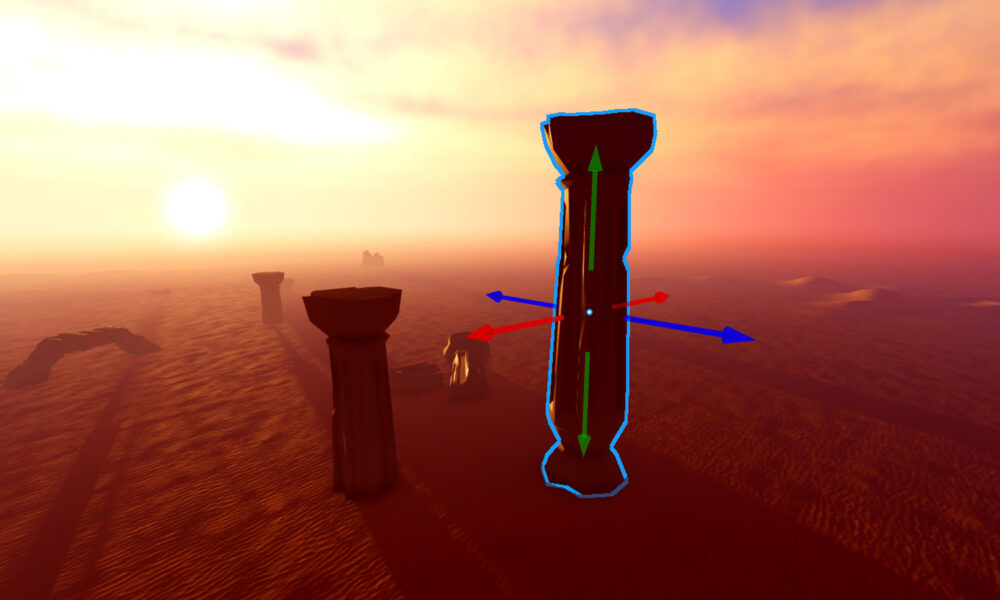
Three editing modes matter more than memorizing dozens of keys: Move, Scale and Rotate. Select a part in the viewport or Explorer, then activate the corresponding tool from Studio’s toolbar. Colored handles appear on the selection so you can transform it along the intended axes.
For precise building, pay attention to the snap settings. A move increment prevents tiny accidental gaps; a rotation increment helps keep walls, doors and platforms aligned. If a part unexpectedly jumps, inspect snapping before assuming the shortcut is broken. Anchoring a structural part is also important: otherwise it may fall when you run the simulation.
How to find the correct shortcut in your Studio version
- Open Roblox Studio on a supported Windows or macOS computer.
- Look for the command in the relevant menu or toolbar.
- Check whether the interface displays a shortcut beside its name.
- Open Studio settings and look for shortcut customization or keyboard-related controls if available in your version.
- Test the command in a disposable Baseplate project before relying on it in a larger game.
Studio evolves, and shortcuts can change. This method is more dependable than copying an old screenshot or a list made for a different keyboard layout.
Use shortcuts in a beginner building workflow
Start with a Baseplate project. Insert one block, select it, and duplicate it several times to make a small platform. Use the Move tool to separate the copies and Scale to create different sizes. Undo a bad change immediately instead of deleting and rebuilding the object. Save your work, then start a playtest to check whether your character can walk across the platforms.
This is a useful first exercise because it links shortcuts to a real goal. Our beginner Roblox game creation guide walks through building a playable obby, and our Studio testing guide explains the difference between solo, run and multiplayer tests.
Why a Roblox Studio shortcut might not work
The keyboard focus is inside a script
When the Script Editor is active, a key combination may act on text rather than the 3D viewport. Click the viewport or Explorer and try again.
Your operating system intercepts the keys
System-level shortcuts, accessibility tools, screen recorders and keyboard remapping utilities can take precedence over Studio. Check whether the same combination works elsewhere.
You are using a laptop function row
On some laptops, F5 or F8 controls brightness, media playback or another system function. Holding Fn may be necessary, depending on the keyboard configuration.
The selected object cannot use that action
A tool can appear unresponsive when no valid object is selected, the object is locked, or you are in a mode that does not support the operation. Confirm the selection and mode first.
Keyboard shortcuts versus scripts
A Studio shortcut changes how you edit an experience. A Luau script changes how the experience behaves when it runs. They solve different problems. For example, duplicating a platform is an editor action, while awarding points when a player touches it requires game logic. If you are ready for that next step, see our Roblox Studio Luau scripting guide.
Frequently asked questions
What is the fastest way to undo in Roblox Studio?
Use the Undo command; Ctrl + Z is the familiar Windows shortcut. Confirm the current menu label if your keyboard behaves differently.
How do I test a Roblox game with the keyboard?
F5 commonly starts a standard playtest in Studio. Other testing modes are available from the testing controls.
Can I use Roblox Studio shortcuts on an iPad?
Roblox Studio is designed for supported desktop operating systems rather than a native iPad editing app. Our Roblox Studio mobile availability guide explains the difference between playing and editing.
Accuracy note: Shortcut assignments and interface labels may vary by Studio release. Verify a command in the current application before using it in a production project.