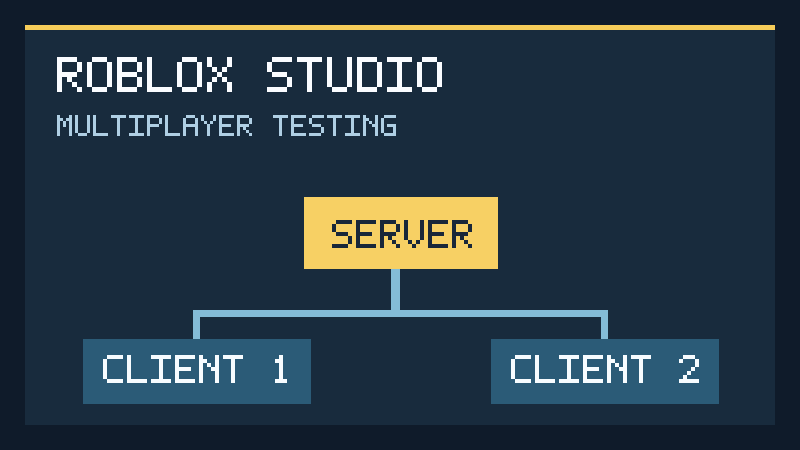

To test a Roblox game in Studio, open your experience, choose a testing mode from the playtest dropdown, and press Play. Use Test (F5) to control a character, Run (F8) to simulate the world without spawning a character, or Server & Clients (F7) to check how multiple players interact. A game that works for one person can still break when two players join, so a multiplayer test should be part of your routine before publishing.
This guide explains what each Roblox Studio testing mode actually checks, how to launch a two-player simulation, and which mistakes to look for. If you are still building your first project, start with our Roblox game creation guide before following the testing checklist.
Roblox Studio testing modes at a glance
| Mode | Shortcut | Best for | What it does not prove |
|---|---|---|---|
| Test | F5 | Movement, jumps, interface, and one-player gameplay | How multiple real players interact |
| Test Here | Choose from the dropdown | Checking a particular section of a large map | Whether a player can reach that section normally |
| Run | F8 | Physics and server-side world behavior without an avatar | Whether player controls and character scripts work |
| Server & Clients | F7 | Replication, shared objects, and multiplayer interactions | Actual public-server performance on every device |
Roblox’s official Studio testing documentation describes these modes and notes that Server & Clients can simulate as many as eight clients. For a first test, two clients are normally enough to reveal basic multiplayer mistakes.
How to test your Roblox game by yourself
- Open Roblox Studio and load the place you want to test.
- Save your work before experimenting with scripts or objects.
- Open the playtest dropdown in the Studio toolbar and choose Test.
- Press F5 or click the Play button.
- Walk the entire route as a player would. Try jumping, touching hazards, activating prompts, and using every menu.
- Stop the session with Shift+F5. Studio resets the simulated state to the pre-test scene.
Do not just check whether your character spawns. A useful solo test answers specific questions: Can a new player tell where to go? Can they complete the first objective without instructions from you? Does the camera behave near walls? Is the reset or respawn behavior clear?
When Test Here is more useful than Test
Test Here starts the avatar near your current camera position. That makes it practical for inspecting the end of an obstacle course or a distant room without replaying the entire map. However, you should still complete at least one full run from the normal spawn point. A section that works when entered directly may be unreachable in the actual game.
When to choose Run instead
Run simulates the experience without inserting a player avatar. It helps isolate world behavior such as moving parts, scripted doors, or physics-driven objects. If a mechanic needs a player’s character, inventory, or on-screen controls, use Test or a multiplayer simulation instead.
How to test two players in Roblox Studio
Server & Clients is the mode to choose when your game includes trading, team mechanics, shared buttons, competitive rounds, or anything that depends on more than one player.
- Open your game in Studio.
- In the playtest mode dropdown, select Server & Clients.
- Set the client count to 2.
- Press F7 or click Play.
- Studio opens a simulated server and two client sessions. Move the players independently and compare what each client sees.
- When finished, choose End Session to close the simulated server and clients.
Five multiplayer checks worth doing
- Shared objects: Have Player A move or activate an object. Does Player B see the expected result?
- Private information: Does a menu intended for Player A stay hidden from Player B?
- Simultaneous actions: What happens if both players press the same button or claim the same reward at nearly the same time?
- Joining and leaving: Does the game handle a player disappearing during a round without leaving everyone stuck?
- Reset behavior: After one player dies or respawns, are scores and shared objects still correct?
For a competitive game, repeat the test with the players exchanging roles. Testing only as the first player can conceal a bug that affects everyone else.
Client vs server: why the difference matters
Roblox experiences use a client-server model. In simple terms, each player has a local view of the game, while the server coordinates shared state. A change that appears on one client’s screen is not automatically proof that every other player or the server received it.
During solo playtesting, Studio provides a Client/Server toggle. Switch between the two views to inspect the corresponding objects in Explorer and the messages in Output. Roblox’s documentation explains that Output labels can help distinguish client-originated messages from server-originated messages.
If an object appears in one view but not another, first ask whether the code ran locally or on the server. Then check where the script is stored and how the change is communicated. Beginners learning that distinction can also read our Roblox Studio scripting guide.
How to test Roblox games on mobile-sized screens
Use Studio’s Device Simulator to preview different screen sizes and touch-oriented layouts. Check whether buttons overlap, text is legible, and important controls remain reachable. A desktop interface can look polished while being difficult to use on a small phone.
Device simulation is a useful preview, not a replacement for trying the published private experience on an actual supported phone or tablet. Real devices can expose performance, network, and input issues that a desktop preview does not reproduce.
Common testing problems and how to investigate them
The game works in Test but not with two clients
Check whether your script assumes there is only one player. Look for UI or objects stored in the wrong place, actions that run only locally, and shared values that are overwritten when the second player joins. Reproduce the problem with just two clients before adding more complexity.
The avatar does not appear in Run mode
That is expected. Run starts a simulation without spawning your avatar. Switch to Test when you need to control a character.
Changes made during a playtest disappear
Stopping a playtest restores the scene to its pre-test state. Make edits in normal Studio editing mode and save your project; do not rely on changes made during a simulation being retained.
Everything seems correct on a fast connection
Try Studio’s network simulation options, which can introduce latency, jitter, and packet loss. This is particularly useful for interactions that depend on timing, but it still cannot guarantee identical results on every player’s connection.
A practical pre-release checklist
- Finish one complete run from the normal spawn point.
- Repeat key actions after resetting the character.
- Test with two simulated clients and compare both views.
- Try interacting with the same object at the same time.
- Check a narrow screen layout with Device Simulator.
- Inspect Output for errors and unexpected messages.
- Verify that menus and controls work without developer instructions.
- Save your edits and retest the exact version you plan to release.
Frequently asked questions
How do I test a Roblox game without publishing it?
Open the project in Roblox Studio and run a local playtest with F5. You do not need to make an experience public to use Studio’s built-in testing modes.
How do I play Roblox Studio with two test players?
Choose Server & Clients, set the client count to two, and press F7. Studio creates a server simulation and separate client sessions for testing multiplayer behavior.
What is the difference between F5 and F8 in Roblox Studio?
F5 starts Test with a player character. F8 starts Run without spawning your character. Use F5 for player-facing gameplay and F8 for world simulation that does not require an avatar.
Can Studio simulate eight players?
According to Roblox Creator Hub, Server & Clients supports up to eight simulated clients. More clients can reveal additional interactions, but a careful two-client test is a good starting point.
Documentation reference: Roblox Creator Hub — Studio testing modes. This guide is an independent editorial explanation, not a claim that AVARIXO performed hands-on testing of a particular game.