
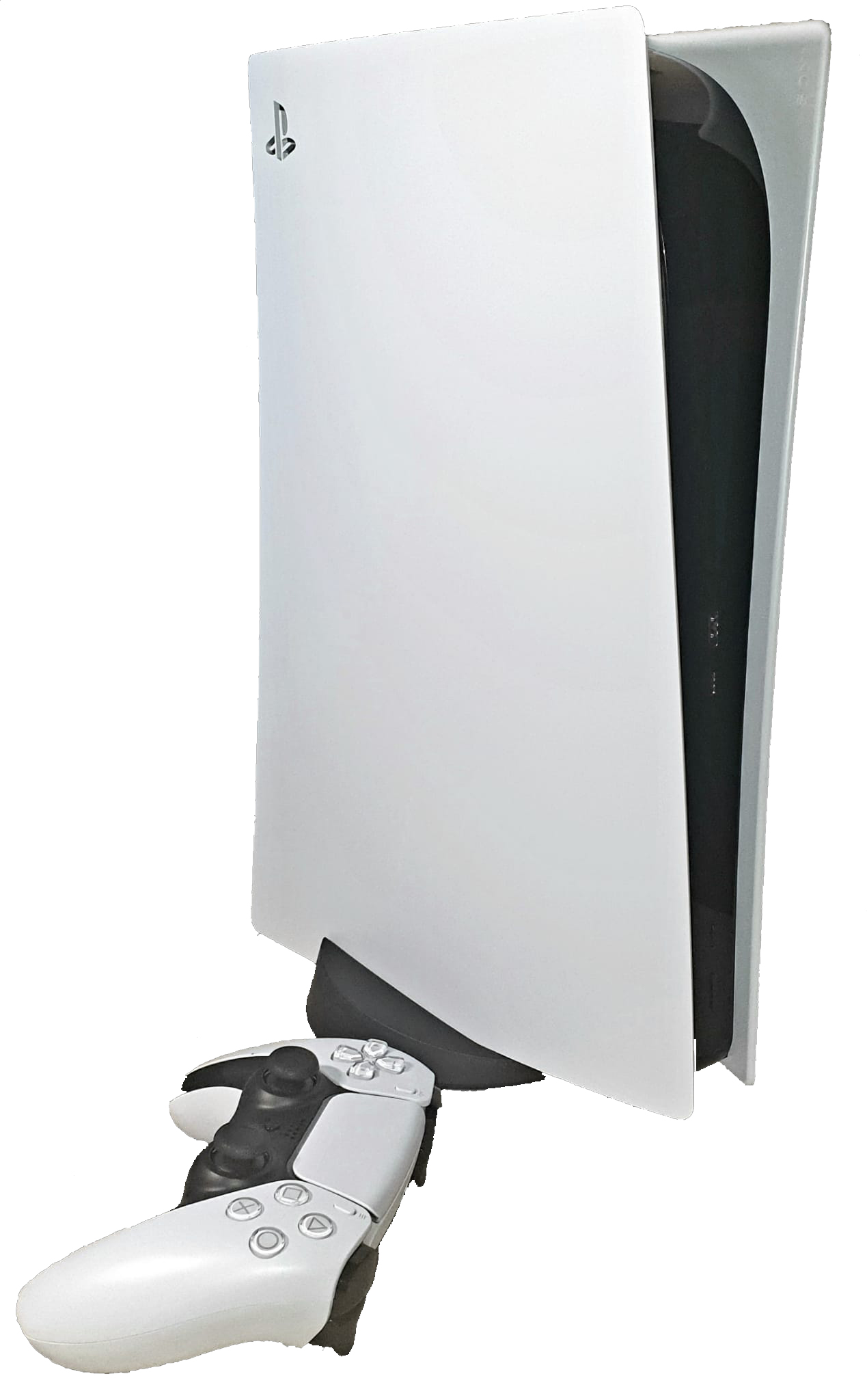
If your PS5 is running out of storage, you have three practical options: delete or move games you are not playing, use a compatible USB drive to store PS5 games and play PS4 games, or install a compatible internal M.2 NVMe SSD so you can store and play PS5 games directly from the additional drive. The cheapest fix is often to check Settings > Storage before buying hardware.
The key distinction is what you can run, not just what you can store. A USB drive can archive PS5 games but cannot launch them directly; a correctly installed, compatible M.2 SSD can. This guide explains those trade-offs, Sony’s current technical requirements and safe ways to recover free space.
PS5 storage options compared
| Storage option | Play PS5 games directly? | Play PS4 games directly? | Best for |
|---|---|---|---|
| Built-in console SSD | Yes | Yes | Active games and system storage |
| Compatible internal M.2 NVMe SSD | Yes | Yes | Expanding your playable game library |
| Compatible USB extended-storage HDD or SSD | No; copy PS5 games back to console or M.2 storage first | Yes | Archiving PS5 games and playing PS4 titles |
| PlayStation Plus cloud storage | Not a game-installation drive | Not a game-installation drive | Eligible saved-game backups with a subscription |
Source: PlayStation’s official storage management guide. There is no universal “best PS5 drive”: the right option depends on whether you need playable PS5 game installs, inexpensive archival storage or only a little free space.
How to check PS5 storage and free space
- From the PS5 home screen, select Settings (the gear icon).
- Open Storage.
- Select the relevant location, such as Console Storage or an installed M.2/USB drive.
- Review which categories use the most space. Check Games and Apps before making any purchase.
- Note your free space and the size of the game you want to install. Leave some headroom for updates and captures rather than trying to fill every available byte.
Storage totals vary by PS5 model and system reservations. Do not assume every console offers the same user-available capacity because two boxes advertise similar numbers. The console’s Settings > Storage screen shows the usable total for the actual device.
Delete games without losing purchased access
Go to Settings > Storage > Console Storage > Games and Apps, choose a game or app you no longer need installed, then select Delete. Sony states that deleting an installed digital game does not revoke ownership; you can redownload qualifying purchases from your game library. Nevertheless, make sure your saved data is preserved before deleting anything, and remember that some titles have separately managed add-ons or game components.
Large games can also have optional content packs or language assets. When a game’s menu offers Customize, inspect removable portions carefully instead of deleting the entire game. If you are trying to recover space specifically for Fortnite, AVARIXO has a separate guide on Fortnite download size and freeing space.
How much PS5 storage do you need?
A practical capacity estimate starts with your own game library, not a generic list of “average” game sizes. In your library, add the installed sizes of the PS5 games you regularly rotate between, then allow space for game updates, screenshots and future titles. Someone who mainly plays a small number of games may not need a new drive; someone switching among many large modern releases may benefit from an additional SSD.
| Your situation | Practical first choice | Why |
|---|---|---|
| Only one or two unwanted games fill the console | Delete or move older installations | No hardware purchase needed |
| You archive many PS5 games but rarely replay them | Compatible USB extended storage | Stores them without repeated internet downloads |
| You frequently switch among installed PS5 titles | Compatible M.2 NVMe SSD with heatsink | Additional directly playable PS5 installs |
| Most of your library consists of PS4 games | Compatible USB extended storage | PS4 games can launch from it |
| You only want to preserve save files | Use the official saved-data options | Save backups and game installation storage are different things |
For a new purchase, compare usable capacity, reliability, warranty and return policy. Check compatibility against Sony’s latest specifications; a product listing that merely says “M.2” or “PS5 style” is not a technical certification.
PS5 M.2 SSD requirements: what actually matters
PlayStation specifies a PCIe Gen4 x4 NVMe M.2 SSD (Key M), with a supported capacity of 250 GB to 8 TB. Compatible physical formats include 2230, 2242, 2260, 2280 and 22110, provided the full drive-and-heatsink assembly fits the PS5 slot. Sony recommends a sequential read speed of 5,500 MB/s or faster.
| Requirement | Sony’s published specification |
|---|---|
| Interface | PCIe Gen4 x4 NVMe (M.2 Key M) |
| Storage capacity | 250 GB–8 TB |
| Supported lengths | 2230, 2242, 2260, 2280, 22110 |
| Overall width with cooling | Up to 25 mm |
| Overall thickness with cooling | Up to 11.25 mm, with limits above and below the board |
| Recommended sequential read speed | 5,500 MB/s or faster |
| Heat management | Effective heatsink or equivalent cooling mechanism required |
These figures come from Sony’s US PS5 M.2 SSD installation and compatibility page. An M.2 SATA SSD is not interchangeable with an M.2 NVMe drive. A fast drive can still fail the fit check if its heatsink is too tall or wide.
Do you need a heatsink for PS5 storage?
Yes. Sony requires an effective heat-dissipation structure when using an M.2 SSD in a PS5. Some compatible drives include a heatsink; others need a suitable aftermarket one. Measure the complete assembly, not only the bare SSD. An oversized heatsink can keep the PS5 expansion-slot cover from closing correctly.
How to install an M.2 SSD in a PS5 safely
Installation differs between PS5 hardware revisions, so first identify your model group and follow Sony’s model-specific diagrams. The summary below is an orientation checklist, not a replacement for the official illustrated procedure.
- Check compatibility first. Confirm the drive’s interface, capacity, size, heatsink clearance and performance.
- Update system software. Sony asks you to use current PS5 system software before installation.
- Power off completely. Disconnect cables and let the console cool. Do not open it in Rest Mode.
- Prevent static damage. Work on a clear surface, follow the grounding advice on Sony’s support page and use a suitable #1 Phillips screwdriver.
- Remove the correct cover. PS5 model families have different cover and expansion-slot layouts.
- Fit and secure the SSD. Insert the drive into the expansion connector, use the correct spacer position and secure the screw without bending the board.
- Replace all covers. Never turn on or play on the PS5 while a protective cover is off.
- Format when prompted. An SSD being installed for first use may require formatting. Formatting erases data already on that drive, so verify it has no files you need.
Follow the current instructions and illustrations at PlayStation Support: Add an M.2 SSD. Never force a connector or run the console with an exposed slot simply to test whether a poorly fitting heatsink “works anyway.”
How USB extended storage works on PS5
A compatible USB drive must support SuperSpeed USB at 5 Gbps or later and have a capacity between 250 GB and 8 TB. The console needs to recognize it and you must format it as USB extended storage, which erases existing data on the drive. Connect it directly to a compatible PS5 port rather than through a USB hub.
Once formatted, the drive can hold PS5 titles that are not currently being played. To launch one of those PS5 games again, copy it back to console storage or compatible internal M.2 SSD storage. PS4 games, by contrast, can be played directly from supported USB extended storage. See PlayStation’s official USB extended-storage instructions for the latest port, formatting and safe-removal steps.
Can you use any USB external hard drive?
No. The drive must meet Sony’s capacity and speed requirements; compatibility is not guaranteed for every model. Drives connected through hubs are unsupported for this purpose. If you already own a suitable external HDD or SSD, checking compatibility can be cheaper than purchasing a new internal SSD. But do not buy a USB drive expecting to run native PS5 games directly from it.
Where are PS5 saves, screenshots and video clips stored?
Game installation files, save files and media captures are different categories. Sony’s current storage table distinguishes them: PS5 saved data is managed separately from installable game data, PlayStation Plus offers qualifying cloud storage for saves, and screenshots/video clips can be copied to an ordinary compatible USB drive under the supported media-copy workflow. Do not use an M.2 or USB game drive as if it were a universal location for all PS5 data.
Before deleting a game or resetting a console, review Settings > Saved Data and Game/App Settings and confirm where your save data lives. Save-backup eligibility depends on the game generation, account and whether you have a PlayStation Plus subscription. For troubleshooting console recovery, see our separate PS5 Safe Mode guide, but don’t enter recovery tools merely to free ordinary storage.
PS5 storage mistakes to avoid
- Buying an M.2 SATA drive: it is not the required PCIe Gen4 NVMe interface.
- Buying the wrong heatsink: total width and thickness matter, not only drive length.
- Expecting USB drives to launch PS5 games: they store PS5 games, but those games must be moved back to fast compatible storage to play.
- Formatting without checking: formatting a newly added drive can permanently erase prior data.
- Deleting save files accidentally: installed games and saved progress are managed separately; review both.
- Ignoring your specific console model: cover-removal and SSD installation steps vary by PS5 model group.
Frequently asked questions
Can PS5 games be played from an external USB SSD?
No. You can store PS5 game files on compatible USB extended storage, but must copy them back to the console’s built-in SSD or a compatible installed M.2 SSD to launch them. PS4 games can launch directly from supported USB extended storage.
What is the maximum PS5 M.2 storage expansion?
Sony’s published PS5 M.2 SSD compatibility requirements support drives from 250 GB through 8 TB, as long as all other technical and physical requirements are met.
Does every M.2 NVMe drive work in a PS5?
No. Check PCIe generation, supported key and form factor, capacity, cooling, overall dimensions and Sony’s recommended performance. Model-specific compatibility should be checked before purchase.
Can I run PS4 games from an M.2 SSD installed in PS5?
Yes. Sony lists supported PS4 and PS5 game data as playable from a compatible installed M.2 SSD.
Will deleting a PS5 game remove my purchase?
No, deleting the installation does not normally remove digital purchase entitlement; eligible games can be redownloaded. Always verify your saved data before deleting files.
Why does my PS5 show less usable storage than the advertised capacity?
Part of a console’s built-in storage is reserved for system use, and total storage also varies by model. Check the usable amount on your actual console in Settings > Storage rather than relying on a model-agnostic number online.
Do I need PlayStation Plus to add an SSD?
No. An installed M.2 SSD is hardware expansion, not a PlayStation Plus subscription feature. PlayStation Plus matters for certain cloud-save options, not for the physical expansion slot.
Bottom line
For PS5 storage, start by checking what is taking up space. Use a compatible internal M.2 NVMe SSD when you need more directly playable PS5 games; choose USB extended storage when you mainly archive games or play PS4 titles. Before buying or installing anything, confirm the current rules on PlayStation’s official PS5 storage management page and the M.2 compatibility specifications.

Other Articles