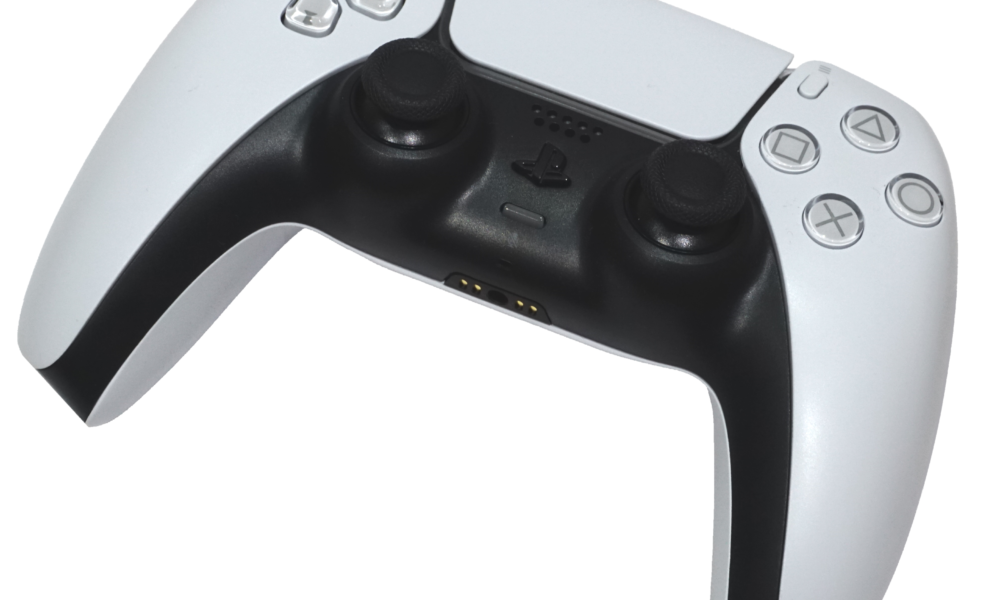

A PS5 controller not charging does not automatically mean the DualSense battery has failed. The console may not be supplying USB power in rest mode, a cable may have worn out, or the charging connector may be obstructed or damaged. Check these possibilities in a safe order before buying a replacement controller.
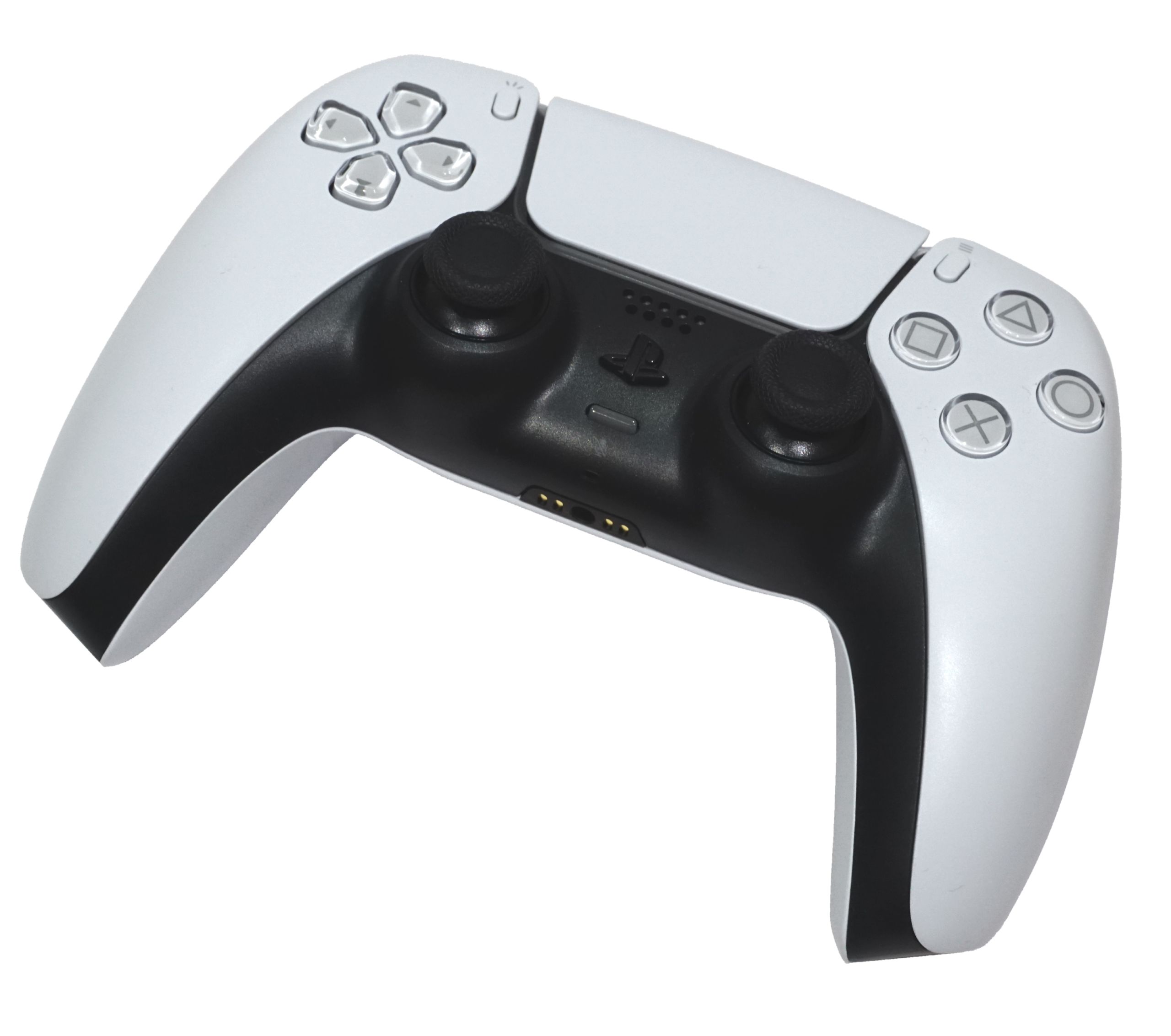
Quick checks before you replace anything
- Connect the controller to an awake PS5 with its compatible USB cable and check whether the battery indicator shows charging.
- Reseat the USB-C end gently; do not force it if the port feels loose or blocked.
- If possible, test another known-good, compatible USB data-and-charge cable.
- Try a working PS5 USB port without a hub or extension.
- If charging fails only in rest mode, inspect the console’s USB power in rest mode setting.
- Stop using a cable or controller that is visibly damaged, hot or swollen, and seek professional assistance.
Sony explains console charging behavior in its official PlayStation charging guide. Your first goal is to tell a power-supply setting from a hardware problem.
Fix 1: check if the PS5 is supplying power while resting
When you charge from a PS5 in rest mode, power delivery depends on the console’s settings. On the console home screen, open Settings → System → Power Saving → Features Available in Rest Mode. Look for Supply Power to USB Ports and choose a supported option such as Always or 3 Hours.
Sony notes that a 3 Hours choice supplies power for a limited period after entering rest mode. On compatible PS5 CFI-2000 models, you may also see Adaptive, which adjusts charging behavior based on the connected controller and its remaining charge. The available options depend on your console model.
Fix 2: test the cable and charging port separately
A cable can appear undamaged while having a broken internal connection. Where available, test a known-working compatible cable and the controller connected directly to the console. Avoid changing the cable, hub and power source all at once: if charging suddenly works, you will not know which part was responsible.
Look at the controller’s USB-C socket under good lighting. If you notice bent metal, liquid residue or a loose connector, stop. Do not poke needles, add cleaning liquid or attempt battery work. A damaged USB-C port is a service issue, not a reason to keep forcing the plug.
Fix 3: check the battery indicator correctly
When the PS5 interface is available, open the Accessories area in the control center and inspect the controller battery icon. Sony says the icon animates while charging. An indicator that changes after reconnecting the cable is more informative than guessing from the controller’s light color alone.
Be aware that a deeply discharged controller may take time before it can turn on normally. Give a suitable charger a reasonable opportunity to work while you monitor for overheating or unusual behavior.
Fix 4: avoid misleading tests from unsupported USB sources
Some computer and third-party USB ports supply different current levels or may not support charging in the way you expect. Sony notes that controllers can charge from certain computers or other USB devices, but some devices will not charge them. A failed test with one random charger is not proof the controller battery is dead.
Fix 5: reset a controller that also refuses to respond
If the controller is charged but unresponsive or failing to pair, Sony provides a separate reset procedure: turn off the PS5, unplug the controller and press the recessed reset button on the back for at least five seconds. Then reconnect by USB and press PS. Resetting is mainly a connection-troubleshooting step; it is not a repair for a defective battery or charge port. See Sony’s official DualSense reset guidance before trying it.
What different charging symptoms suggest
| Symptom | First check |
|---|---|
| Charges when PS5 is awake but not in rest mode | USB power setting in Features Available in Rest Mode |
| Charges with one cable but not another | Potential cable fault or compatibility problem |
| Loose, bent or hot connector | Stop charging and seek authorized service |
| Battery icon animates but controller disconnects | Investigate wireless pairing and controller firmware separately |
| No power with multiple verified compatible sources | Use Sony’s repair support and hardware diagnostics |
When should you request a repair?
Choose repair support if the USB-C port is damaged, the controller overheats, the case appears swollen, or several confirmed compatible cables and power sources produce no charging response. Do not open a lithium-ion battery enclosure or modify charging circuits as a basic troubleshooting step.
FAQ
Does a PS5 controller charge in rest mode?
Yes, when the console and its rest-mode power settings support the connected accessory. Sony documents Always, 3 Hours and model-dependent Adaptive options.
Why does the DualSense charge only when PS5 is on?
Check whether USB power delivery is enabled in rest mode before suspecting the battery.
Can I charge DualSense with a laptop?
Sony says some computers and USB devices can charge compatible controllers, but not all do. Use a compliant compatible USB cable.
Will resetting DualSense repair a dead battery?
No. Resetting can help with controller response or pairing, not failed physical charging hardware.
Can outdated firmware cause other controller problems?
It can be worth checking for supported updates once charging works; see our DualSense firmware update guide.

Other Articles

How to Reset a PS5 Controller: Find the Hidden Button and Pair Again
How to Clean a Charging Port Safely (Without Damaging Pins)
