

A DualSense that keeps disconnecting, will not respond or refuses to pair can sometimes recover after a reset. Before you try random fixes, here is how to reset a PS5 controller using the small button Sony built into the back. This resets the controller connection state, not your PlayStation 5 console or your saved games.
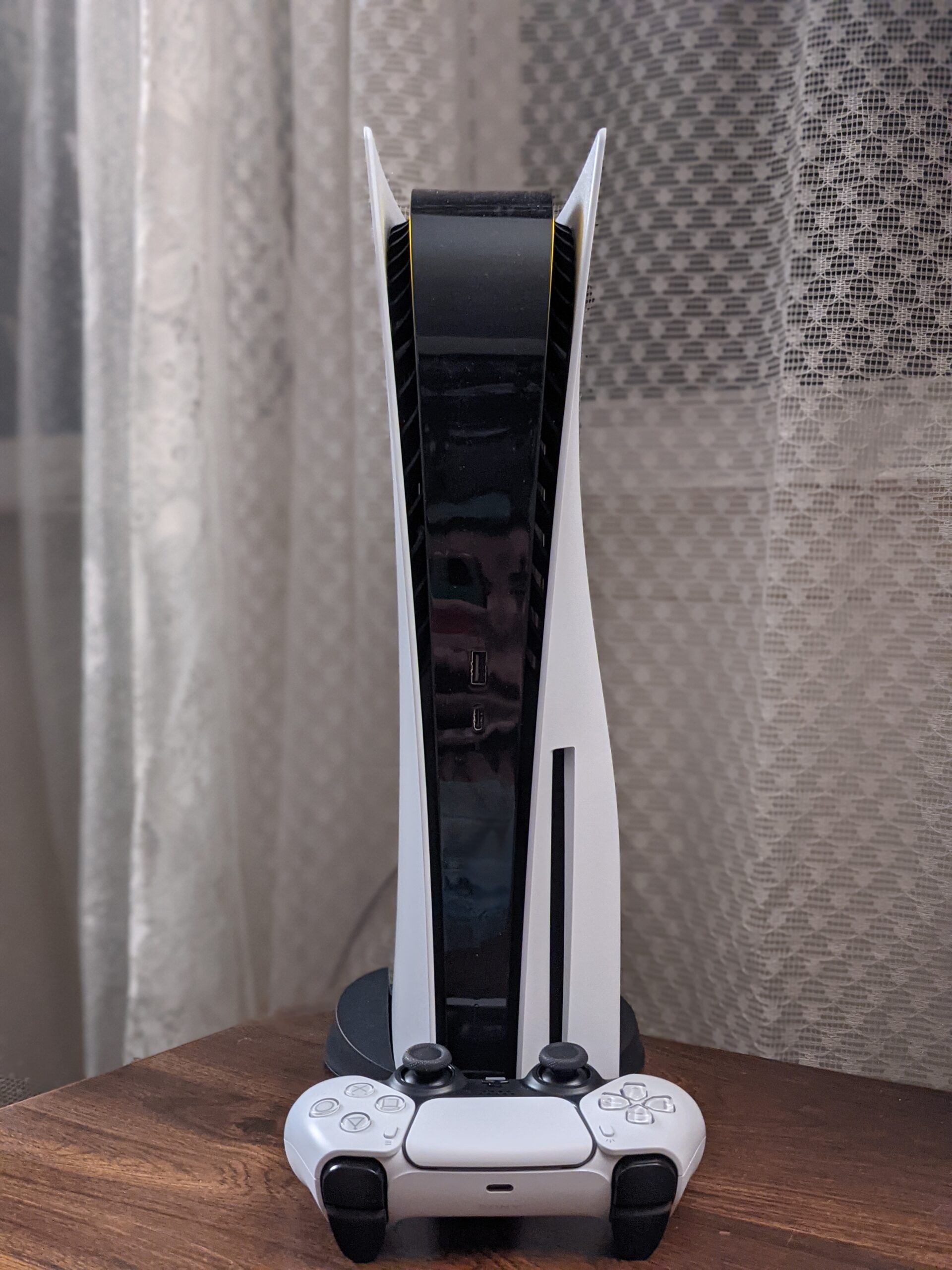
Quick answer: how to reset a DualSense controller
- Turn off the PS5 console. Do not confuse rest mode with a full shutdown when following Sony’s troubleshooting procedure.
- Disconnect the controller’s USB cable.
- Turn the controller over and locate the small reset hole on its back, next to the Sony logo.
- Use a suitable pin or similar small tool to press the recessed reset button gently.
- Connect the DualSense to the PS5 using the official USB cable.
- Press the PS button to reconnect, then check whether normal input has returned.
These steps come from Sony’s official DualSense troubleshooting guide. The tiny reset hole is not the microphone opening: inspect the actual diagram on Sony’s help page if you are unsure, and never force a tool into an opening.
Reset versus restart: what is the difference?
| Action | When it helps | What it changes |
|---|---|---|
| Turn the controller off and on | Minor temporary connection glitches | Restarts the current session |
| Use the recessed DualSense reset button | Persistent pairing or response problems | Resets the controller for reconnection |
| Factory reset the PS5 console | Major console issues after careful diagnosis | Can remove console data depending on option |
You do not need to factory-reset the entire PS5 just because a controller is not connecting. Keep those troubleshooting paths separate to protect console data.
Where exactly is the reset button?
On a standard DualSense, turn the controller around so you can see its rear shell. Sony identifies a small hole beside its logo as the reset location. Do not press into the speaker, microphone or another vent by guesswork. The location and procedure for DualSense Edge or other controllers may differ, so use the support page for your exact model.
What if the PS5 controller still does not connect?
Test the USB connection, not only the Bluetooth pairing
Follow Sony’s recommendation to reconnect with the official USB cable and press PS. A cable used only for power, a damaged port or a loose connector may interfere with reconnection. If you have a confirmed working compatible cable, testing it can help narrow down an accessory problem.
Update PS5 system software
Sony advises ensuring the PS5 system software is current if you can still operate the console. Controller firmware can also require an update; use the manufacturer’s official process. Our guide to updating a DualSense on PS5 or PC covers that separate step.
Check whether the problem occurs in every game
If menus respond normally but a single game ignores inputs, inspect that game’s control remapping, accessibility settings or controller support. A hardware reset is not guaranteed to solve an in-game configuration problem.
Check the controller’s charge state
A depleted battery can look like a pairing failure. Charge it with a suitable supported setup before repeating resets. If the battery will not charge at all, use Sony’s repair or hardware troubleshooting flow rather than repeatedly pressing the reset hole.
Can the reset button fix stick drift?
Not reliably. Stick drift can come from settings or game-specific behavior, but it may also result from physical wear or contamination of analog-stick components. Resetting the controller is a low-risk software troubleshooting step, not a repair for worn components. Persistent unwanted movement may require service.
Does resetting DualSense erase anything?
It does not perform the PlayStation console’s data-erasing factory reset. Your games, account and save files stay on the PS5. You may need to reconnect the controller to your device afterward. Be prepared to pair it again if you also use it with a phone or computer.
FAQ
How long should I hold the PS5 controller reset button?
Sony’s current support page does not specify a hold duration; press the recessed reset button as shown in its instructions.
Where is the DualSense reset hole?
On the back of the standard controller, next to the Sony logo. Confirm the location using Sony’s diagram before inserting a tool.
Why is the controller flashing but not pairing?
Try Sony’s reset procedure followed by a direct USB reconnection. Then inspect your cable and console software if the problem persists.
Can I reset a PS5 controller without resetting the PS5?
Yes. The controller reset is a separate operation and is not a console initialization.
What if I want to use the controller with a Windows PC?
See our DualSense USB and Bluetooth setup guide for PC, which covers a different pairing environment.

Other Articles
PS5 Controller to iPhone or iPad: Pair DualSense in Minutes
PS5 Controller Not Charging? Fix USB Power and Rest Mode First
