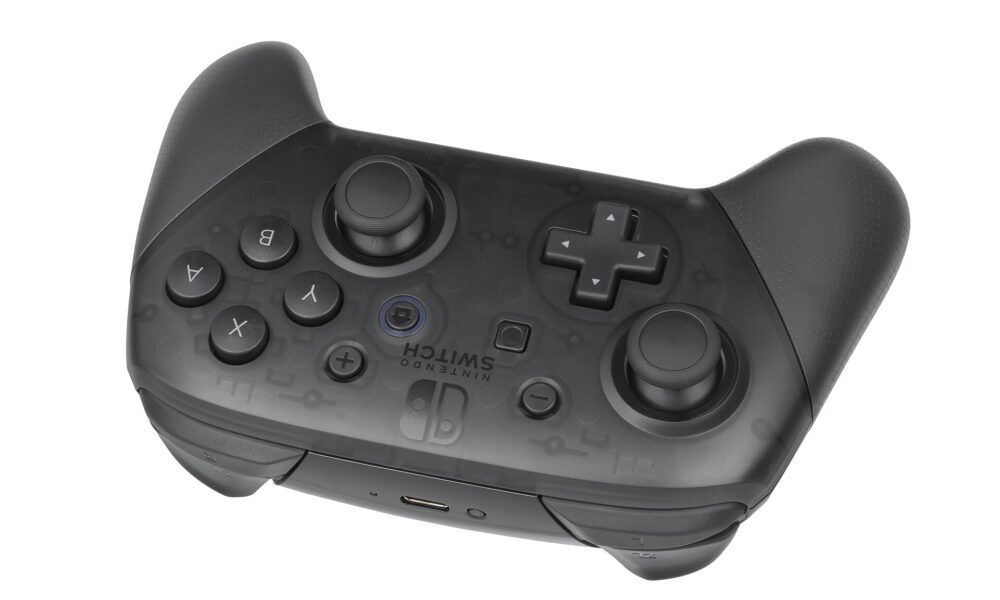

You can use an original Nintendo Switch Pro Controller on PC through a compatible USB data cable or a Bluetooth connection. However, pairing with Windows and getting a particular game to accept its inputs are two different tasks. Steam Input provides an established way to use Nintendo’s controller in many PC games, while titles outside Steam may require their own controller compatibility.
Before you connect: which controller do you own?
These steps are for the official Nintendo Switch Pro Controller, not every third-party controller marketed as ‘Switch Pro.’ Some third-party models use different pairing keys, proprietary receivers, and input modes. Look at the label, manufacturer, and manual before following a generic guide. Charge the controller, disconnect it from active devices, and check that Windows Bluetooth is functioning.
Method 1: Use a USB cable
- Turn on your Windows PC.
- Connect a compatible USB-C data cable to the Nintendo Switch Pro Controller and a USB port on the PC.
- Open Steam, then visit Steam → Settings → Controller to check controller detection.
- Launch a game that has controller support. If nothing responds, inspect its Steam Input settings before installing extra software.
A charging-only cable may power the controller without establishing data input. Switch to a known-good data cable if detection fails. A wired connection can simplify troubleshooting even if you ultimately prefer wireless play.
Method 2: Pair the Pro Controller over Bluetooth
- Disconnect USB and make sure the controller has charge.
- In Windows 11, open Settings → Bluetooth & devices, turn on Bluetooth, and choose Add device → Bluetooth.
- Hold the small SYNC button on the official controller until the pairing lights begin to cycle.
- Choose Pro Controller when Windows detects it.
- Finish pairing, then launch Steam and check the detected controller.
Do not confuse the SYNC button with the screenshot or Home buttons. If your device label differs or no device appears, follow the controller model’s documentation; different Nintendo-compatible accessories do not share identical procedures.
How to configure Switch Pro Controller in Steam
Steam supports Nintendo Switch Pro Controllers through Steam Input, as described in Valve’s official Steam announcement. Open Steam’s controller settings, verify the controller appears, and inspect Steam Input for the specific game. Some games automatically show Xbox-style buttons; you may want to change display prompts or controller layouts where supported.
Pay particular attention to A/B and X/Y buttons: their printed positions differ from standard Xbox labels. A mismatch between printed labels and in-game prompts does not necessarily indicate broken input. Review Steam’s button-layout options rather than repeatedly re-pairing the controller.
Controller connects but not working? Try these fixes
Steam does not detect it
Try a supported USB data cable, test a different USB port, or remove the old Windows Bluetooth entry and repeat pairing. Disconnect other gamepads temporarily to avoid device selection confusion.
Only some buttons work
Check whether the game has partial controller support, an unusual layout, or a Steam Input profile customized by a previous user. Reset to an appropriate default layout before changing drivers.
It keeps returning to the Nintendo Switch
The controller may still be connected to the Switch. Put it in pairing mode again for the PC. Reconnecting to the original console may require selecting the controller again through its controller pairing menu.
The game is outside Steam
Steam Input is not a universal guarantee for every launcher. Check the game’s documented controller support and avoid downloading suspicious controller emulators to ‘unlock’ compatibility.
USB vs Bluetooth: quick comparison
| Setup | Benefits | Limitations |
|---|---|---|
| USB | Simple troubleshooting, no wireless pairing | Needs compatible data cable and app support |
| Bluetooth | Wireless play | Requires compatible PC Bluetooth and pairing |
FAQ
Does a Nintendo Switch Pro Controller work on Windows 11?
It can work with compatible connection methods and supported PC games, particularly through Steam Input.
Do I need a third-party controller driver?
Not necessarily. First test official Steam Input support and the game’s own controls.
Why does Steam show Xbox-style buttons?
The game or controller mapping may use standard PC gamepad prompts; look for Nintendo-layout options where available.
Will pairing erase controller data?
Bluetooth pairing does not erase game progress, but switching between PC and console may require pairing again.
For another Steam controller-related issue, see our Steam Remote Play Together troubleshooting guide.

Other Articles

How to Check RAM Speed in Windows 11: Find the Real Memory Rate
Connect Steam Deck to a TV: Docking, HDMI and No-Signal Fixes