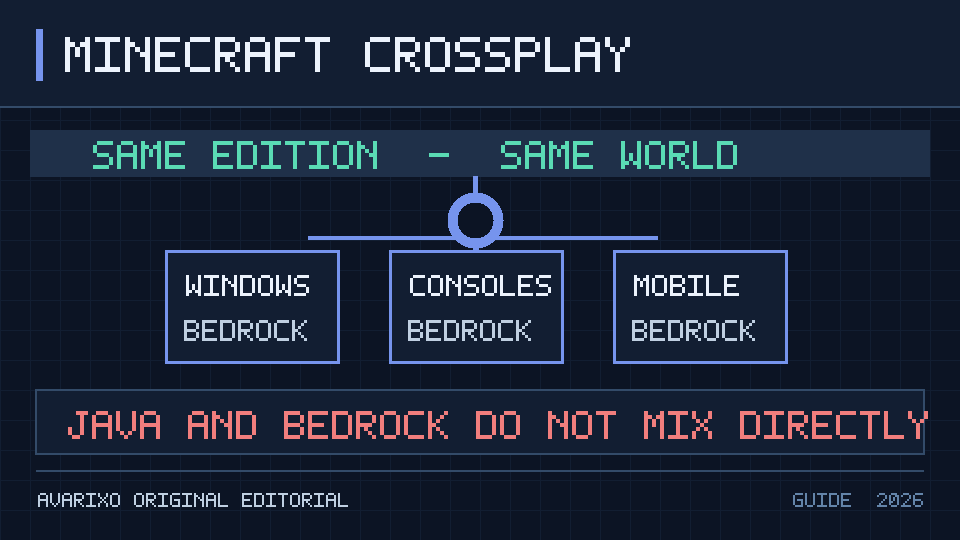

Quick answer (checked October 13, 2026): Minecraft crossplay works between supported devices running Bedrock Edition, including Windows, Xbox, PlayStation, Nintendo Switch, iPhone, Android and supported Chromebooks. Sign in with a Microsoft account, add your friend’s Xbox/Microsoft gamertag, use the same compatible Bedrock game version, and join a multiplayer world or a Bedrock Realm. Java Edition and Bedrock Edition do not offer native direct crossplay with each other; two PC players also need to launch compatible editions.
This guide is about actually getting into the same world, not simply comparing Minecraft editions. It covers how to add friends, launch a Bedrock session, use Realms, troubleshoot missing friends and explain the Java limitation without promising unreliable third-party workarounds. See Mojang’s Java vs. Bedrock explanation and official Realms platform list for the baseline rules.
Does Minecraft have crossplay?
Yes, but the edition matters more than the device name. If one person says “I have Minecraft on PC,” you still need to ask whether they are launching Minecraft for Windows (Bedrock) or Minecraft: Java Edition. On PlayStation, Xbox, Nintendo Switch, iOS and Android, the current main Minecraft game is Bedrock; on Mac and Linux, the standard game is Java.
| Combination | Direct official crossplay? | What to do |
|---|---|---|
| PS5 + Xbox Bedrock | Yes | Use Microsoft accounts, add friends and join a Bedrock world/Realm |
| Switch + iPhone Bedrock | Yes | Connect accounts and play online where permitted |
| Windows Bedrock + Android Bedrock | Yes | Use Bedrock on both devices and compatible versions |
| Windows Java + Mac Java | Yes within Java Edition | Use Java-compatible multiplayer services |
| Windows Java + PS5 Bedrock | No native direct crossplay | Windows player should launch Bedrock instead |
| Mac Java + Nintendo Switch Bedrock | No native direct crossplay | Use compatible editions/devices; do not rely on Java Realms |
| Minecraft Preview/beta + stable Bedrock | Not reliably compatible | Join the same supported stable release where possible |
Owning the Windows Java & Bedrock bundle does not merge the player populations. The Windows player must launch the right edition for the people they want to meet. The edition determines the compatible network, content system and supported multiplayer entry points.
Requirements before you try Minecraft cross-platform multiplayer
- Matching edition: Both players need Bedrock, or both need Java if they are only crossplaying among Java-compatible computers.
- Microsoft accounts: For normal Bedrock online friends and Realms, sign into your Microsoft account. Verify the displayed gamertag is yours.
- Supported versions: Update the game on each platform. A player on an older stable build may be unable to join a world on a newer build.
- Multiplayer permission: Microsoft/Xbox family settings, age restrictions and communication permissions can prevent joining or receiving invites.
- Online subscription: Console multiplayer may require an eligible PlayStation, Xbox or Nintendo subscription. Requirements depend on your platform and account type and may change.
- Network connectivity: Verify that both devices can sign in and reach Minecraft services. A friend-world host typically needs to remain online while guests play.
If any of these is missing, troubleshooting “crossplay” generally means fixing the account, version or network—not buying a new copy immediately.
How to play Minecraft Bedrock with friends on different devices
Step 1: both players sign into Bedrock with Microsoft accounts
Launch the supported Bedrock game. On a console, follow the game’s Microsoft-account connection flow and make sure the intended account is linked. On Windows, choose the Bedrock game instead of the Java button. On mobile, verify you have the main Bedrock app installed from your official app store and are signed in.
Step 2: add your friend’s gamertag
Open the Play area and locate the Friends or add-friend controls appropriate to your current version. Search for the friend’s Microsoft/Xbox gamertag, not an unrelated PlayStation username or display name from another game. If the name contains special characters, ask your friend to share the exact spelling or a direct supported invite.
In some versions, players can send an invite to a world even when they have not yet completed every friend-list step. The key is that the invitation resolves to the same Microsoft-connected identity and the recipient has the permissions needed to accept.
Step 3: host a world with multiplayer enabled
- Choose an existing Bedrock world or create a new one.
- Open the world’s settings and check the Multiplayer options.
- Allow access for the intended friends, consistent with the account’s age and privacy settings.
- Enter the world. The host should stay online for normal non-Realm sessions.
- Open the pause/friends area and invite your friend using the available multiplayer option.
Do not make an important world public to strangers merely to test a friend’s connection. Start with the narrowest allowed audience, and check parental controls if a child account cannot change a privacy setting.
Step 4: join the world from the other device
The joining player opens Play → Friends or the relevant current invite prompt and selects the compatible session. If the friend does not appear, verify that the host is in the world, multiplayer is enabled, the gamertag is correct and each device is updated. If a connection error appears, do not rapidly change router settings until the account and version checks pass.
How to crossplay Minecraft using Realms instead of a host world
Realms is useful when the host cannot always stay online. A Bedrock Realm is an always-available private multiplayer world hosted by Minecraft. The Realm owner controls invitations; invited friends can join from supported Bedrock devices when the active world and account settings allow it. Friends do not each need their own Realm subscription simply to join, although console online-multiplayer requirements can still apply.
- The owner purchases or starts an eligible Bedrock Realm in Minecraft.
- They select or create the world to host and open the Realm’s membership/invitation controls.
- They invite other players by supported gamertag invitation or an appropriately protected share link.
- Friends accept the invitation and join under Play → Friends/Realms as supported by the current interface.
- Before replacing an active Realm world or adding experimental packs, the owner should back up or export important world data.
The official Realms page confirms that Bedrock Realms allow cross-platform play among Bedrock devices, whereas Java Realms connect Java players on supported computer operating systems. The site describes different paid capacity tiers; prices and offers can change, so check Minecraft’s live plan page rather than a fixed figure from an old guide.
Can a Java player join a Bedrock Realm?
No, not natively. A Realms subscription is tied to its edition. If your friend plays Java on Windows while you have Bedrock on PS5, your friend should use Bedrock on Windows if available; Java Realm invitations will not solve the edition mismatch.
Minecraft crossplay on PlayStation, Xbox, Switch, PC and mobile
PlayStation 5 or PlayStation 4 with Xbox
Make sure the PlayStation player has connected a Microsoft account in Bedrock, both games are updated and cross-network multiplayer is allowed. Invite by the Microsoft/Xbox-connected gamertag. Platform online-service subscriptions or account settings may block multiplayer independently of Minecraft’s own game settings.
Nintendo Switch with mobile or Windows
The Switch player needs the compatible Bedrock version, a linked Microsoft account and appropriate online multiplayer access. The mobile or Windows player should be able to see a properly invited session. Troubleshoot account permissions first if invites are hidden, then confirm versions and connectivity.
Windows PC with any console
The usual mistake is starting Java Edition from the Minecraft Launcher. Close Java and launch Minecraft for Windows instead. From that Bedrock build, sign in, add friends and select their world or Realm. For a broader comparison, see our Java vs. Bedrock differences guide.
Mac and Linux with consoles
The standard Minecraft Java clients on Mac and Linux cannot natively join Bedrock sessions hosted by console players. Third-party compatibility bridges exist in the wider community, but they are not an official fix and may introduce authentication, server-management or compatibility risks. For ordinary family crossplay, use supported Bedrock devices.
Chromebook with other Bedrock devices
Supported Chromebooks can access the Android-based Bedrock version, subject to compatibility and store availability. Check the device model and requirements; a Chromebook running Minecraft Education is not necessarily the same as a standard Bedrock account in friends’ worlds. Our Minecraft Chromebook guide explains the edition distinction.
Why can’t I see my friend in Minecraft crossplay?
| Problem | First thing to verify | Best next step |
|---|---|---|
| Friend is invisible in the list | Exact Microsoft gamertag and signed-in account | Recheck identities and invite through the current UI |
| “Unable to connect to world” | Edition, game update, host and network | Test a fresh world on the same stable Bedrock version |
| Multiplayer is disabled | Microsoft/Xbox family settings and age restrictions | Have the account holder or family organizer review settings |
| Java player cannot join PS5 | Java vs. Bedrock mismatch | Use Bedrock on a supported device |
| Realm invite not visible | Correct edition, gamertag, invitation and membership | Owner confirms invitation and active Realm |
| Console refuses online play | Platform account services and subscription eligibility | Check console’s official multiplayer requirements |
| New world works, old one does not | World permissions, experiments or packs | Test copied world and compatibility notes |
| “Outdated client” or “Outdated server” | Version mismatch | Update clients; consult version troubleshooting |
Check whether it is a service outage
If multiple friends suddenly cannot join any world, inspect the relevant Xbox/Microsoft, PlayStation, Nintendo or Minecraft service status instead of treating an isolated error as proof that crossplay ended. If only one friend cannot join, start with that account’s version, sign-in and privacy permissions.
Child accounts and family privacy
Online multiplayer and external-network communications can be restricted for child accounts. A parent or family organizer may need to review Microsoft/Xbox settings and console-specific controls. Do not try to bypass safeguards with an alternate identity; solve the issue in the appropriate supported settings.
Network and NAT troubleshooting
Connection behavior can be affected by routers, strict NAT states, blocked services or a temporary host disconnect. Test basic internet connectivity and whether each player can join another permitted online session. Avoid disabling firewalls broadly or forwarding arbitrary ports from an unrelated Java server guide; different platforms have different networking paths.
Does Minecraft crossplay include shared purchases and world saves?
Crossplay means players on different compatible devices can meet in a multiplayer session. It is not the same as cross-progression or automatic transfer of every local save and purchase. Bedrock account-linked content may be accessible across eligible devices subject to licensing and store conditions, while local worlds usually need a specific export or Realm-based migration workflow. Back up the world before changing devices.
Similarly, Java skins, Java-only mods, Bedrock Marketplace items and platform store entitlements follow their own rules. The ability to join a shared world does not mean all devices can install the same add-on or that each player owns a game license on every storefront.
Can Minecraft Java and Bedrock crossplay with mods or special servers?
Community projects sometimes bridge traffic between the two editions on administrator-managed servers. These are not Mojang’s native Java–Bedrock crossplay or an ordinary Realm feature. They can involve third-party software, mismatched gameplay mechanics and additional account or security decisions. For newcomers who just want to play with family, selecting Bedrock across compatible devices is the dependable official solution.
Minecraft crossplay FAQ
Can Minecraft PS5 and Xbox play together?
Yes, when both use compatible Bedrock builds, sign into the correct accounts and have multiplayer permissions and eligible platform connectivity.
Can Java play with Bedrock in 2026?
Not as a native feature. They use separate multiplayer systems. A Windows player who owns both editions can choose Bedrock to join console and mobile friends.
Is Minecraft crossplay free?
Ordinary compatible Bedrock world multiplayer does not inherently require a Realms subscription, but players need the game and console online services may have their own subscription requirements. Hosting a Realm is a separate paid option with invited friends joining the owner’s Realm.
Do all players need a Microsoft account?
For standard Bedrock online friends and Realms connectivity, use a signed-in Microsoft account. Specific local split-screen options are different and vary by platform.
Can a mobile player join a PC world?
Yes if the PC runs Bedrock and the mobile device runs a compatible Bedrock build. Java Edition worlds do not appear as standard Bedrock friend sessions.
Does Realms make Java and Bedrock compatible?
No. Java Realms and Bedrock Realms are edition-specific services.
Why does my friend show offline on Minecraft?
Check they are actually signed into Minecraft with the Microsoft account/gamertag you added, that multiplayer is allowed and that they are online in a joinable world.
Can Minecraft Preview join normal Minecraft Bedrock?
Preview/beta builds may have version differences that prevent joining stable-release worlds. Try the supported stable version on all devices first.
Do I need to copy the same world to every device?
No for ordinary multiplayer: guests join the host or Realm world. Transferring a local world file is a separate task from joining a session.
Official sources
- Minecraft — The Difference Between Java and Bedrock Editions (edition compatibility and devices).
- Minecraft Official — Realms and Realms Plus (cross-device play, invitations and supported platforms).
- Minecraft Help — Playing Bedrock Online on Multiplayer Servers (available join methods and platform limits).
- Minecraft Help — Different Minecraft Editions.
AVARIXO editorial check: October 13, 2026. Minecraft changes menus and version support over time. Check the official links for your specific device if a menu or subscription differs.