Quick answer: Discord has a desktop client for Linux. On an Ubuntu- or Debian-based distribution, download the official .deb package from Discord, then install it using your package manager, for example with `sudo apt install ./discord-*.deb` from the correct download folder. Other distributions may need their compatible package format or a supported alternative.
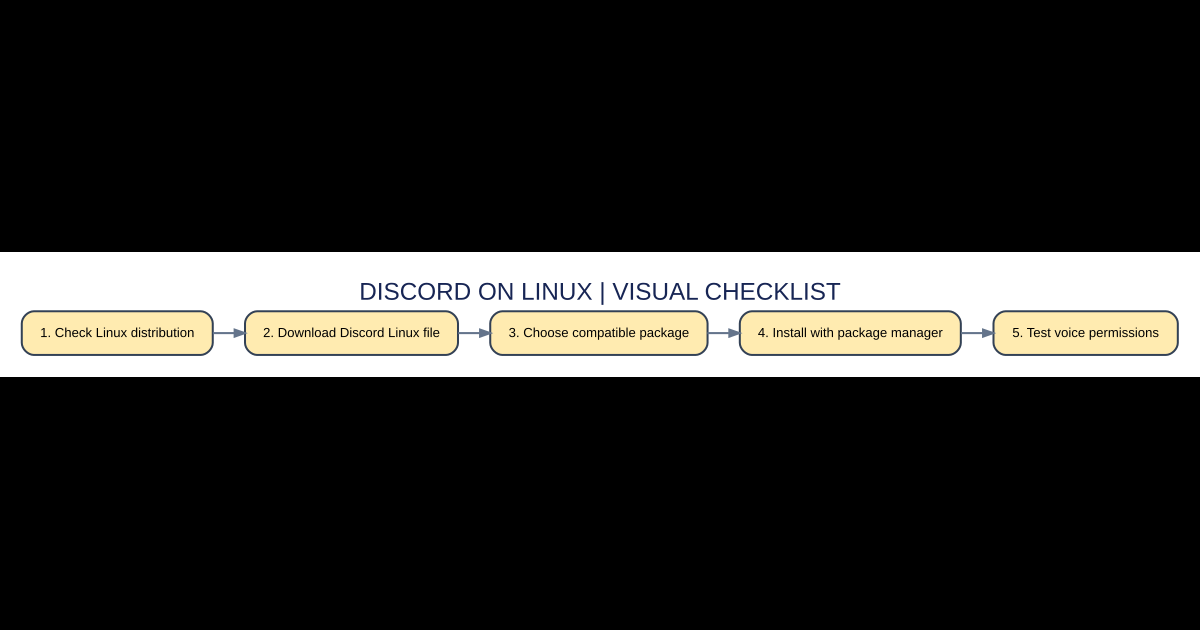
Step-by-step overview
- Check Linux distribution. Start by checking that the platform or game version matches the scenario described here.
- Download Discord Linux file. Use the official program, store or documented option rather than a copied shortcut.
- Choose compatible package. Confirm that any account, installation or item requirement has been met.
- Install with package manager. Test the result before making further irreversible changes to important files or accounts.
- Test voice permissions. Keep your recovery route or backup so that an unexpected failure is not permanent.
Choose a package that matches your distribution
Discord’s official desktop installation guide covers Linux alongside Windows and macOS, but Linux package formats differ. Debian-based systems generally handle .deb packages with apt or dpkg; unrelated distributions use different package managers and compatibility rules. Do not take commands copied from a random forum and run them without checking the download URL, file name and package type. A desktop Linux install is not the same as the browser’s Discord web client.
Official installation on Ubuntu or Debian
Visit Discord’s official download page and select Download for Linux. Save the .deb if your distribution supports it. Open a terminal in your actual Downloads folder and inspect the filename. The official guide shows installing with `sudo dpkg -i package.deb` or `sudo apt install ./package.deb`. Replace the placeholder with your downloaded file’s exact name. The apt method may resolve dependencies more conveniently on compatible systems.
Launching and signing into Discord
Start Discord through your application menu or a supported launcher command and sign in using the genuine desktop client’s interface. If you use multi-factor authentication, complete it through your established account method. To prevent phishing, do not paste your login token into a community bot or terminal script. Test text chat in a familiar server before enabling the microphone so that you can separate login problems from voice device configuration.
Microphone and speaker fixes
If your friends cannot hear you, open Discord’s Voice & Video settings and choose the intended input device, then use the available microphone test. Make sure Linux has exposed the correct audio input and that the physical headset mute switch is off. On systems using PipeWire or PulseAudio, the audio routing or permission layer may be the cause even when Discord is installed correctly. Compare with another application to narrow the issue.
Screen sharing and Wayland considerations
Some Linux desktop environments use Wayland while others use X11, and screen capture behavior may differ. If screen sharing fails, check whether your Discord package supports the desktop’s capture portal setup and whether the target window is available to share. Avoid blindly switching session protocols or disabling security features without understanding the impact. A browser-based Discord session may be a useful diagnostic alternative, though it has its own feature limitations.
Updates and removing failed installations
When a new Discord version is released, check the official source and your package manager’s upgrade process. If the app repeatedly crashes, inspect the installed version and logs before deleting caches or configuration directories. On managed systems, seek administrator support rather than repeatedly installing root-level packages. Preserve important downloads and other applications while troubleshooting an unrelated Discord error.
Important differences at a glance
| Feature or edition | What it means | Best use or warning |
|---|---|---|
| Ubuntu/Debian | Official .deb package | apt or dpkg |
| Other Linux distributions | Distribution-compatible package or official archive | Verify support before installing |
| Browser | Discord web app | May avoid desktop-specific package issues |
Frequently asked questions
Does Discord support Linux officially?
Yes. Its official desktop installation guide includes Linux.
Can I use apt to install a downloaded .deb?
On a compatible Debian-based distribution, the official instructions show apt installing a local package file.
Why doesn’t screen share show any windows?
Check the desktop session, capture permissions and app/browser compatibility.
Is Discord in the browser the same?
The web client supports major chat functions but can differ in operating-system integration and voice capture.
Sources and additional help
Review the Discord Help Center: Desktop Installation Guide for version-specific instructions and changes. See also our related AVARIXO article. This editorial guide explains supported mechanics and practical considerations; check your exact game or app release before following older tutorials.