
Quick answer: To install Discord on a Mac, open Discord’s official download page, select Download for Mac, open the resulting Discord.dmg and drag Discord into the Applications folder. Launch it from Applications, sign in and allow microphone or camera access only for the features you intend to use.

Step-by-step overview
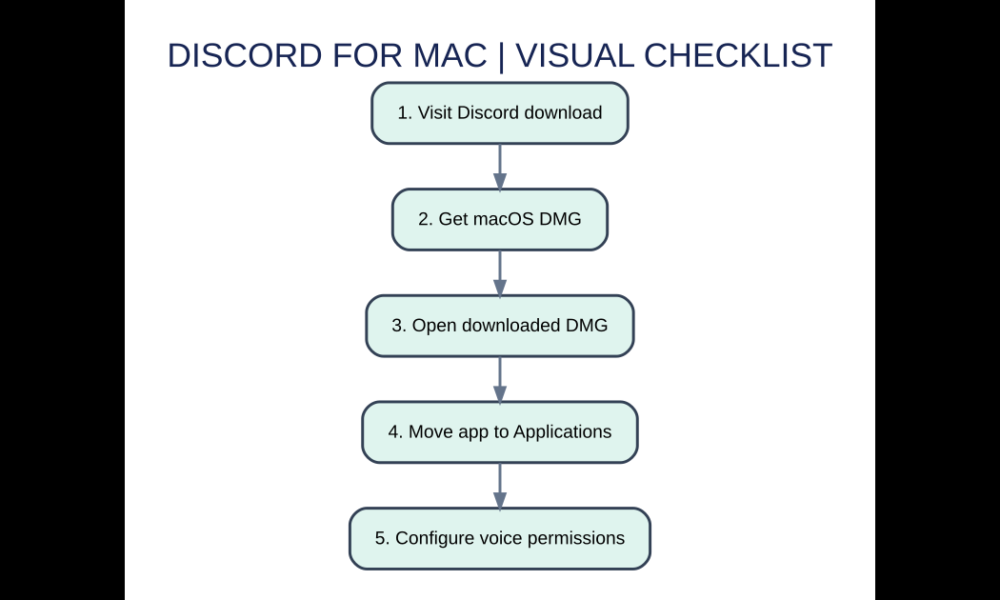
- Visit Discord download. Start by checking that the platform or game version matches the scenario described here.
- Get macOS DMG. Use the official program, store or documented option rather than a copied shortcut.
- Open downloaded DMG. Confirm that any account, installation or item requirement has been met.
- Move app to Applications. Test the result before making further irreversible changes to important files or accounts.
- Configure voice permissions. Keep your recovery route or backup so that an unexpected failure is not permanent.
Download directly from Discord
Use Discord’s own download page rather than a repackaged installer on a gaming forum. The official desktop installation guide describes a DMG for macOS and the drag-to-Applications process. Confirm that your version of macOS is supported; a system that is years out of date may not be able to run the latest desktop client. If a website claims you must enter your Discord password before even downloading the DMG, treat it as suspicious.
What dragging into Applications does
Opening the DMG mounts a temporary disk image with the application and an Applications shortcut. Drag the Discord icon onto that shortcut, wait for copying to finish and close/eject the installer volume. The copy inside your Applications folder is the app you should launch. If you keep starting Discord from the mounted installer, you may have confusion about where it is installed or about updates later.
First launch and security checks
Use Finder > Applications to open Discord. macOS may show a prompt explaining that the app came from the internet; read it and confirm the publisher and your own intended download. Sign into your account from the official client. Don’t install browser extensions or run terminal scripts supposedly needed to activate Discord voice; legitimate login and ordinary voice permission settings should not require disabling Mac security features.
Enable microphone and camera intentionally
In System Settings, inspect Privacy & Security > Microphone or Camera when Discord cannot use the device. Grant only the permissions needed for calls. Inside Discord’s Voice & Video settings, choose the expected microphone and output speaker, then test. If a Bluetooth headset sounds muffled while its microphone is active, compare headset and built-in audio settings; that’s often a device routing limitation rather than a corrupted Discord account.
Fix a Mac that will not open Discord
Quit Discord fully before retrying. Check Activity Monitor for a stuck background process and verify you are opening the installed app rather than an old DMG copy. Restart the Mac and confirm you have enough free storage for normal updates. If the application is damaged, download a new copy from Discord’s official page and reinstall cleanly; preserve any local configuration you value before manually removing support files.
Discord in Safari or Chrome as an alternative
Discord’s browser app can be useful on a shared Mac when you do not want a persistent desktop installation. However, screen capture and operating-system integration vary by browser and permissions. If a camera works in FaceTime but not in the browser, inspect the browser’s site permission separately from macOS privacy settings. Choose desktop or web by your actual use case rather than assuming one is always faster.
Important differences at a glance
| Feature or edition | What it means | Best use or warning |
|---|---|---|
| Desktop DMG | Install Discord in Applications | Ongoing daily use |
| Web app | Sign into Discord in supported browser | Temporary access |
| Mac privacy controls | Microphone and camera permissions | Required for relevant calling features |
Frequently asked questions
Where should Discord be installed on Mac?
The official instructions say to drag it into the Applications folder.
Do I need a separate macOS Discord account?
No. You can sign in using your existing Discord account.
Why can’t anyone hear me?
Check macOS microphone access, input device choice and the headset mute switch.
Can I delete Discord.dmg after installing?
Normally yes after confirming the application in Applications works; the mounted installer is not the app you need to run daily.
Sources and additional help
Review the Discord Help Center: Desktop Installation Guide for version-specific instructions and changes. See also our related AVARIXO article. This editorial guide explains supported mechanics and practical considerations; check your exact game or app release before following older tutorials.