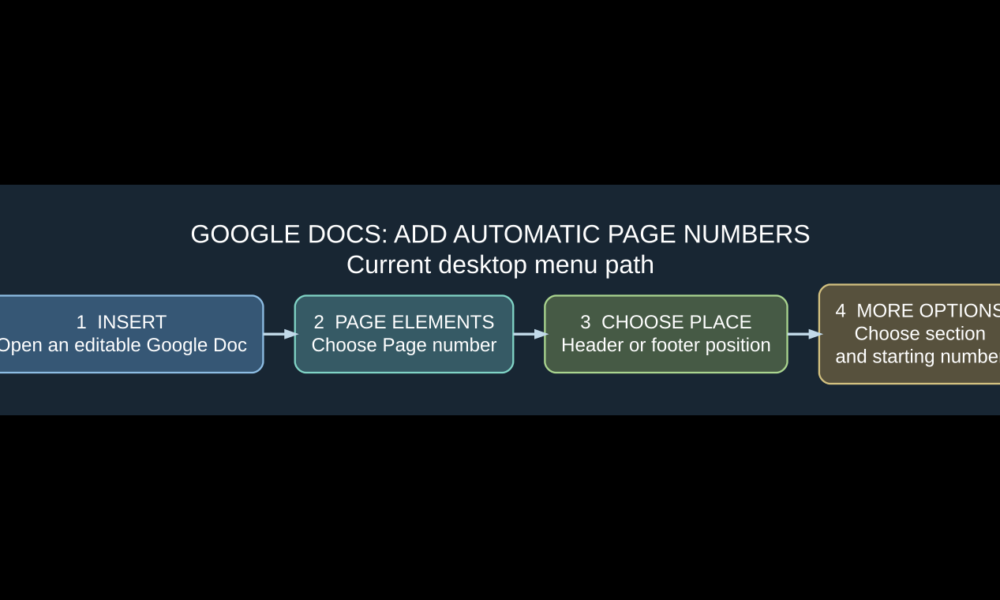

To add page numbers in Google Docs, open a document in Pages format and select Insert → Page elements → Page number. Choose a location in the header or footer, or open More options to control the section and starting number. Google Docs inserts a dynamic page-number field that updates automatically as your document grows. If the menu is unavailable, your document may be set to Pageless, which does not support normal headers, footers, or page numbers.
The desktop menu changed from older tutorials that simply say “Insert → Page numbers.” Google’s current help places the control under Page elements. This guide covers the exact path, how to leave the cover page unnumbered, what to do when numbering needs to start in a later section, the difference between a page number and total page count, and the current Android and iPhone app instructions.

How to add page numbers to Google Docs on a computer
- Open Google Docs and a document you can edit.
- Check that it uses Pages format rather than Pageless; the page-number feature needs document pages.
- From the top menu, choose Insert.
- Open Page elements, then select Page number.
- Choose Page number to select the header/footer placement, or choose More options for additional section and alignment settings.
- Preview the result. The number should change automatically on each page as you add content.
These directions follow Google Docs Editors Help: Use headers, footers, page numbers and footnotes. The same reference explains why Pageless documents do not support the feature. If your school or workplace document is read-only, request editing access rather than assuming Google removed page numbering.
How to skip the first page number on a cover page
If page one is a title page, you can normally omit its displayed number while allowing numbering on the rest of the document. When inserting page numbers, choose a layout that skips the first page where the interface provides it. On desktop, a header or footer may also offer Different first page, which allows the cover to use a different header/footer layout.
Important distinction: hiding the number on the cover is not necessarily the same as making the second physical page start at 1. If your assignment requires the first content page to display the number 1, you may need a section break and the page-number More options settings to change where numbering starts. Always check the preview carefully.
Start page numbers on page 2, 3 or a later section
For a report with a cover page, contents page, and main text, create a separate section at the beginning of the main text if the numbering format or starting number should differ. On desktop:
- Place the cursor at the end of the last page before the main section.
- Use Insert → Break → Section break (next page) to create the new section.
- Click in the new section’s header or footer and, where shown, turn off Link to previous if you need its numbering to be independent.
- Choose Insert → Page elements → Page number → More options.
- Under Apply to, select the relevant section and choose the desired start or alignment settings exposed by the menu.
- Apply the changes and review each page of your document to make sure the cover/contents area is formatted as intended.
Google’s official page numbering guide confirms that numbering can be applied to entire documents or specified sections, and that More options controls these rules. Section-based numbering can be fiddly if headers are linked; unlinking the header/footer of the new section is the key step when you want independent settings. Do not manually type “1,” “2,” and “3” in consecutive footers: those values will not update correctly when pages move.
Page number vs. total page count: which should you use?
Google Docs distinguishes Page number from Page count. A page number shows the current page’s position in the document or section. Page count inserts the total number of pages at your cursor. If you want a footer such as Page 2 of 8, you need both fields plus your own text:
- Click inside a footer in Pages format.
- Type Page , then insert the automatic Page number field.
- Type of , then insert the Page count field through Insert → Page elements → Page number → Page count, where available.
- Review the footer on multiple pages. As text is added, the current page and total count should update.
| Field | Example on page 3 of 10 | Best for |
|---|---|---|
| Page number | 3 | Quick navigation or academic page labels |
| Page count | 10 | Total report length |
| Page number + “of” + Page count | Page 3 of 10 | Reports and documents sent to others |
For research reports with a table of contents, page numbering is only one piece of navigation. See our Google Docs table of contents guide for setting heading levels and refreshing the table when the report changes.
Add page numbers on iPhone or iPad
Google Docs for iOS also offers page numbering, but the phone interface is different from the desktop menus. Google’s official instructions say:
- Open the document in the Google Docs iPhone or iPad app.
- Tap Edit to enter editing mode.
- Tap the Insert icon.
- Choose Page number.
- Select the location and whether you want the first page skipped.
To see and edit headers, footers or existing page numbers, you may also need to turn on Print layout via the app’s More menu. The document must be in Pages format; a Pageless document does not show normal page numbering. These steps come from Google Docs Editors Help for iPhone and iPad.
Add page numbers on Android
On Android, open the Google Docs app and your document, then:
- Tap Edit.
- Tap Insert.
- Select Page number.
- Choose a placement and whether to skip the first page.
- If you need to see the numbered page boundaries or work with headers/footers, turn on Print layout from the More menu.
Google’s official Android instructions state that the feature is unavailable in Pageless documents. If you only have viewing permission or your file is opened as a static PDF rather than an editable Doc, the Insert controls will not work as described.

Why can’t I add page numbers in Google Docs?
| What you see | Likely explanation | What to try |
|---|---|---|
| Page number command is missing or disabled | The file is in Pageless format | Switch to Pages in the document’s Page setup or Format controls |
| Numbers are missing in the phone app | Print layout is off | Turn on Print layout and check the document’s Pages format |
| The cover page says “1” | Different first page or skip-first-page option not selected | Use the skip-first-page layout or a separate cover section |
| Page 2 should start at 1 but shows 2 | Physical page count differs from the requested section numbering | Use a section break and More options to adjust the start value |
| Numbers appear in the wrong section | Header/footer is linked to the previous section | Unlink and apply numbering to the chosen section |
| Page numbers look typed rather than updating | They were added manually | Replace them with Google’s automatic Page number field |
| Page numbers disappeared after switching layout | Pageless hides headers, footers and page numbers | Return to Pages format to show them again |
Do not confuse Page break with Section break. A page break merely starts content on a fresh page, while a section break can separate header/footer and numbering behavior. The differences matter when you want a special cover and the rest of the report to begin numbering at one.
Can you remove page numbers in Google Docs?
Yes. Click in the header or footer containing the page-number field and remove that field, or remove the relevant header/footer if it is no longer needed. In a document with multiple sections, carefully check whether the change applies to the current section or linked ones. Google’s help also documents header/footer removal through the Options → Remove header or Remove footer control. Removing an entire footer will also remove any other text you placed in that footer.
Page numbering tips for resumes, essays and long reports
- School essay: use a consistent header/footer position required by your style guide, not whichever preset looks nicest.
- Title page: use Skip first page or a separate section, and confirm whether the following displayed number should be 1 or 2.
- Long report: combine automatic page numbering with properly styled headings and a refreshed table of contents.
- Collaborative document: remind editors that section breaks and formatting changes can affect later headers, not just the page they are editing.
- Printable document: review Print layout or the PDF export so you know exactly where the numbers appear on each page.
Frequently asked questions
Where is Page number in Google Docs in 2026?
On the desktop web editor, use Insert → Page elements → Page number. Older menus and tutorials may show different labels; the official help page reflects the current layout.
Why are page numbers unavailable in Pageless mode?
Pageless formatting does not divide your document into ordinary printable pages, so Google disables traditional headers, footers and automatic page numbers. Switch to Pages format first.
How do I put numbers on the bottom of each page?
Choose the page-number placement for a footer when inserting the automatic page-number field. It will then update on subsequent pages.
Can I start numbers from page 3?
Yes. On desktop, create a section break before the page where numbering should start, unlink the header/footer when needed, and use the Page number → More options settings for that section.
Can I skip the first page on my phone?
Google’s iPhone, iPad and Android Docs guides all describe an option to choose whether the first page is skipped when inserting page numbers.
How do I add “Page 1 of 5”?
Combine the automatic Page number field with text such as “of” and the Page count field. Both numbers update as pages are added or removed.
Will page numbers stay correct after I insert new text?
Yes, if you inserted an actual automatic page-number field instead of typing the numbers yourself. Changes to section formatting can still affect which numbers display.
Official references and bottom line
This guide follows Google’s desktop documentation, iOS instructions, and Android instructions. The essential steps are to use Pages format, insert a dynamic Page number field, and choose More options or section breaks when the numbering must start somewhere other than the first document page. When the document changes, the fields update automatically, unlike manually typed numbers.

Other Articles
Public Domain Books in 2026: How to Check Copyright and Reuse Them
