To share a Google Calendar with another person, open Google Calendar, find the calendar under My calendars, select its three-dot menu → Settings and sharing → Shared with → Add people and groups, enter an email address, choose the permission level, and click Send. Your invitee receives an email link they must open to add the calendar. On supported Android versions, you can also share directly in the Google Calendar app through Menu → Settings → choose the calendar → Shared with → Add people or groups → Save.
A shared calendar is different from inviting a guest to one meeting. Sharing gives someone ongoing access to a specific calendar, subject to your chosen permission. The safest default is to invite named people with only the access they need rather than making a calendar publicly searchable. Below are the desktop, Android, and iPhone considerations, all five permission options Google documents, and fixes for missing invites, uneditable calendars, and calendars that accidentally expose event details.
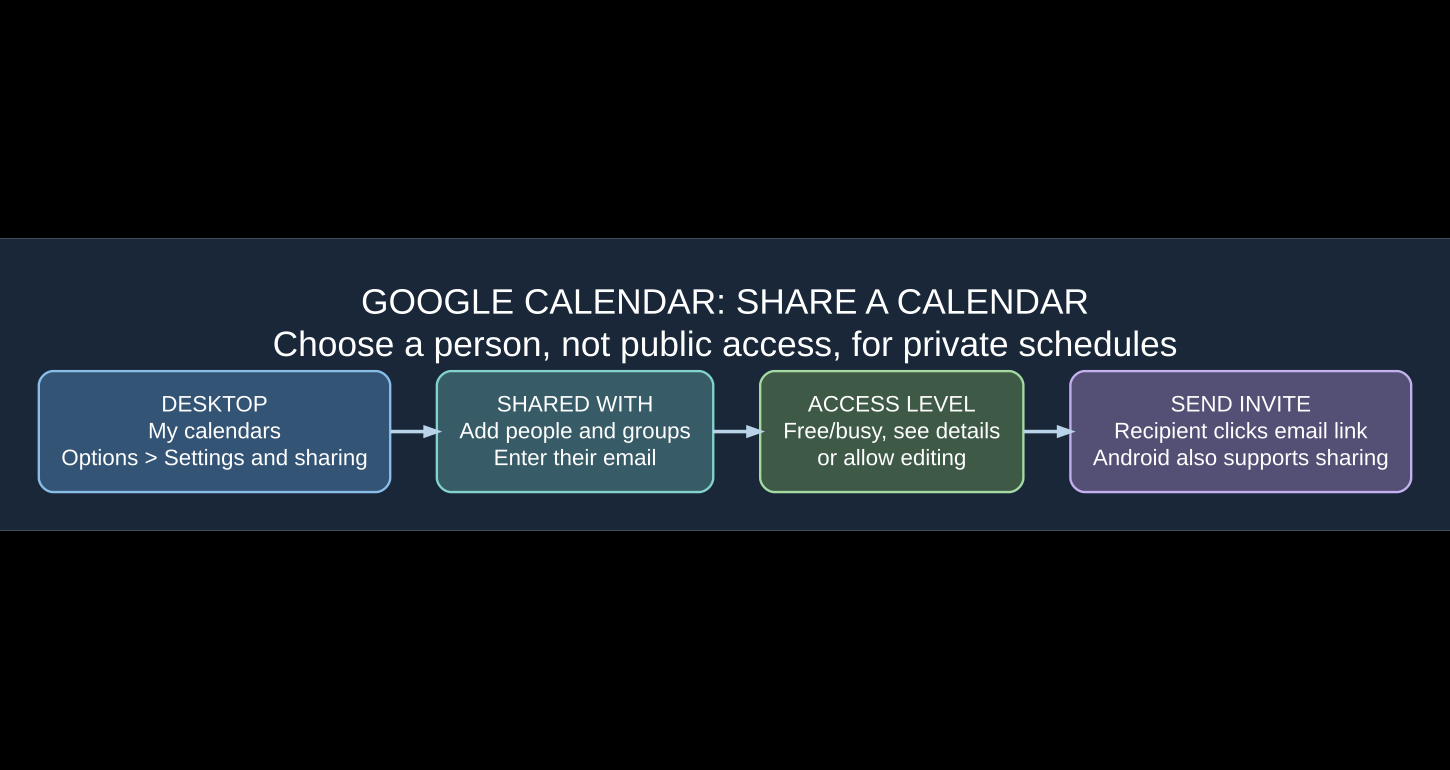
How to share a Google Calendar with someone on a computer
- Go to calendar.google.com and sign in.
- On the left, expand My calendars if necessary.
- Hover over the calendar you want to share, click its three-dot More menu, and select Settings and sharing.
- Choose Shared with from the calendar settings navigation.
- Click Add people and groups, then type and select the recipient’s email or Google Group.
- Choose an appropriate permission, starting with See only free/busy (hide details) if they only need your availability, or See event details if you want them to know what is scheduled.
- Click Send. The person receives an invitation email containing a link to add the calendar.
Google describes these steps in its official Share your calendar help article. You can share a calendar you own, or one for which another owner granted you Make changes and manage sharing permission. Merely being able to view someone else’s calendar does not automatically let you invite additional people to it.
How to share Google Calendar on Android
Yes, Google now documents an in-app sharing workflow for Android. Older tutorials say the only way to share a full calendar is through a browser, but that is no longer universally accurate. Google’s current Android instructions describe the following process:
- Open the Google Calendar Android app.
- Tap Menu in the upper-left corner, then Settings.
- Select the calendar you own and want to share.
- Under Shared with, tap Add people or groups.
- Search for and select the recipient’s name or email. You may add multiple contacts or groups.
- Choose how much access to grant, then tap Save.
- Ask the recipient to open the invitation link sent by email so they can add the calendar.
These steps come directly from Google Calendar Help for Android. If the Shared with control is missing on your device, update the app and confirm that you selected a calendar you own; a work or school administrator can also block sharing. The available menu can vary by account permissions and rollout.
What about sharing on iPhone and iPad?
The exact sharing controls can vary between Google Calendar versions on iOS and the Google Calendar website. If the Google Calendar iPhone or iPad app displays Settings → calendar → Shared with, follow the available invitation flow. Otherwise, use a computer to open Google Calendar’s full Settings and sharing screen for the calendar you own. Do not confuse Apple Calendar’s iCloud sharing with sharing a Google Calendar; those are different calendar providers and permission systems.
People you invite can still view a shared Google Calendar on their iPhone by opening the email invitation and adding the calendar to their Google account. If you instead only want a specific event on their calendar, open that event and add them as a guest rather than granting access to the entire calendar.
Google Calendar sharing permissions explained
Choose permissions before you click Send. Google documents more than a single “view” or “edit” level, and some editing options handle private events differently.
| Access level | What another person can do | Good for |
|---|---|---|
| See only free/busy (hide details) | See blocked or available time without titles and descriptions | Scheduling appointments without exposing content |
| See event details | Read event names, times, locations and descriptions | Families and colleagues coordinating plans |
| Make changes (see private events as free/busy) | Edit non-private events but not view the details of private events | Assistants scheduling around private entries |
| Make changes and see event details | Edit events and see their details where this permission is offered | Shared household or small-team administration |
| Make changes and manage sharing | Full calendar control, including inviting or removing other people | A trusted co-owner or administrator |
Some permission labels may be combined or worded differently in different Google Calendar interfaces, and work accounts can limit which ones are available. The most consequential choice is Make changes and manage sharing: it gives the other person the ability to share the calendar further. Reserve it for someone you trust. Google’s permissions reference explains the precise differences.
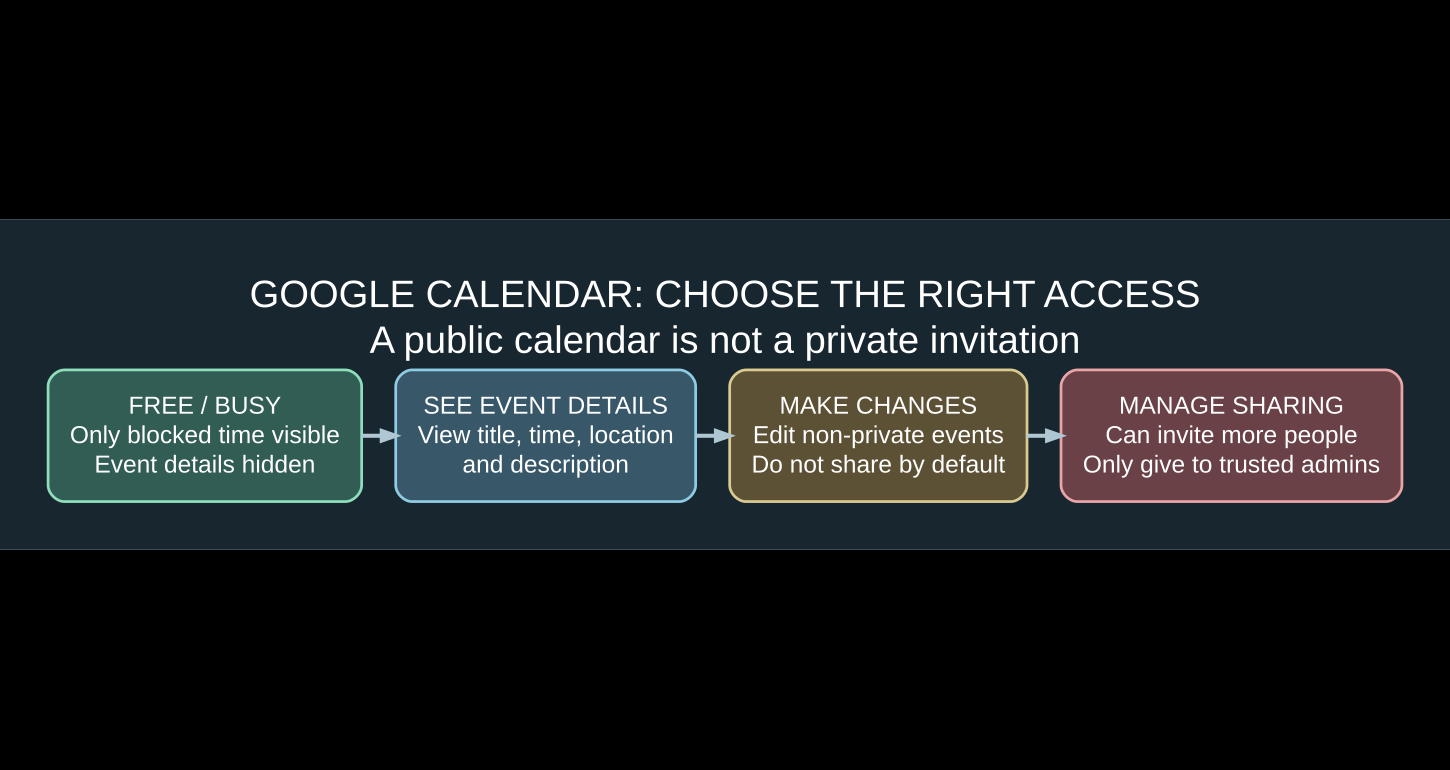
Public Google Calendar vs. sharing with selected people
When you add a specific email address, the calendar is shared with that person or group. By contrast, selecting Make available to public allows others to find or subscribe to the calendar on the internet or through search results, subject to the public access level you set. This is appropriate for an intentionally public event schedule, not a personal doctor’s appointments calendar or a private team planning calendar.
Privacy warning: broader sharing permissions take priority when they conflict with narrower ones. If you make a calendar public with full event details and separately invite one person as free/busy only, the public setting can still expose those event details to them and everyone else. Google explicitly documents this example in its calendar permissions help. Always review Access permissions for events in addition to the personal Shared with list.
When should a calendar be public?
Public sharing can make sense for a library events schedule, community workshops, sports fixtures or published conference agenda. Keep confidential event descriptions off it. For relatives, employees or project collaborators, prefer a private invite by email with the minimum necessary permission.
How to create a separate shared family or work calendar
Sharing your primary personal calendar is not always the best option. Google Calendar allows you to create an additional calendar dedicated to a project, shift rota or household plan. On a computer:
- Open Google Calendar, click Settings, and find Add calendar.
- Choose Create new calendar and name it something meaningful, such as Family Events or Marketing Deadlines.
- Save the new calendar and return to Settings and sharing for it.
- Add the relevant people or groups with the appropriate visibility or editing level.
- When creating a new event, choose that dedicated calendar instead of the primary personal calendar.
This keeps work or family commitments separate and avoids giving a colleague broad access to unrelated personal appointments. If an organization needs shared calendars at scale, a Google Workspace administrator may have additional policies and shared-resource calendars; those options depend on the organization’s settings.
How to remove someone from a shared calendar
If a collaboration ends or you shared with the wrong email address, revoke access:
- On a computer, open the calendar’s Settings and sharing page.
- Under Shared with, locate the person or group.
- Click Remove next to their entry.
- Review the calendar’s public and organization-wide access permissions separately.
On supported Android versions, open Menu → Settings → your calendar → Shared with and choose Remove next to the person. Google documents both methods in the current sharing guide. A person who previously copied individual event details cannot be forced to erase that prior copy, so remove access promptly when necessary.
Why can’t I share my Google Calendar?
| Problem | Likely reason | What to check |
|---|---|---|
| “Shared with” does not appear | You don’t own the calendar or your app/account lacks the control | Open your own calendar, update the app, or use desktop settings |
| Permission choices are disabled | Work or school administrator restricts sharing | Ask your Google Workspace administrator |
| Recipient cannot see the calendar | They have not followed the invite link or used a different account | Check the recipient address and ask them to open the email |
| The invite email is missing | Inbox filters, wrong email address, spam or trash | Search inbox and spam, then remove and re-add recipient if needed |
| Recipient can only see busy blocks | The permission is free/busy only | Change access to See event details if appropriate |
| Anyone can see your personal event titles | Calendar may be public or organization-wide permissions are too broad | Review Access permissions for events immediately |
| Another person can’t invite collaborators | They lack Manage sharing permission | Only the owner or a permitted manager should grant more access |
If the invitation is genuinely missing, Google’s help suggests checking the address, spam and trash, and optionally removing and re-adding the contact. Our Gmail not receiving email troubleshooting guide covers common inbox and filter problems. If you’re comparing Google Calendar’s “view” and “edit” access with similar options in storage, our Google Drive sharing permissions guide explains why a share link and a specific-person invite are not the same privacy choice.
Share a calendar or invite someone to just one event?
Invite a guest to one event when the person only needs details of one meeting. Share the whole calendar only when they need to check repeated events or ongoing availability. An event invitation typically adds an attendee to that individual event, without authorizing them to browse your other schedule entries. In contrast, shared calendar permissions continue until you or an administrator changes or removes them.
Frequently asked questions
Can you share a Google Calendar with someone who has another email provider?
You can send calendar invitations to different email addresses, but adding and managing a shared Google Calendar generally works through the recipient’s Google Calendar account and its accepted invitation. Confirm which account they use to access the shared calendar.
Can I share Google Calendar from an Android phone?
Yes. Google’s current Android help documents Menu → Settings → select calendar → Shared with → Add people or groups → choose access → Save, for calendars you own or can manage.
How do I stop sharing my Google Calendar?
Under Settings and sharing → Shared with, remove the person’s access. Also disable public or organization-wide visibility if you previously enabled it.
Can someone edit an event in my shared calendar?
Only if you give them editing permission; “See event details” is view-only. Google offers a level that permits editing of non-private events while showing private entries as free/busy.
Does sharing one event also share my whole calendar?
No. Inviting guests to a single event does not automatically share your entire calendar. Use guest invitations when access should be limited to that event.
Why can someone see my events when I set free/busy for them?
Check whether the calendar is also publicly available with full details or shared more broadly within an organization. Google says the broader permission can override the recipient’s narrower free/busy access.
What if I cannot share a work or school calendar?
Your Google Workspace administrator may restrict sharing, particularly outside your organization. Contact the administrator instead of trying to bypass the policy.
Official sources and the takeaway
The desktop and mobile instructions are based on Google Calendar’s desktop sharing guide, its Android sharing instructions, and Google’s calendar permissions reference. For most people, the safest approach is simple: create a dedicated calendar if needed, invite specific email addresses, choose the lowest useful permission, and double-check that the calendar is not public. That gives collaborators the information they need without unintentionally exposing the rest of your schedule.