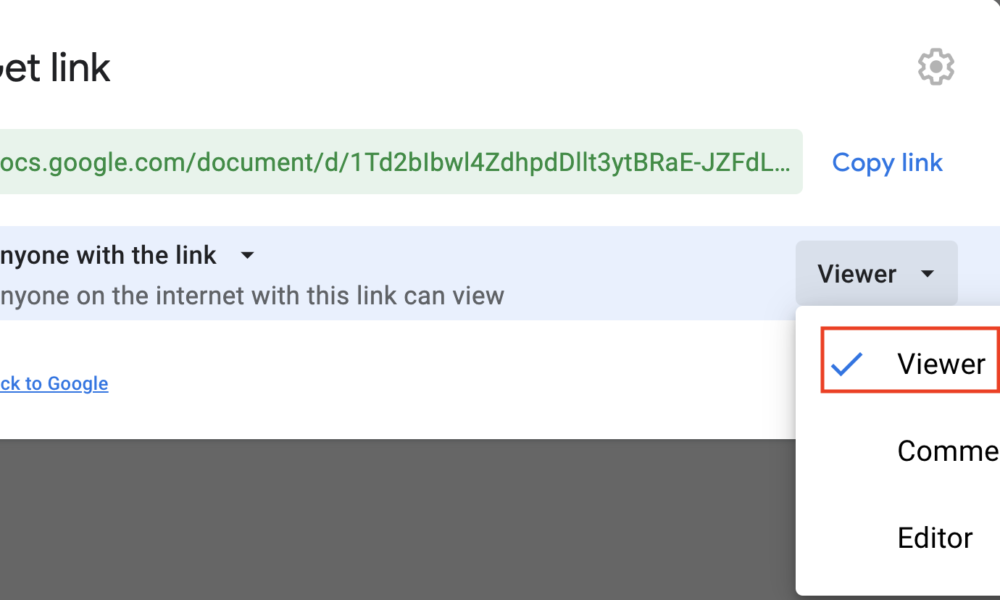

Reviewed October 9, 2026. Sharing a Google Drive link is quick, but the General access setting and permission role determine who can actually open or change the file. A link set to Restricted may prompt outsiders to request access; a link set to Anyone with the link may reach people beyond your intended recipient if it is forwarded.
Quick answer: In Google Drive select a file, click Share, choose the intended people or General access, set Viewer, Commenter or Editor as appropriate, then Copy link. Use Restricted for private files unless you deliberately need broader access.
Check your current settings first
Start with the correct device, account and file. Read current platform options and avoid irreversible deletion or overly broad sharing permissions when a reversible test will identify the issue.
Start with the right Google account and document
Sign into the account that owns the file or has permission to share it. Locate the item in My Drive or a shared location and inspect its title and contents before changing access. Workplace or school accounts can restrict external recipients even when the normal personal-account interface includes broad sharing options.
Share with a named person for private information
Use Share, enter the exact recipient email address and choose the least permissive role needed. Viewer generally allows reading; Commenter can leave feedback; Editor can make changes. These are different risk levels for budgets, contracts and other important documents. Confirm recipient identity rather than relying on a similar display name.
Understand Restricted versus Anyone with the link
Under General access, Restricted allows only people explicitly granted access. Anyone with the link can make the document accessible to a broader audience who obtains that URL, subject to any organizational policy. Copying a Restricted link does not automatically grant permission to outsiders; they may need you to approve a request.
Choose the lowest appropriate editing permission
A reviewer who only needs to inspect a PDF should not receive Editor access by default. Editors can alter content and may have additional sharing abilities depending on owner settings. Document owners can review advanced sharing restrictions, expiration controls where supported and the list of people with access.
Fix a recipient’s Request access message
Double-check the email identity used by the recipient, whether the file is inside a Shared drive and whether an organization policy blocks outside sharing. Instead of setting a confidential file to Anyone with the link as a quick shortcut, invite the verified user directly or ask your Workspace administrator to review policy.
Remove or change access later
Reopen the Share dialog, inspect who has access and remove outdated external collaborators or reduce a role when the project ends. A person who previously downloaded a file may retain that separate copy, so permission removal cannot guarantee the information is erased from every device.
Frequently asked questions
Can anyone open a Restricted Google Drive link?
No. Access is limited to accounts or people granted permission.
What is the difference between Viewer and Editor?
Viewer is primarily for reading, while Editor can change the shared file and may have additional permissions.
Does anyone with the link mean the file will appear in public search?
Not necessarily, but the link may be forwarded. Treat broad link access as less private than a named invitation.
Official references and related AVARIXO guides
Visit the official product support page for current policy and instructions. Related reading: AVARIXO troubleshooting articles. For work accounts, organization policies may override general consumer options.

Other Articles

