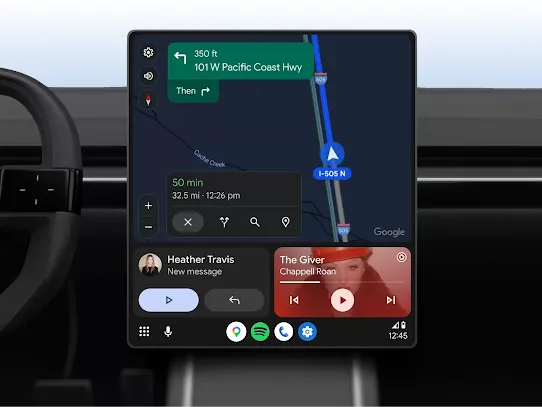

Android Auto brings compatible navigation, calling, messaging and media apps to a supported car display. It is integrated into modern Android phones, so you generally do not need to install a separate Android Auto app.
Check compatibility first
Google says wired Android Auto requires a compatible car or stereo, a high-quality USB cable and an Android phone running Android 9 or later. Wireless Android Auto requires compatible vehicle hardware and a supported phone with the required Wi-Fi capability.
Set up Android Auto with USB
- Park the car and turn on the infotainment system.
- Connect the phone to the vehicle using a high-quality USB cable.
- Follow the prompts on the phone and car display.
- Allow requested permissions needed for navigation, calls or messaging.
Set up wireless Android Auto
For the first wireless connection, pair the phone and car through Bluetooth. Keep Bluetooth, Wi-Fi and Location Services enabled during setup. Depending on the vehicle, you may need to hold the steering-wheel voice button or open the vehicle’s phone-pairing menu.
Android Auto will not connect
- Confirm the exact car model and stereo support Android Auto.
- Try a different high-quality USB cable for wired connections.
- Restart the phone and infotainment system.
- Remove the car from the phone’s saved connections, then pair it again.
- Update Android and relevant Google components.
- For wireless connections, confirm Bluetooth and Wi-Fi are both enabled.
Connection drops while driving
A loose USB connector, damaged cable or unstable wireless pairing can cause disconnects. Test a shorter cable, clean the port carefully and check whether the vehicle has a firmware update available from the manufacturer.
Safety
Complete setup while parked. Android Auto is designed to reduce interaction while driving, but you should still pay attention to the road and follow local traffic laws.
Bottom line
Start by confirming vehicle compatibility. For wired use, prioritize a reliable USB cable; for wireless use, make sure Bluetooth and Wi-Fi are functioning correctly and complete pairing before driving.

Other Articles
Files by Google: Clean Storage, Browse Files and Share Safely
Google Messages: RCS, SMS, Privacy and Troubleshooting
