

Quick answer: To create a Windows 11 bootable USB, use Microsoft’s official Windows 11 Media Creation Tool on a Windows PC, connect an empty USB drive with at least 8 GB of capacity, and follow the Create installation media prompts. The tool erases the selected drive, so back it up and confirm its drive letter before proceeding.
What to know first
This method is for installing, reinstalling, or repairing Windows 11 from external installation media. Prepare a reliable internet connection and a blank USB flash drive of at least 8 GB. Microsoft warns that the tool deletes its contents. If the drive contains photos, coursework, or work files, copy them elsewhere and verify the backup before starting. Do not assume that selecting a USB in the media tool leaves its existing folders intact.
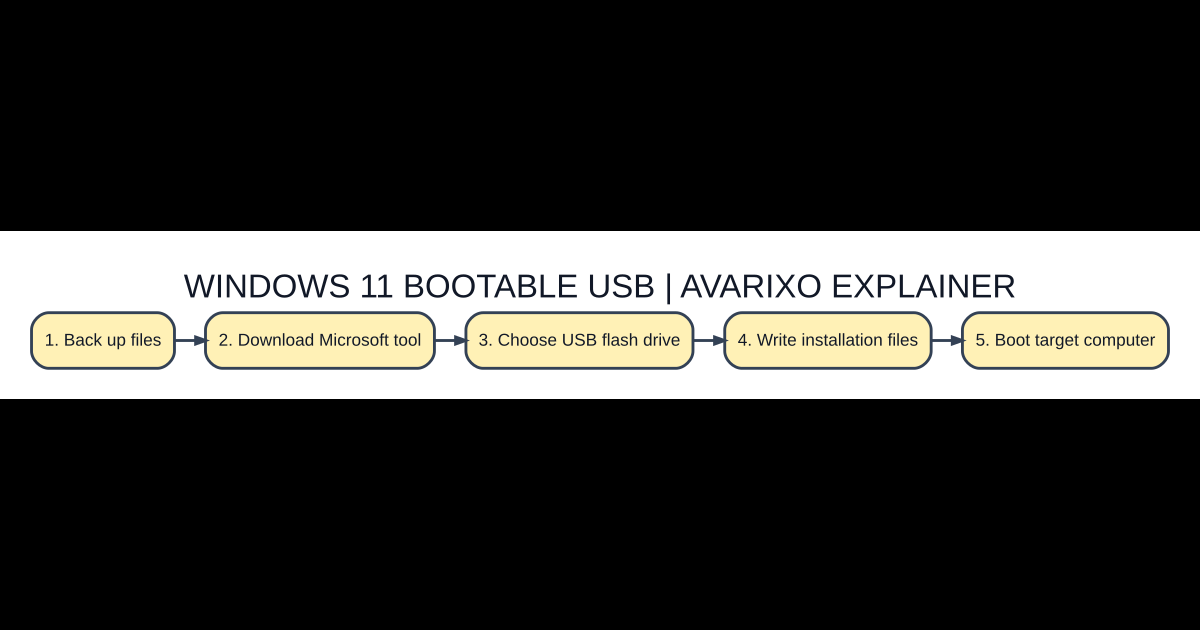
Step-by-step checklist
- Back up files. Verify the official documentation and the device or account you will use before beginning.
- Download Microsoft tool. Confirm your connection and sign-in details rather than guessing at defaults.
- Choose USB flash drive. Make the change in the service’s own settings and note what you changed.
- Write installation files. Test the result with a small, reversible check before inviting other users.
- Boot target computer. Keep a recovery path or backup so that a failed update can be reversed.
Download the legitimate Media Creation Tool
Visit Microsoft’s official Download Windows 11 page and find the section labeled Create Windows 11 Installation Media. Choose Download Now to obtain MediaCreationTool.exe. Avoid modified Windows ISO repositories, shortened links, and pages promising preactivated copies. Run the executable with the required permissions. Accept the prompts, review your language and edition, and select the USB flash drive option rather than ISO when your goal is a ready-to-boot USB.
Select the right removable drive
Insert the intended USB before opening the drive-selection step, and identify it by capacity and, if necessary, by checking File Explorer. Remove unnecessary external drives to reduce the chance of choosing the wrong device. When the tool asks for a target drive, verify the choice one final time. It downloads the Windows files and prepares the installation media. Do not disconnect the drive until the tool confirms completion.
Boot another PC from the USB
Connect the finished USB to the PC you want to install or repair. On startup, open the manufacturer’s temporary boot menu using the key shown by that device, then select the USB entry appropriate to UEFI booting. Boot-menu keys vary by manufacturer; there is no universal key that is right for every computer. If the USB does not appear, use another port, restart, or check the device’s firmware boot settings before rewriting the drive.
Clean installation versus keeping files
Creating a bootable USB is not itself a factory reset. What happens to data depends on what you do inside Windows Setup. A clean installation can remove apps, partitions, and personal files if you choose to delete or format volumes. If you need to preserve existing files, review Microsoft’s supported recovery and installation options and make a separate external backup. A product key may be required, although many machines have a matching digital license or firmware-stored key.
Troubleshooting an unsuccessful installer
If the media tool cannot detect your drive, confirm that Windows can see it and that it has sufficient capacity. If downloading stops, check free space on the source PC and the internet connection. If Setup reports that hardware is unsupported, verify the machine’s actual Windows 11 requirements; a working USB does not bypass hardware eligibility. If the target PC only loops back to its current OS, try the temporary boot menu instead of guessing at its boot priority.
Compare your options
| Option or case | Details | Best use / note |
|---|---|---|
| USB installation media | Blank USB drive, at least 8 GB | Install or reinstall on physical computer |
| ISO download | Storage space for ISO | Virtual machine or alternative media workflow |
| Reset this PC | A working Windows recovery environment | Reset the existing installation |
Common questions
Does making the USB delete my current PC files?
The creation step deletes files on the selected USB drive, not your PC’s internal drive. A later clean Windows installation can delete internal files depending on the options selected.
Does the USB come with a Windows license?
No. Installation media and activation rights are separate. Use your valid product key or applicable digital license.
Can I install Windows 11 on an incompatible computer?
Official installation media does not make unsupported hardware supported. Check Microsoft’s system requirements first.
What if I want the ISO instead of a USB?
The tool offers ISO as a separate output choice. Use it for a virtual machine or a compatible alternative deployment workflow.
Further reading and verification
Consult the Microsoft Support: Create installation media for Windows for current official instructions and eligibility. For related reading on AVARIXO, see our related guide. Product interfaces and requirements can change; recheck the live service before acting on security settings or reinstalling software.

Other Articles

