
Quick answer: Discord voice chat works on supported, updated Xbox consoles after you link your Xbox and Discord accounts. On the console, open the Xbox guide, choose Parties & chats, select Discord Voice, then join an available server voice channel. You can also transfer a Discord call from the phone or desktop apps using the Xbox app.
What to know first
Use the Discord account you actually want to speak from and the Microsoft account associated with your Xbox profile. In Discord, open User Settings > Connections and choose Xbox, then authorize the connection through the Microsoft sign-in page. On Xbox, use the account you linked rather than a different gamertag. The console should be running a current system update, because old system software can prevent Discord Voice from opening.
Step-by-step checklist
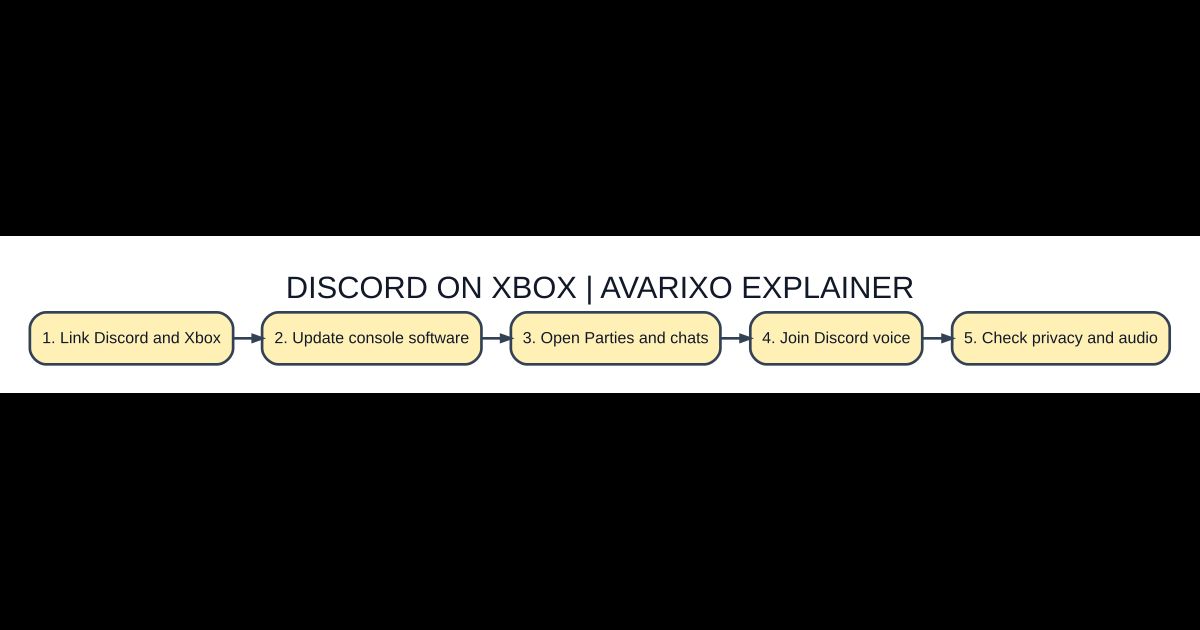
- Link Discord and Xbox. Verify the official documentation and the device or account you will use before beginning.
- Update console software. Confirm your connection and sign-in details rather than guessing at defaults.
- Open Parties and chats. Make the change in the service’s own settings and note what you changed.
- Join Discord voice. Test the result with a small, reversible check before inviting other users.
- Check privacy and audio. Keep a recovery path or backup so that a failed update can be reversed.
Join Discord voice directly from your Xbox
Press the Xbox button on your controller to open the guide, then select Parties & chats and Discord Voice. Browse the Discord servers and voice channels made available to your linked account, choose the intended channel, and confirm that your headset is active. Joining Discord is not the same as joining an Xbox party. You cannot simultaneously remain in an Xbox Party Chat and Discord voice chat on the same console.
Transfer a call from your phone or computer
A transfer is useful when you have already started a call in the Discord mobile or desktop app. Install and sign in to the Xbox mobile app. On Discord mobile, select the channel and choose Join on Xbox; the Xbox app then lets you select the console and transfer the audio. The desktop route uses Transfer Voice to Xbox and a QR code. Do not confuse this with streaming your Xbox gameplay into Discord: screen broadcasting is a separate feature.
Discord linked but no voice channels appear
First confirm that the specific account is linked under Connections. Test whether you can see and join that server channel in Discord on your phone, since server role permissions can hide a channel regardless of the console. Sign out and re-link the Xbox connection if you linked your accounts before the relevant voice-chat integration was introduced. Update both apps before re-attempting the authorization.
Audio and privacy settings that matter
If people cannot hear you, check your headset microphone mute switch, the headset assignment on Xbox, the output device and Discord voice settings. Xbox privacy rules can also block cross-network communication. For cross-network play choose Allow; for communicating outside Xbox with voice and text, Discord’s support guidance specifies Everybody. Choose settings appropriate for your age and household, and do not weaken restrictions without understanding what they permit.
When to use Xbox Party Chat instead
Xbox Party Chat remains convenient for a group already using Xbox. Discord Voice is more practical for friends on PC, PlayStation, or mobile who are in the same Discord server. Test one system at a time and tell your teammates where the conversation has moved; the two voice systems cannot be combined into a single simultaneous party on your console.
Compare your options
| Option or case | Details | Best use / note |
|---|---|---|
| Discord Voice on Xbox | A linked Discord account; appropriate server and voice-channel access | |
| Xbox Party Chat | An Xbox party; Discord is not required | |
| Transfer from Discord mobile | Discord and Xbox apps; linked accounts | |
| Stream gameplay to Discord | Separate screen-streaming support and permissions |
Common questions
Can I use Discord on Xbox without a phone?
Joining an available Discord voice channel directly from the updated Xbox guide is supported. A phone is specifically important for the transfer workflow from another Discord client.
Can I stay in an Xbox party at the same time?
No. The supported voice-chat experiences are separate; leave one before joining the other.
Why does Discord say the console needs an update?
Install the latest console system update, restart if required, and retry the account link and voice-channel join.
Does linking accounts automatically show my gaming activity?
Discord offers separate options for displaying Xbox profile or game activity. Review the connection display settings if you prefer to keep those details private.
Further reading and verification
Consult the Discord Help Center: Xbox Connection FAQ for current official instructions and eligibility. For related reading on AVARIXO, see our related guide. Product interfaces and requirements can change; recheck the live service before acting on security settings or reinstalling software.


