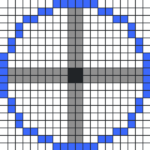

The best Valorant crosshair is one you can see clearly without letting it cover the enemy’s head. A small static crosshair with a contrasting color is a reliable starting point, but no single code or professional player’s settings guarantee better aim. Valorant lets you customize color, outlines, center dot, inner and outer lines, movement error and firing error. Start with a simple preset, then test it in the Range and in real matches.
This guide explains which settings actually change what you see, offers three starter profiles, shows how to import and share crosshair codes, and helps you fix a crosshair that disappears against the map.

Best Valorant crosshair settings for most players
If you are unsure where to begin, choose a visible color such as cyan or green, enable a compact set of inner lines, and disable movement and firing error indicators while learning consistent crosshair placement. Keep the crosshair small enough that an opponent’s head remains visible at distance.
| Setting | Practical starting choice | Why |
|---|---|---|
| Color | Cyan, green or another contrasting color | Helps the crosshair stand out from common map surfaces |
| Outlines | Off initially; enable if visibility is poor | Reduces visual clutter, but outlines can improve contrast |
| Center dot | Off for a compact line crosshair | Keeps the center clear; optional for dot players |
| Inner lines | On, short and thin | Creates a visible aiming reference without blocking targets |
| Outer lines | Off | Avoids a second layer of unnecessary detail |
| Movement error | Off for a stable reference | Stops the crosshair from expanding while you move |
| Firing error | Off for a stable reference | Keeps the visual center consistent while spraying |
These are suggested starting choices, not measured performance rankings. Your display size, eyesight, graphics settings and favorite weapons all influence what feels readable. A thicker crosshair may be easier to track on a small screen even if a thinner one looks better in a screenshot.
Three Valorant crosshair styles to try
1. Compact static crosshair
Use four short inner lines, a small central gap, no outer lines and no error expansion. This is a versatile default for rifles because it provides a central reference while leaving the target visible. If the center feels too empty, slightly reduce the gap rather than making every line much longer.
2. Minimal center dot
Turn on a small center dot and disable inner and outer lines. This can work well for players who want to focus on precise placement, but it may be difficult to see on certain map backgrounds. Consider a contrasting outline if the dot vanishes in bright areas.
3. High-visibility crosshair
Choose a bright color, modest outlines and slightly thicker inner lines. Keep outer lines off. This profile is useful if a tiny crosshair gets lost on your monitor, but avoid making the center so large that it covers distant opponents.
How to change your crosshair in Valorant
- Launch Valorant and open Settings.
- Select the Crosshair tab.
- Create or select a crosshair profile so you can return to your old setup later.
- Adjust the primary crosshair color, outlines, center dot and line options.
- Set movement error and firing error according to whether you want visual feedback or a static reference.
- Visit the practice Range and aim at targets from several distances.
- Test the result in a match before making another major change.
Riot’s official Valorant site and support center are the best places to check game-specific changes or troubleshooting notices. Menu labels can move after updates.
How to import a Valorant crosshair code
Valorant supports sharing crosshair profiles through import/export codes. If you find a code from a creator or friend, copy the complete string, open Settings → Crosshair, choose the profile import option, paste the code and confirm. The imported settings should populate a crosshair profile. Inspect the resulting color, dot and lines rather than assuming the code matches the screenshot.
To share your own setup, select its profile and use the export/share option to copy its code. Import/export controls can change with updates, so rely on the game’s current UI. A crosshair code is a configuration string, not a program: there is no reason to download an executable to apply it.
Do pro Valorant crosshairs improve aim?
Professional players use many different crosshair shapes, colors and sizes. Copying one may give you a sensible baseline, but it cannot fix poor crosshair placement, rushed shots, recoil control or inconsistent mouse sensitivity. A professional’s setup was chosen for that player’s monitor, habits and preferences.
For meaningful improvement, keep one crosshair for several sessions and focus on holding it at expected head height as you move through a map. Constantly changing presets after every loss makes it harder to know whether a setting is helping.
Crosshair color: cyan, green, white or red?
There is no universally best color. Choose one that contrasts with the environments you play in and with your enemy highlight setting. Cyan and green are popular because they can stand out in many situations, but neither is guaranteed to be visible against every surface. White can be clean on darker scenes and hard to see on bright walls. Red may be confused with certain interface elements or highlights depending on your settings.
Try a few maps in the Range or custom game. If your crosshair disappears against a wall, change the color or add an outline rather than increasing every dimension at once.
Should movement error and firing error be on?
These settings are visual feedback, not a secret accuracy boost. They can help a beginner notice when they are moving or firing inaccurately, but a moving crosshair can also make precise placement feel less consistent. With the indicators disabled, your bullets still follow the game’s movement and weapon accuracy rules; the display simply stays more stable.
A useful experiment is to enable the indicators briefly while learning the mechanics, then switch them off once you understand when you need to stop moving before taking a shot.
How to fix common Valorant crosshair problems
| Problem | Likely cause | Fix |
|---|---|---|
| Crosshair disappears on bright walls | Insufficient contrast | Change color or enable a subtle outline |
| Crosshair blocks enemy heads | Lines, dot or gap too large | Reduce size or thickness and test at long range |
| Crosshair expands while moving | Movement error enabled | Disable movement error for a static reference |
| Crosshair expands when shooting | Firing error enabled | Disable firing error if you prefer a fixed shape |
| Imported code looks wrong | Incomplete string, different profile or version | Re-copy the code, inspect the profile and compare settings manually |
| Dot is hard to see | Too small or low-contrast | Increase dot visibility or switch to compact inner lines |
Practice routine: make your crosshair useful
- Warm up: Spend a few minutes in the Range with one stable crosshair.
- Head height: Move between targets while keeping the crosshair at the expected head position.
- Stop before shooting: Practice pausing your movement and firing a controlled shot.
- Check long range: Make sure the crosshair does not cover a distant target.
- Play real matches: Observe whether you lose track of the crosshair in actual fights.
- Change one setting: Adjust only color, gap or thickness at a time so you can judge the result.
Crosshair settings should support aim training, not replace it. If your frame rate is inconsistent or your display has high latency, address those issues separately rather than expecting a different crosshair to compensate.
Frequently asked questions
What is the best Valorant crosshair for beginners?
A small static crosshair with short inner lines, no outer lines and a clearly visible color is a practical starting point. Adjust it after testing on your monitor.
Is a dot crosshair better than a cross?
Neither is automatically better. A dot can encourage precise placement, while short lines may be easier to locate in peripheral vision. Use the style that remains visible without obscuring targets.
How do I copy a Valorant crosshair?
Use the in-game crosshair import option with a complete profile code, or recreate the settings manually from a screenshot. Inspect the result before playing.
Do crosshair codes affect sensitivity?
No. Crosshair profile codes configure crosshair appearance and related indicators; they do not change your mouse DPI or sensitivity.
Why does my crosshair get bigger when I shoot?
Firing error is probably enabled. Disable it if you prefer a crosshair that does not expand visually while shooting.
Should I use the same crosshair as a professional player?
You can use a pro’s crosshair as a starting point, but keep it only if it is comfortable and visible on your setup. Better placement and movement discipline matter more than matching a famous preset.
Bottom line: Start small, static and high-contrast. Test one crosshair in the Range and real matches, then make modest changes based on visibility—not on claims that a code will instantly improve your rank.