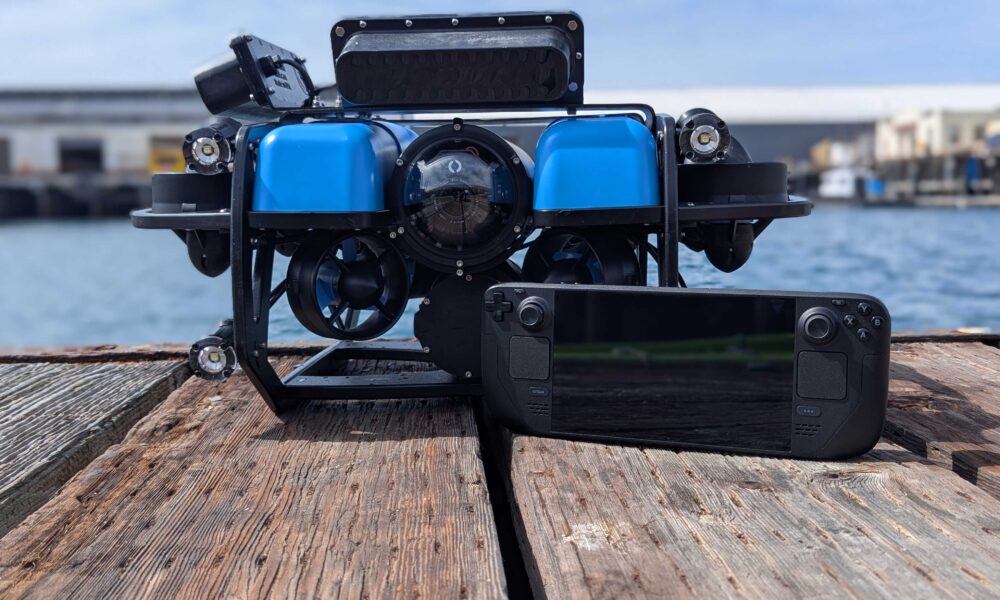

A Steam Deck screenshot takes only a button combination, but finding or sharing the picture afterward can be less obvious. The normal in-game shortcut is STEAM + R1 (the right bumper). The Steam client also provides screenshot and media-management controls, although menus and cloud-sync behavior can vary with SteamOS updates.
How to take a screenshot on Steam Deck
- Open the game or screen you want to capture in Gaming Mode.
- Hold the STEAM button.
- Press R1 once while continuing to hold STEAM.
- Release the buttons and look for the capture confirmation.
- Open Steam’s media or screenshots area to review the image.
This is the standard shortcut described by Steam Deck control guides, including Mashable’s overview of Steam Deck hardware shortcuts. Avoid mixing up R1, the right bumper, with R2, the right trigger.
Where do Steam Deck screenshots go?
Captured images are managed through Steam’s screenshot/media interface. Look for a Media or screenshots section in the Steam menus; the exact labels can change between client versions. Select a capture to view its details and available actions. If you need the underlying file rather than a share option, the screenshot manager may provide a way to open or locate it on disk.
Do not assume that every screenshot is uploaded automatically. Local captures, screenshots marked for upload and content visible on your public Steam profile can have different privacy or synchronization states.
What about Desktop Mode screenshots?
Steam Deck’s Linux desktop uses its own desktop environment and may offer a built-in screen-capture utility. The STEAM + R1 hardware shortcut is primarily known for the console/gaming environment; keyboard shortcuts or desktop capture apps can behave differently. If you are doing desktop work, try the installed screenshot utility and verify where that tool saves files. For the mode-switching steps, read our Steam Deck display and dock guide alongside Valve’s Desktop Mode FAQ.
How to share without exposing personal information
- Review the captured image before sharing it. Check for account names, chat messages or other private information.
- Open its available share/upload action in the Steam client, if offered by your version.
- Read the selected visibility settings instead of assuming an upload is private.
- If you export the local image to another device, check whether it was copied rather than moved.
Steam’s broader screenshot manager is covered in our guide to Steam screenshots and export folders. That article also explains desktop Steam behavior on other computers.
STEAM + R1 not working? Work through this checklist
| Symptom | What to check |
|---|---|
| No capture confirmation | Try the shortcut in a normal game session; confirm the bumper registers elsewhere. |
| Shortcut opens another action | Review custom controller layouts and desktop-vs-gaming context. |
| Capture missing from media list | Check filters, game selection and whether the screenshot manager is showing local files. |
| Cannot share | Review your Steam client status, privacy controls and available upload actions. |
A game can restrict certain actions, and a custom controller mapping can change expected input behavior. Before reinstalling SteamOS, test the shortcut in a second game and inspect the screenshot-management menu.
FAQ
Which button is R1 on the Steam Deck?
R1 is the right shoulder bumper, above the right trigger.
Does screenshotting interrupt the game?
The shortcut is intended for quick captures and normally does not require closing the game.
Are Steam Deck screenshots public?
Not merely because they were captured locally. Review upload and visibility settings before sharing.
Can I find screenshots on a PC later?
That depends on whether they were uploaded/synchronized or manually copied. Use Steam’s screenshot manager and verify the relevant account and device.
Quick answer: press STEAM + R1 in Gaming Mode, then open Steam’s media manager to review and share the resulting image.

