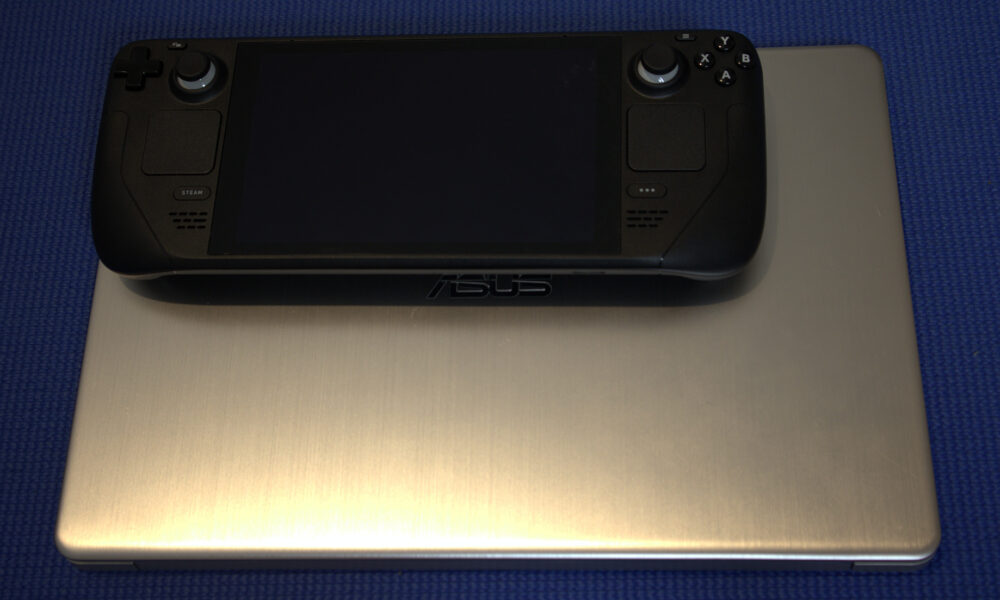

Steam Deck Desktop Mode turns Valve’s handheld into a small Linux computer. You can browse files, use compatible desktop apps and manage some settings that Gaming Mode hides. You do not need to reinstall SteamOS or connect a monitor to try it. The important part is knowing how to switch modes and how to return without accidentally changing system files.
How to switch Steam Deck to Desktop Mode
- Save your game and close anything you do not want interrupted.
- Press the STEAM button to open the system menu.
- Select Power.
- Choose Switch to Desktop and allow the desktop environment to load.
Valve documents this same path in its Steam Deck desktop FAQ and basic troubleshooting guide. The desktop is part of SteamOS; using it does not by itself delete games or change your Steam account.
How to return to Gaming Mode
Find the Return to Gaming Mode shortcut on the desktop and activate it. The handheld transitions back to the console-style Steam interface. If an open program prevents the transition, first close that program normally. Avoid repeatedly forcing shutdowns unless the device is genuinely unresponsive.
Steam Deck desktop controls explained
| Task | Practical option |
|---|---|
| Move the pointer | Use the right trackpad in the default desktop arrangement |
| Open a desktop item | Click with the available trackpad or touchscreen controls |
| Type text | Use the on-screen keyboard if available or connect a compatible keyboard |
| Work at a desk | Connect peripherals directly or through a compatible dock |
Desktop controls can vary depending on whether Steam is running and whether a custom controller layout is active. If the virtual keyboard does not appear when expected, check that Steam is open in the desktop session before assuming the screen is broken.
What can you do in Desktop Mode?
Manage local files
Open the file manager to view downloaded files, screenshots and other folders accessible to your user account. Do not move system folders or delete unfamiliar directories just to recover storage. You can also learn about finding screenshots in Steam before reorganizing captures.
Use compatible Linux apps
Some desktop applications can be installed through the operating system’s supported app-management tools. Availability and behavior vary by SteamOS version. Check the application’s publisher and platform compatibility before installing it; Windows-only installers will not automatically behave like native Linux apps.
Connect a TV, display or input devices
A separate screen and keyboard can make file management easier, but neither is required to enter Desktop Mode. For physical connection problems, see our Steam Deck TV and dock connection guide.
Desktop Mode not opening? Try these checks
- Close the running game and retry from the Steam Power menu.
- Check whether the screen is simply taking time to switch sessions.
- Disconnect a problematic external dock or monitor and try the built-in display.
- If the device is responsive, restart through the normal power controls and try again.
- If an update or third-party customization preceded the problem, review Valve’s current SteamOS support guidance before making deeper changes.
A black external display does not necessarily mean the Deck failed to enter Desktop Mode. The handheld’s display and the dock’s video output should be checked separately.
FAQ
Does Desktop Mode replace SteamOS?
No. Desktop Mode is an interface available within SteamOS, not a separate Windows installation.
Will switching modes delete games or saves?
Switching modes normally does not delete installed games or saves, but always save and close an active game first.
Do I need a keyboard?
No. The built-in controls and touchscreen can handle many tasks, although a hardware keyboard is more comfortable for long typing sessions.
Can every Windows app run in Desktop Mode?
No. App compatibility depends on the platform, any supported compatibility layer and the individual software.
Bottom line: use STEAM → Power → Switch to Desktop, and the Return to Gaming Mode shortcut when finished. That is the normal, reversible route between both Steam Deck interfaces.

Other Articles

