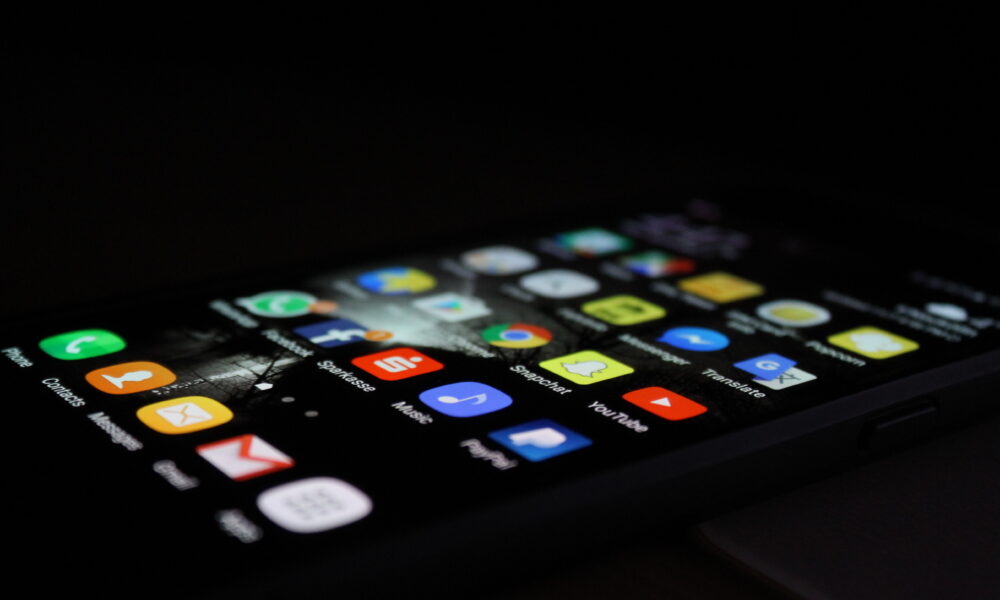

The Samsung home screen is the set of pages you see after unlocking a Galaxy phone. You can move app shortcuts, create folders, add and resize widgets, change the wallpaper, adjust the icon grid, and decide which page opens first. Start by touching and holding an empty part of the home screen, then choose Widgets, Wallpaper and style, or Settings as needed. Exact labels vary by Galaxy model, region, carrier, and One UI version.
This guide focuses on the home-screen layout rather than the phone’s Lock screen or the separate Apps screen. It combines practical organization ideas with instructions from Samsung’s official home-screen guide so you can change your layout without accidentally deleting apps.
Customize your Samsung home screen in five quick steps
- Open edit mode: Touch and hold an empty area of your home screen. On supported models, pinching inward also opens the page overview.
- Pick a background: Select the wallpaper or wallpaper-and-style option and choose an image or color scheme.
- Organize apps: Touch and hold an icon to move it. Drag one app onto another to create a folder.
- Add a widget: Long-press a blank space, choose Widgets, pick a size, and tap Add.
- Check the grid and lock: Open Home screen settings to adjust the layout and, when finished, consider turning on Lock Home screen layout.
If a button is missing, first check which version of One UI your phone runs. Samsung has changed some grid choices and icon-label controls between versions; copying steps intended for a different version can make a normal setting look absent.
Home screen vs. Apps screen: what is the difference?
| Area | What it does | Important distinction |
|---|---|---|
| Home screen | Shows chosen shortcuts, widgets, folders, and wallpaper. | Removing a shortcut generally does not uninstall its app. |
| Apps screen (app drawer) | Displays installed apps and gives access to those not pinned on the home screen. | Normally reached by swiping up on a standard Galaxy layout. |
| Lock screen | Appears before unlocking and can show notifications, a clock, and supported shortcuts. | Settings and widgets here are not the same as home-screen widgets. |
| Quick settings | Holds Wi-Fi, brightness, and other device controls. | It is accessed by swiping down rather than rearranging home-screen icons. |
Move, add, or remove Samsung app icons
Add an app shortcut
Swipe up to open the Apps screen, find the app, press and hold its icon, then choose Add to Home or drag it onto the home screen. You can position frequently used apps near the lower edge so they are easier to reach with one hand.
Rearrange icons and the bottom favorites row
Press and hold an app shortcut until it can move, drag it to the chosen spot, and release. For the favorites row along the bottom, remove a shortcut from that row and drag in a more useful one from the Apps screen. Some Galaxy layouts allow a different number of favorite shortcuts; do not assume every model supports the same number.
Remove is not uninstall
If you choose Remove from a home-screen shortcut’s menu, the installed app normally remains available in the Apps screen. Uninstall is a different action that removes an installed application. Before deleting a folder, check whether you are deleting only the home-screen arrangement; on Samsung’s supported layouts, apps stay available from the Apps screen.
Create Samsung home-screen folders that are easy to use
- Touch and hold one app icon.
- Drag it over another app until a folder is created.
- Open the folder and enter a short name, such as Work, Games, or Travel.
- Use the palette control, where available, to choose a folder color.
- Drag additional apps inside, or use the folder’s Add button.
A practical setup uses only a few folders: one for communication, one for essential tools, and one for occasional apps. Too many categories can make a tidy-looking screen slower to navigate. Samsung documents folder creation and deletion in its Galaxy home-screen support article.
Add, resize, and manage widgets
Widgets show information or controls without opening the whole app. Common choices include a clock, weather, calendar, notes, or a supported music-control widget. They may differ depending on installed applications and your Galaxy’s software.
- Long-press an empty part of the home screen, then tap Widgets.
- Browse by app, preview available sizes, and choose Add.
- To reposition the widget, press and hold it, then drag.
- For widgets that support resizing, use the outline handles or dots to adjust dimensions.
- If the widget offers its own settings, open the menu to adjust displayed information or appearance.
On supported phones, widget stacks can let multiple compatible widgets share one spot; the option is not universal, so use the Samsung widget guide for your device’s supported behavior. Avoid stacking so much information that the clock, weather, and calendar become difficult to read.
Add, remove, or reorder entire home-screen pages
Press and hold a blank space on the home screen to display the page overview. Swipe between page previews to find the + control for a new page. Touch and hold a page preview to change its order. To make one panel your starting panel, tap its house-shaped Home icon if available. A trash-can icon removes an unneeded page.
Be careful when deleting a page containing widgets or app shortcuts: those placements may disappear even though the applications remain installed. Move important shortcuts to another page first. If a news or Discover panel is enabled, Samsung’s page overview may offer a separate switch for it.
Change the grid, app size, and wallpaper
Go to Settings > Home screen (or long-press the home screen and tap Settings) to find the supported layout options. A grid controls how many shortcut positions fit on a page. More columns can make room for more shortcuts, but icons and labels can become harder to read. The ideal setting is the one that lets you recognize your most-used apps immediately.
One UI version matters: Samsung’s March 19, 2026 guidance on One UI 7 changes says some older grid presets, including 4×5 and 5×5, are no longer among the default selections on devices running that version. Do not assume a grid demonstrated for One UI 6 will exist on every newer Galaxy device. Available icon-size and app-label controls also depend on the software version.
For wallpaper, long-press the home screen and open the wallpaper or wallpaper-and-style section. Choose an image that leaves the text of app labels readable. A busy photograph behind numerous widgets can look striking in a screenshot but be distracting throughout the day.
Three Samsung home-screen layout ideas that work in practice
| Layout | Suggested arrangement | Who it helps |
|---|---|---|
| Minimal | One clock or weather widget; a small set of everyday apps; less-used apps remain in the Apps screen. | People who want fewer distractions. |
| Workday | Calendar widget near the top, communications folder in the middle, notes and camera within thumb reach. | People using a Galaxy phone for work or study. |
| Gaming | A games folder or supported game launcher shortcut, with battery and device tools close at hand. | People who play several games but do not want them scattered across pages. |
Rather than copying a decorative screenshot exactly, keep the most important task on the first page. If you repeatedly swipe through three screens to open the same app, that app probably deserves a spot closer to the main page.
Fix common Samsung home-screen problems
I cannot move an app or widget
Check Settings > Home screen > Lock Home screen layout. Turn the lock off, rearrange the icons, and turn it back on afterward if desired. Samsung notes that a locked layout prevents moving app icons and widgets.
An app disappeared from my home screen
First swipe up to the Apps screen and search for the app. If present, add its shortcut again; a removed shortcut is not the same as an uninstalled app. If the app is missing there too, check hidden apps and installed-app settings before assuming it was deleted.
The layout changed after an update
Software upgrades may change grid choices or how apps and widgets fit. Samsung explicitly documents layout changes with One UI 7. Review Home screen settings and reposition items one page at a time. Avoid clearing the One UI Home app data as a casual fix: that can reset layout preferences. For safer Android storage maintenance, read our guide to clearing an app’s cache without deleting app data.
The home screen will not rotate
Check whether Rotate to landscape mode exists under Home screen settings and whether automatic rotation is enabled. Samsung says the feature is not offered on every device. Editing the layout in landscape orientation can also be limited on certain One UI versions.
Frequently asked questions
How do I get my Samsung home screen back to normal?
First remove unwanted shortcuts and widgets, restore the wallpaper you prefer, and check the Home screen grid. If the screen unexpectedly changed after an update, review Samsung’s version-specific settings before resetting anything. Avoid deleting launcher data unless you have a separate backup plan.
How do I make icons smaller?
Open Home screen settings and look for grid, icon-size, or app-and-widget-style controls supported by your One UI version. The available options vary; enlarging the grid may alter apparent spacing, while a dedicated icon-size option may only appear on specific builds.
Will removing an icon delete the app?
No, removing a home-screen shortcut normally does not uninstall the app. Choose Uninstall only when you actually intend to remove an installed application.
How do I take a picture of my finished layout?
You can take a screenshot with the Side and Volume Down buttons on many Galaxy phones. See our Samsung screenshot guide for supported alternatives.
Where can I find official Samsung home-screen instructions?
Start with Samsung’s home-screen organization guide and its widget documentation. They explain when features vary by device or software version.
Featured image: Rami Al-zayat, Samsung Galaxy photograph (2016), Wikimedia Commons, CC0 1.0. It is an illustrative photograph of an older home screen, not a claimed screenshot of current One UI.

Other Articles

John Starks Basketball Player: Knicks Stats, Awards and The Dunk