

To craft a cartography table in Minecraft, place two sheets of paper side by side above four wooden planks in a 3×3 crafting grid. The table lets you zoom out a regular filled map with paper, copy a map with an empty map, or lock a map with a glass pane. It is also the job-site block for cartographer villagers. In the Java Edition 26.3 update, explorer maps and buried treasure maps can no longer be zoomed out, an important change many older tutorials miss.
If you are trying to enlarge an ordinary map, put the existing filled map in the first slot and one piece of paper in the second slot. If the result stays empty, first check what kind of map you are using: the 2026 Java rules distinguish standard filled maps from explorer and buried treasure maps. This guide explains the recipe, every useful slot combination, Java-versus-Bedrock differences, and how to avoid accidentally freezing a map before you finish exploring it.

How to make a cartography table in Minecraft
Gather two paper and four wooden planks. Three sugar cane placed side by side in a crafting grid produce three sheets of paper, so a small sugar-cane harvest is enough. Turn a suitable log or stem into planks. The planks can come from compatible wood types; you do not need a specific oak tree.
| Row in crafting table | Left | Middle | Right |
|---|---|---|---|
| Top | Paper | Paper | Empty |
| Middle | Wooden plank | Wooden plank | Empty |
| Bottom | Wooden plank | Wooden plank | Empty |
Use a crafting table, not the smaller 2×2 inventory grid. The materials form a 2×3 rectangle: paper along the top and planks in the two rows immediately below. Move the completed cartography table into your inventory and place it in your base. Mojang describes the same two-paper, four-plank recipe in its official Block of the Week: Cartography Table article. Our Minecraft paper guide explains getting more paper if you need multiple maps.
What does a cartography table do?
Unlike a crafting table, the cartography table has a map-specific two-input interface. Put a filled map into the main slot and a second item in the ingredient slot. The result depends on that second item. These functions matter most when planning a large base, sharing exploration progress with teammates, or preserving a map as decoration.
| First slot | Second slot | Result | When to use it |
|---|---|---|---|
| Ordinary filled map | Paper | Zoomed-out map | Show a wider area at a smaller level of detail |
| Compatible filled map | Empty map | Copy / clone | Share a matching map with a teammate |
| Compatible filled map | Glass pane | Locked map | Preserve how the map looks right now |
| Bedrock map (where supported) | Compass | Locator-map functionality | Show the player marker in that edition |
The table is not a universal map editor. You cannot upload a custom satellite image or combine two separately explored maps into one larger map just by using this block. Its built-in operations are limited to the supported Minecraft map items and the version-specific recipes.
Zoom out a map using paper
- Place a cartography table and interact with it.
- Insert a regular filled map in the first slot.
- Put one paper in the second slot.
- Check the preview and take the zoomed-out result.
- Explore the wider area as needed. Repeat the process on the new map until you reach the maximum zoom level.
Each successful zoom step doubles the width and height covered by the map. A level-0 map covers approximately 128 × 128 blocks, while level 4 covers 2,048 × 2,048 blocks. Larger scale means more geographic coverage but less detail for individual buildings. Do not confuse zooming out with physically moving the player’s marker: a map only becomes useful as its area is explored.
| Map scale | Area covered (blocks) | Useful for |
|---|---|---|
| 0 | 128 × 128 | A village, neighborhood or individual base |
| 1 | 256 × 256 | Nearby roads and connected builds |
| 2 | 512 × 512 | The surrounding biome and farms |
| 3 | 1,024 × 1,024 | Long travel routes |
| 4 | 2,048 × 2,048 | Broad regional exploration |
Important October 2026 update: which maps cannot zoom anymore?
Mojang’s Minecraft Java Edition 26.3 patch notes explicitly say that Explorer Maps and Buried Treasure Maps can no longer be zoomed out, whether in a crafting table or a cartography table. These maps are now distinct items rather than merely differently named filled maps; the zoom operation only accepts map items in the #minecraft:extendable_maps tag.
This is not a bug you can fix by adding more paper. If a woodland mansion, ocean monument, or buried treasure map refuses to zoom in the current Java game, use a normal filled map for wider surveying instead. Explorer maps remain useful for navigating toward their target locations, but they should not be treated like ordinary zoomable maps in 26.3.
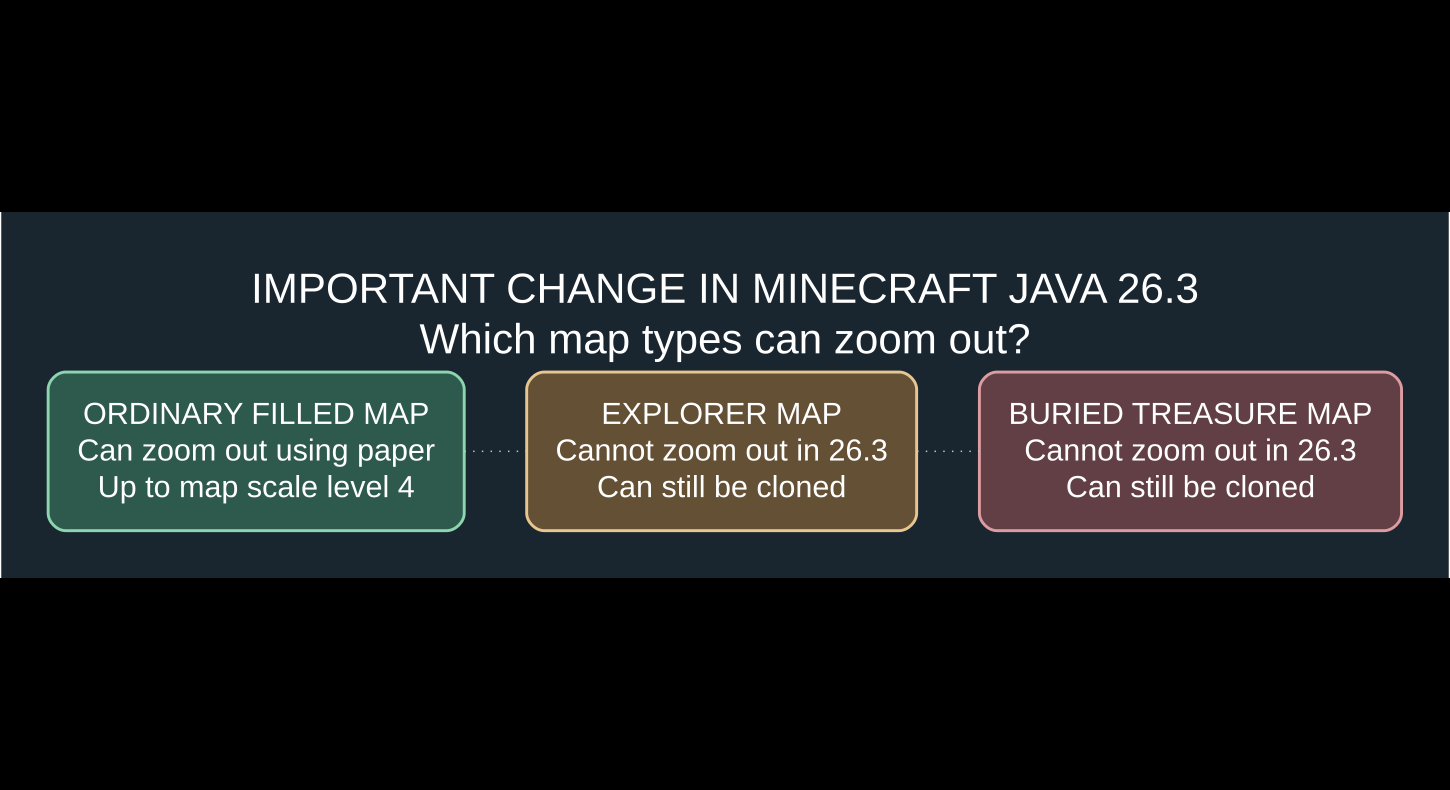
Edition note: the cited change is confirmed in the Java Edition 26.3 release notes. Check the version of Bedrock installed on your device before assuming an identical change was released there at the same time. The established Bedrock map-marker and cartography-table options differ from Java’s implementation.
Copy or clone a Minecraft map
To give a friend a copy of your explored area, use a filled map with an empty map in the table where that recipe is supported. Collect the result and distribute the copies among your party. This saves you from exploring the same mapped area from scratch just to make matching map items.
In the new Java 26.3 map system, Mojang explicitly confirms that Explorer Maps can still be cloned in a crafting table even though they cannot be zoomed out. If the cartography-table combination does not show a result for one of the new specialized explorer items, switch to the supported crafting-table cloning recipe instead of assuming the map is corrupted.
For the basics of getting an empty map or creating your first explored map, consult our Minecraft map crafting and edition differences guide.
How to lock a map with a glass pane
Locking freezes a map’s displayed world snapshot, which is useful for a museum-style wall, a record of your first base, or a project you expect to rebuild. Put the filled map and one glass pane into the compatible cartography-table slots, then collect the locked result.
Before you lock: finish exploring the area you want on the map. A locked map will not keep filling in previously unexplored sections or reflect changes you make to the landscape. It is an intentional snapshot, not a way to make normal exploration faster. If your map seems permanently frozen after placing glass into the second slot, check whether you produced a locked map.
Java vs Bedrock: locator maps and compass markers
The original Minecraft.net cartography table guide explains an important edition difference: Java Edition maps automatically show the player’s pointer, while Bedrock uses map variants and compass-related cartography operations for locator functionality. On Bedrock, where your current version supports it, a compass can be used as part of making or converting locator maps.
If you are on an iPhone, Android device or console playing Bedrock, do not rely on a Java-only screenshot or command when following map recipes. In particular, pay attention to whether a guide shows an empty map, a locator map, or an already explored map. The tool accepts different items for different operations; supplying an uninitialized map where a filled one is required may leave the result empty.
Turn a villager into a cartographer
A cartography table doubles as the cartographer profession’s workstation. A nearby eligible unemployed villager can claim an accessible table, after which cartographer trades may include maps and other useful items. This does not mean any already-employed villager instantly changes jobs; established trade and workstation-claim rules still apply.
To try it, place a cartography table near an eligible villager, leave access to the job block, and allow the game to assign the profession. If it does not work, check for another claimed workstation and whether you have already traded with that villager. See our guide to all 13 Minecraft villager jobs for the larger workstation system.
Why isn’t my cartography table working?
| Symptom | Likely cause | What to do |
|---|---|---|
| Crafting recipe makes nothing | Wrong grid, ingredient count or arrangement | Use a 3×3 crafting table with 2 paper over 4 wooden planks. |
| Explorer map will not zoom out | Minecraft Java 26.3 restriction | Use an ordinary filled map; new explorer maps are not zoomable. |
| Map plus paper has no output | Wrong map type or already at the maximum level | Check map type and current scale. |
| Map won’t update anymore | The map was locked with a glass pane | Use an unlocked map for ongoing exploration. |
| Player location marker is missing | Edition-specific locator-map behavior | Check the correct Bedrock map or compass workflow. |
| Villager ignores the workstation | Ineligible villager or inaccessible/claimed table | Check previous trades, profession and access. |
Frequently asked questions
How many paper and planks do you need?
Two paper and four wooden planks make one cartography table. Arrange the two paper horizontally above a square of four planks.
Can you make a bigger map?
Yes, ordinary filled maps can be zoomed out one scale level at a time using paper, up to scale level 4. The wider area comes with less detail.
Can cartography tables copy maps?
Yes, supported maps can be cloned with a compatible empty-map recipe. The Minecraft Java 26.3 notes specifically retain crafting-table cloning for Explorer Maps even though those maps can no longer be zoomed out.
Can you zoom out an explorer map in Minecraft 26.3?
No in Java 26.3. Mojang says Explorer Maps and Buried Treasure Maps are no longer zoomable in either a crafting table or cartography table.
What does a glass pane do in the table?
It locks a supported filled map, preventing the displayed world image from changing as exploration or building continues.
Where can I find a cartography table in a village?
Look in the house belonging to a cartographer villager. Crafting your own is often faster if you have two paper and four planks available.
Official sources and bottom line
Use Mojang’s Block of the Week: Cartography Table for the core recipe, slot combinations and edition differences, and the Java Edition 26.3 release notes for the new restrictions on explorer maps. For most survival bases, one cartography table, a few empty maps, paper and glass panes are enough to build a shared map wall and make useful copies without wasting resources. Just remember that a normal filled map and a dedicated explorer map do not behave the same way after the 2026 update.

Other Articles

