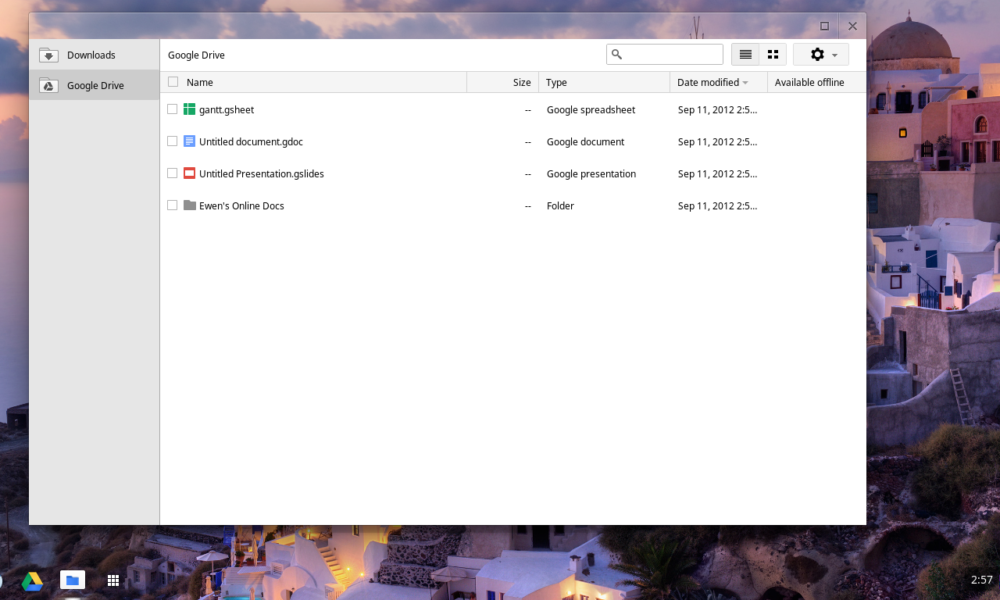

Google Drive for desktop connects files in your Google Drive account with Windows or macOS. The most important setup choice is whether to stream files from the cloud or mirror them to the computer.
Install Google Drive for desktop
- Download Drive for desktop from Google’s official Drive website.
- Run the installer and complete the operating-system prompts.
- Open Drive for desktop and sign in to the Google Account that contains the files you need.
- Open Drive preferences and review the sync options before adding large folders.
Stream files vs mirror files
Stream files
Streaming keeps most files primarily in the cloud and uses relatively little local disk space. Files appear in a virtual Drive location and download when needed. You can make selected files available offline.
Mirror files
Mirroring stores My Drive files both on the computer and in the cloud. Mirrored files remain available offline, but a full local copy uses significantly more disk space.
How to change the sync mode
Open Drive for desktop, select Settings, then Preferences. Under the My Drive syncing options, choose Stream files or Mirror files.
When changing from mirroring to streaming, wait until all local changes have finished syncing before deleting or moving the old mirrored folder. Google specifically warns that this step matters for avoiding data loss.
Why a file may appear to be missing
- You are signed in to a different Google Account.
- The file is in a Shared drive rather than My Drive.
- The file has not finished syncing yet.
- The local mirrored folder was moved or renamed.
- The file is cloud-only and your computer is offline.
- The file was deleted or moved by another collaborator.
Check sync status
Open the Drive for desktop menu from the system tray or menu bar. Review recent activity and any sync error messages. If a file is important, confirm that it appears in Drive on the web before deleting a local copy.
Fix common sync problems
- Confirm the computer has a working internet connection.
- Make sure the correct Google Account is connected.
- Check that Drive for desktop is running and not paused.
- Review available disk space if you use mirroring or offline files.
- Restart Drive for desktop after an update or system change.
- If a specific file fails repeatedly, check its name, permissions and whether another program is locking it.
Streaming or mirroring: which is better?
Streaming is usually the better default when disk space is limited or you work mostly online. Mirroring is useful when you want your full My Drive available offline and have enough storage for a local copy.
Bottom line
Choose the sync mode based on local storage and offline needs. Before switching modes or deleting folders, verify that all important files have finished syncing to the cloud.

Other Articles

How to Update Google Chrome on Windows, Mac and Android
Google Forms: Create Surveys, Share Links and View Responses