
Quick answer (reviewed October 9, 2026): Fortnite freezing, closing to desktop or failing to open on Windows can have several different causes: hardware requirements, damaged game files, a problem with the Epic Games Launcher, graphics drivers, interfering background software or disk errors. Epic Games recommends troubleshooting in stages rather than beginning with a full reinstall. The order below focuses on low-risk checks first and distinguishes an actual crash from a server connection problem.
Identify the exact failure before changing settings
Note when Fortnite closes: before reaching the lobby, while joining a match, after a specific update or only when other applications are open. Record the full error text if one appears. Epic advises searching its help center for the exact code because different errors have dedicated fixes. Also check whether the PC meets the game’s current minimum requirements rather than assuming any computer running Windows can launch it.
Verify Fortnite files using the Epic Games Launcher
Open your Epic Games Launcher Library, locate Fortnite, open its management menu and run Verify. The launcher checks the local game files and repairs missing or altered files where possible. This is distinct from an uninstall: it is usually a less disruptive first attempt. After verification, launch the game once with unnecessary background programs closed and note whether the symptom changes.
Clear launcher cache and check drivers
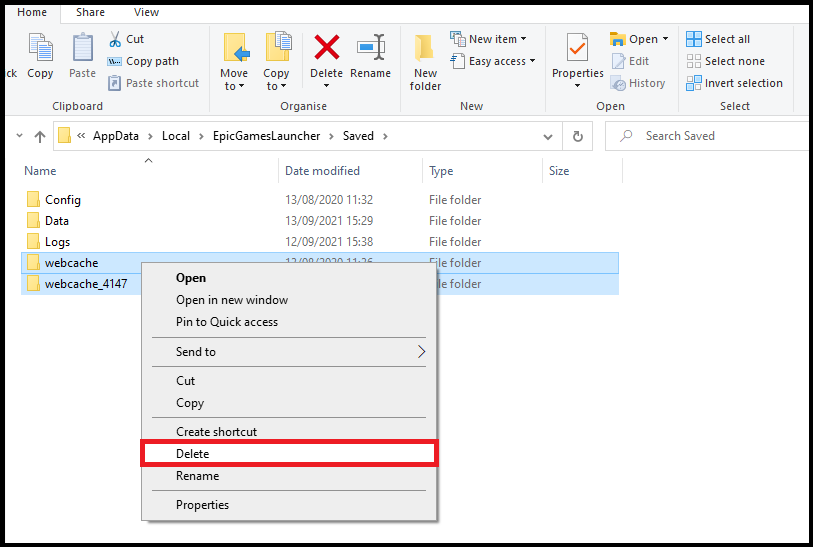
Epic’s PC troubleshooting list includes clearing the launcher cache and updating video-card drivers. Use the official instructions for your NVIDIA, AMD or Intel GPU; driver packages downloaded from unknown sites can make the situation worse. If you changed rendering modes or graphics options just before the crashes began, note those changes before resetting anything. Update Windows normally and restart after relevant driver installation.
Isolate software conflicts and disk problems
Epic suggests trying the launcher with administrator permissions, disabling interfering background apps and checking the drive for errors. Temporarily adjust only one variable at a time so you can tell what helped. Antivirus exclusions should be considered carefully and only for known, legitimate Fortnite folders. If several games crash or the computer displays disk warnings, investigate system stability before blaming Fortnite alone.
When reinstalling is a reasonable last step
Only after easier checks fail should you consider reinstalling the launcher or Fortnite, preferably after checking download capacity and any locally stored settings you want to retain. Epic also mentions trying a different drive for certain corruption issues. Persistent crashes across multiple applications may point to hardware instability; a support ticket is more useful when it includes the exact error, crash timing, Windows version and the checks already attempted.
Frequently asked questions
Should I reinstall Fortnite first?
Not usually. Epic lists verifying files, cache checks and graphics-driver updates before a full reinstall.
Will Verify delete my Fortnite account?
No. File verification checks local installation files; your Epic account is managed separately.
Are Fortnite crashes always a server outage?
No. A local game crash can happen even while the online service is operating normally.
Sources and further reading
Epic Games official Fortnite PC crash guide · Epic Games service status
Related on AVARIXO: How to verify Fortnite game files

Other Articles

How to Activate Minecraft Bedrock Add-Ons on Worlds and Realms
