
Quick answer (verified October 9, 2026): If Fortnite on PC appears locked to a particular frame rate, check V-Sync and the Frame Rate Limit options in the game’s Video settings. Epic Games says disabling V-Sync and choosing a suitable custom frame rate limit can remove a monitor-refresh-based cap. The lobby can still run at 60 or 120 FPS depending on configuration, so test performance inside a real match.
Why Fortnite FPS can look capped
Frames per second measure how many images the game draws, while monitor refresh rate measures how often the display can update. V-Sync synchronizes rendering with the display, which can reduce tearing but also limit FPS to a rate related to monitor refresh. Separately, the game’s frame-rate limiter sets an intentional cap. These are two different controls. An unstable network connection causes lag but does not by itself explain a consistent 60 FPS rendering limit.
Change V-Sync and Frame Rate Limit
- Launch Fortnite on PC and open the lobby.
- Click the player profile icon and choose Settings.
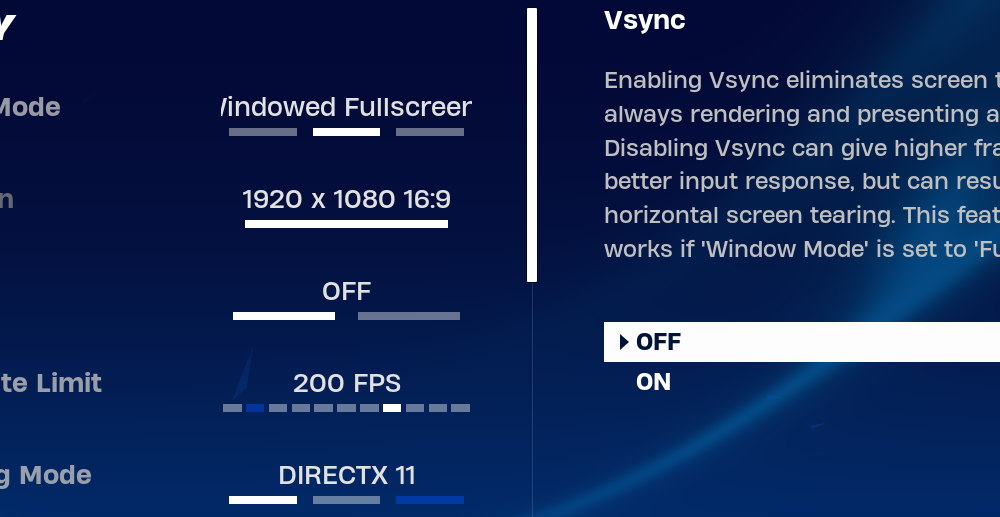
- On the Video settings page, find V-Sync under Display and turn it off if you want to test uncapped rendering.
- Set Frame Rate Limit to a specific number that suits your monitor and hardware, or test Unlimited.
- Apply the settings and enter a match to measure the result.
Epic’s official FPS-limit guide says the highest in-game selectable cap is 360 FPS. Higher figures are not a sensible default: an uncapped GPU may produce extra heat without making a low-refresh display visibly smoother.
Why the Fortnite lobby may still show 60 FPS
According to Epic, the lobby has its own 60 or 120 FPS limit depending on rendering and window mode, even when higher values are chosen for gameplay. Do not assume the change failed until you test in an actual match. A stable 60 FPS in the lobby can be intended behavior. Measure a consistent in-game scene to compare different settings instead of staring only at the lobby counter.
Choose a stable cap instead of the biggest number
A fixed limit near the performance your system can sustain may feel smoother than allowing large swings between high and low FPS. High refresh monitors benefit most when the PC can produce sufficiently consistent frames. If you experience tearing after disabling V-Sync, compare alternative synchronization features supported by your GPU and monitor. Each setup is different: there is no single universal best FPS cap for every player.
Why your new setting might not save
Epic has documented settings-save issues and provides troubleshooting in its rendering settings support. If settings revert after restart, close the game normally, check game configuration permissions and old launch arguments, and look for conflicting overlays. Do not delete your whole Epic account or reinstall Windows to fix a local graphics preference.
Performance Mode is not the same as a frame cap
Rendering Mode determines how the game draws its graphics, while Frame Rate Limit decides how many frames it aims to output. Changing Performance Mode can alter GPU load; it does not automatically remove a cap set by V-Sync or the game’s limiter. For broader gaming support see AVARIXO Gaming.
FAQ
Why does Fortnite show 60 FPS in the lobby after I chose 240?
Epic says the lobby may use a separate 60 or 120 FPS cap. Test a match.
Should I always turn V-Sync off?
Not always. Compare tearing and latency on your particular monitor.
Can a 60 Hz monitor display 240 distinct refreshes per second?
No. It still refreshes at 60 Hz, although rendering settings may affect responsiveness.
What is the maximum Fortnite in-game frame rate cap?
Epic’s current support article lists 360 FPS as the highest in-game choice.
Source: Epic Games: Adjust Fortnite FPS.

Other Articles

PS5 Error CE-108255-1: What to Try When a Game Crashes