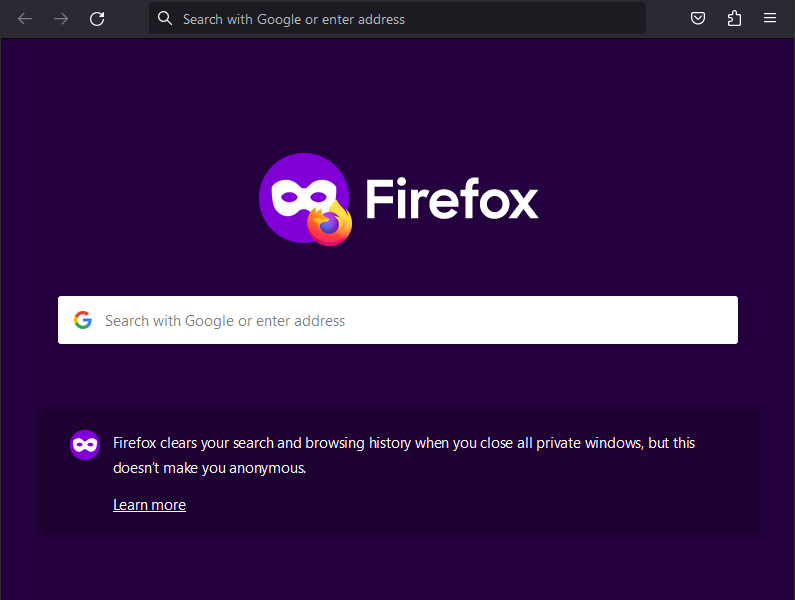

Quick answer (reviewed October 13, 2026): In desktop Firefox, press Ctrl + Shift + P on Windows or Linux, or Command + Shift + P on a Mac, to open a Private Window. You can also open the Firefox menu and choose New Private Window. On Android and iPhone, open the tab switcher and select the mask / Private view. Private Browsing reduces what Firefox saves locally after the session; it does not conceal your activity from the websites you sign into, your network administrator, or your internet service provider.
If you searched for Firefox incognito mode, this is the feature you need: Firefox calls it Private Browsing, while Chrome calls its corresponding feature Incognito. Below are platform-specific steps, what remains saved, and solutions for missing private tabs, browser extensions and settings that unexpectedly revert.

How to turn on Firefox Private Browsing on any device
| Device | Fastest route | How to end the session |
|---|---|---|
| Windows / Linux | Ctrl + Shift + P or Menu → New Private Window | Close every Private Window |
| Mac | Command + Shift + P or File / menu → New Private Window | Close every Private Window |
| Firefox for Android | Private mask on the start page, or Tabs → mask → + | Close all private tabs in the tab switcher |
| Firefox for iPhone / iPad | Tabs → Private → + | Close tabs; check your Close Private Tabs setting |
Important: Interface labels can vary by browser version and mobile screen layout. The Android and iOS directions here follow Mozilla’s official help, not a simulated browser interface.
Desktop Firefox: open a private window on Windows, Mac or Linux
- Open the regular Firefox desktop browser.
- Press Ctrl + Shift + P (Windows/Linux) or Command + Shift + P (macOS). Alternatively, open the application menu (three horizontal lines) and select New Private Window.
- Look for the private-window styling or purple mask indicator. Open the sites you want to visit.
- When finished, close all private windows. Closing only one tab while another private window remains open does not necessarily end the entire private session.
Open a specific link privately without copying it
In regular Firefox, right-click a link and choose Open Link in New Private Window if that option appears. This opens the destination in the private context; it does not convert your existing regular window into a private one. You can use regular and private windows at the same time, but their session cookies are separated.
Firefox for Android: start private tabs and make a shortcut
- Launch the Firefox Android app.
- On the Firefox home screen, tap the mask button to switch to Private Browsing. Alternatively tap the tab counter, select the mask in tab view, and tap +.
- Type the web address into the private tab. The mask icon indicates the private context.
- To leave, open the tab counter, use the three-dot menu in private tab view, and choose Close all tabs; confirm when asked.
Mozilla also supports a dedicated private-browsing home-screen shortcut: menu → Settings → Private browsing → Add private browsing shortcut. You can choose Open links in a private tab under the same settings section when you want links from other apps to use private tabs. A shortcut is not the same thing as forcing the normal Firefox app icon to launch privately every time.
Why can’t I take a screenshot in a Firefox private tab on Android?
Firefox for Android has a privacy preference for screenshot capture. Open Settings → Private browsing and inspect Allow screenshots in private browsing. Only enable it when you actually need a capture. Remember that the screenshot itself is a regular saved file and may show private information. Mozilla documents this preference in its official Android guide.
Firefox on iPhone or iPad: private tabs and automatic closing
- Open Firefox on iOS or iPadOS.
- Tap the numeric Tabs button, usually near the bottom.
- Switch to Private in tab view. Depending on the current interface the label may be at the top or bottom.
- Tap + to start a private tab. Return via the Tabs label when you need regular browsing.
Mozilla’s current iOS help says private tabs close automatically by default when leaving private mode or quitting the app. You can inspect the Close Private Tabs setting under Firefox’s Settings → Privacy section if your tabs disappear. Firefox for iOS does not currently offer a default launch directly into private mode; switch manually. Refer to Mozilla’s iOS private-tab instructions for the latest screen labels.
What Private Browsing saves—and what it doesn’t
| Item | What happens |
|---|---|
| Visited-page history | Not added to normal Firefox history after the private session |
| Private session cookies | Separated from regular cookies and cleared when the private session ends |
| Bookmarks created deliberately | Remain saved after closing the private window |
| Files downloaded | Remain on your device; downloading privately does not automatically delete a file |
| Activity when signed in | The website or service may still associate activity with your signed-in account |
| IP address / network visibility | Your ISP, workplace network or other network operator may still observe connections |
| Malware / phishing | Private mode is not a substitute for browser security, cautious downloads or device protection |
A practical example: looking up a surprise gift in a private window helps avoid leaving it in the browser’s local history. Buying the gift while signed in to a shopping account can still leave an order in that account, a payment statement or an email confirmation. The privacy benefit is real but limited to specific local browser records. Mozilla states these limits on its Private Browsing feature page.
How to make Firefox always use private windows on desktop
Firefox desktop offers an Always use private browsing mode setting, but it is not the same control found in Firefox mobile.
- In desktop Firefox open Settings → Privacy & Security.
- Scroll to the History area. Depending on the version, choose custom history settings or the corresponding history preferences.
- Enable Always use private browsing mode where available (some versions display an equivalent Never remember history choice).
- Restart Firefox if prompted and confirm the resulting history behavior.
Mozilla cautions that the purple private mask may not appear in every window when permanent private-browsing mode is enabled. Do not assume missing purple styling alone proves history is being saved; verify the actual settings. Revert the selection and restart if you want the browser to remember regular history again. See Mozilla’s desktop help article.
Firefox extensions not working in private browsing? Check permissions
Firefox does not normally turn on installed extensions inside private windows automatically. This is a privacy protection: some add-ons can read pages or browsing data. If you deliberately want to allow a trusted extension:
- Open the Firefox desktop menu and go to Add-ons and themes, then Extensions (or enter
about:addonsin the address bar). - Select the relevant extension and open its detail/manage page.
- Find Run in Private Windows and choose Allow if that option is supported.
- Open a new private window and check whether the extension works there.
Not every extension is eligible for private windows, and permission does not make an add-on trustworthy. Remove permission if you do not need it. Mozilla explains these controls in Extensions in Private Browsing.
Firefox Private Browsing vs Firefox Focus: not the same app
Firefox Private Browsing is a mode inside the regular Firefox browser on desktop and mobile. Firefox Focus is a separate privacy-oriented app for Android and iOS with its own streamlined browsing flow and erase control. Both have privacy features, but they differ in what you install and how you manage sessions. For the dedicated app, read our Firefox Focus privacy settings, erase button and limitations guide. If your goal is simply to avoid leaving local history after a one-off desktop session, Firefox’s built-in private window is the straightforward option.
Private Browsing is also different from a VPN: it does not route all traffic through another network. A VPN changes network routing but does not automatically make you anonymous to a website you log into. If you are comparing browsers for broader privacy controls, our Ungoogled Chromium privacy trade-offs guide covers a different set of compromises.
Private tabs disappeared, links open normally, or history remains? Troubleshooting
Private tabs disappear on iPhone after switching modes
Check Firefox’s Close Private Tabs option under Privacy. Recent iOS versions close private tabs by default, so disappearing tabs can be intended behavior. Never use private tabs as a place to store information you need to keep permanently.
Android external links still open in normal Firefox tabs
Verify Settings → Private browsing → Open links in a private tab if available. Do not confuse that setting with Android’s default-browser selection or the separate home-screen shortcut. App versions and how individual applications dispatch links can matter.
Desktop Firefox looks like regular Firefox despite “always private” being on
Firefox may omit the mask indicator in its permanent private mode. Check Settings → Privacy & Security → History rather than judging by theme alone.
A file or bookmark remains after closing the window
This is expected. Private Browsing does not delete files or bookmarks you intentionally saved. Remove them separately if you no longer need them, and check backups or syncing destinations.
An extension disappears only in a private window
Review the extension’s Run in Private Windows permission. Avoid allowing broad-access extensions unless you understand what they can see.
Frequently asked questions
Is there an incognito mode in Firefox?
Yes. Firefox calls it Private Browsing. On desktop use Ctrl + Shift + P or Command + Shift + P; on mobile switch into the private-tab view.
Can my ISP or my employer see Private Browsing activity?
Private Browsing does not hide your traffic from the network. It primarily limits locally retained browser data and provides tracking defenses; it is not an anonymity service.
Does Firefox Private Browsing delete downloads?
No. Files downloaded and bookmarks explicitly created can persist after the session ends. Check your Downloads folder and saved bookmarks separately.
Can websites still recognize me in a private window?
Yes, especially when you log in. Private mode separates local session data from normal windows but cannot erase actions performed on an external service.
Should I use Firefox Focus instead?
On mobile, consider Focus when you want a separate browser focused on short private sessions. Use ordinary Firefox’s Private Browsing when you want a private window without changing apps.
Editorial method: This guide was prepared from Mozilla’s public documentation and references linked above, reviewed October 13, 2026. Device paths can change between app releases. We did not claim to have tested Firefox on every phone, operating system or build.


