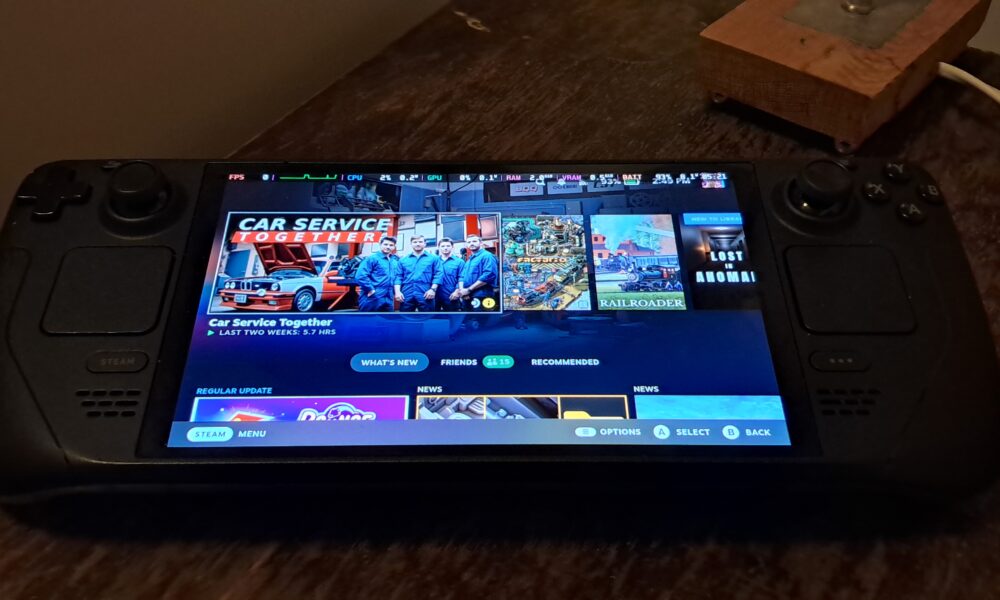

A Steam Deck factory reset can help when you are selling the handheld, handing it to another person, or troubleshooting a stubborn software problem. It is not the first fix for every crash. A factory reset removes local user data and settings, so protect anything you cannot replace before choosing the erase option.
What a factory reset actually does
A factory reset returns the Steam Deck’s local software environment to a fresh-user state. Expect installed games, locally stored configurations, user accounts and files on internal storage to be removed. Cloud-synced saves may be available again after you sign back in, but not every game uses Steam Cloud and synchronization can be incomplete.
A microSD card is separate storage. Do not assume the reset wipes it, and do not assume it is a complete backup of the internal drive. If you plan to sell the device, inspect both the card and internal storage. Remove the microSD card before handing over the handheld.
Before you reset: a five-minute backup checklist
Connect the Steam Deck to reliable power. A shutdown halfway through a reset or reinstall can complicate recovery. Confirm you know your Steam account credentials and have access to any two-factor authentication method.
Open games that matter to you and check whether their saves are synchronized with Steam Cloud. For games without cloud support, export the relevant local save folders using Desktop Mode or another trusted backup method. Copy personal screenshots, downloads, emulator configurations and non-Steam game files that you want to keep.
Check your internet connection and plan for a potentially large re-download of installed games. If you are diagnosing a hardware fault such as a broken charging port, a factory reset is unlikely to repair the underlying component.
How to factory reset Steam Deck from SteamOS
1. Press the STEAM button to open the main menu. Open Settings.
2. Find the System section. Locate the option to reset the device to its factory state; SteamOS wording may differ by version.
3. Read the confirmation carefully. If you have not backed up local files, cancel and do that first.
4. Confirm the reset and allow the Steam Deck to finish without forcing it off. The handheld may restart and present its initial setup flow.
5. Connect to Wi-Fi, sign into Steam and let updates finish. Check your cloud saves before deleting your external backup.
Steam Deck stuck or unable to boot? Consider recovery instead
If you cannot reach Settings, the ordinary in-system reset may be unavailable. Valve maintains a Steam Deck recovery-image workflow for repairing or reinstalling SteamOS. Recovery is more involved than a settings reset: it can require another computer, a compatible USB drive and a USB-C connection or hub.
Use Valve’s official recovery instructions at Steam Support. Read the difference between repair, reinstall and re-image options before selecting one. Some recovery choices erase personal data. Avoid downloading unofficial operating-system images or running terminal commands from untrusted videos.
For a black screen or charging issue, first work through the power and display checks in our Steam Deck black-screen guide. A device that does not power on cannot reliably complete a software reset.
After the reset: what to check
Install available SteamOS updates, pair controllers and reconnect any dock or accessories one at a time. Reinstall one game first and test launching, sleep/resume and audio before downloading your whole library. That sequence makes it easier to identify a recurring issue.
If you reset the device for resale, do not leave it signed into your Steam account. Verify the initial setup screen appears, remove any microSD card, and avoid including personal accessories that contain files.
FAQ: common factory-reset questions
Does resetting a Steam Deck delete Steam games from my account? No. Purchased games remain associated with your Steam account. The reset removes local installations, so you will need to download them again.
Will Steam Cloud restore every save? No. Cloud support varies by game, and unsynced saves may be lost. Verify the sync state before resetting.
Does a factory reset fix hardware problems? No. It can rule out some software settings and installation problems, but damaged buttons, storage or power hardware require different troubleshooting.
Should I reset before selling? Yes, once you have backed up data. Also remove your microSD card and verify your account is no longer signed in.

Other Articles