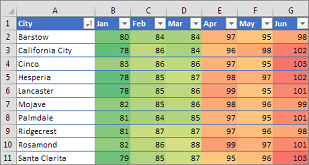

Quick answer: Conditional formatting changes how cells look when they meet a rule; it does not change the underlying values.
Start with the right setup
Select the intended data range and choose a rule such as greater-than, text contains or duplicate values from the Home tab’s Conditional Formatting controls.
Build the core result
Use simple rules first. For overdue tasks, compare a due-date column with today’s date and distinguish blank cells from actual deadlines.
Choose a reliable output
Check the Applies To range when copied or inserted rows behave unexpectedly. Multiple overlapping rules can override one another depending on priority.
Check quality and avoid mistakes
Avoid using color alone to communicate critical information. Add labels or filters so the meaning remains clear when printed in grayscale.
Practical checklist
- Confirm that the tool, version and settings match your intended result.
- Review your source information before editing or exporting.
- Test the finished output on the device or application where it will be used.
- Keep a backup of important work and protect private account information.
Frequently asked questions
Can I use the same steps on every device?
Not always. Menu labels, supported file types and feature availability may differ by device, account plan and software version. Check the current official help center when an option is missing.
What if the result looks wrong?
Check the source data or design, confirm your selected format and test a simple example. Change one setting at a time to identify the cause rather than starting over immediately.
Official documentation
For updated instructions, see official help documentation.

Other Articles

SUMIF in Excel: Examples, Criteria and Common Mistakes