

If your Windows 11 microphone is not working, do not immediately reinstall your system or purchase a new headset. The problem can be as simple as the wrong input device, a hardware mute switch or disabled microphone access for an app. Diagnose the microphone in Windows first; then test the app that is having trouble.
Quick checklist before changing drivers
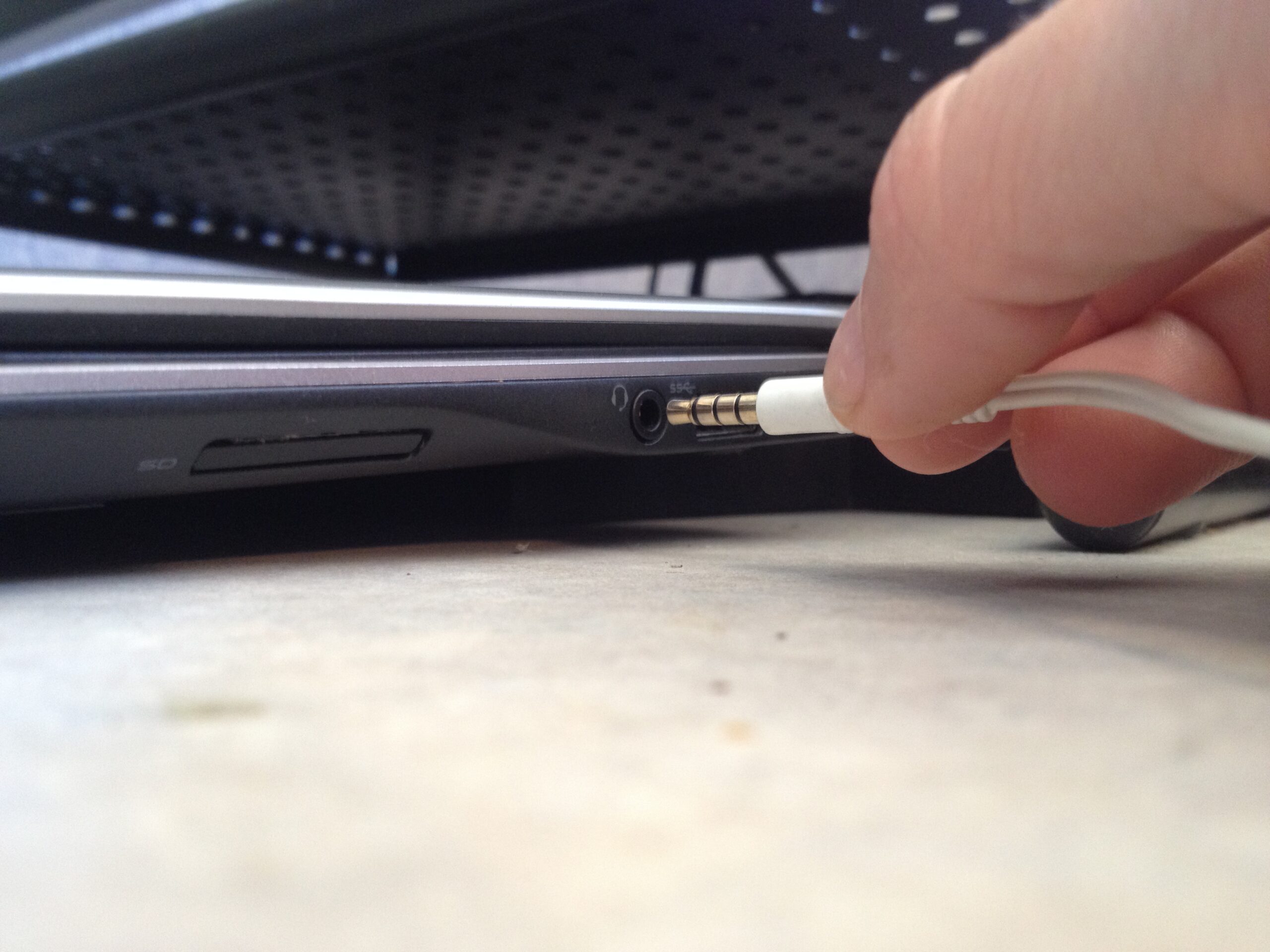
- Reconnect a wired headset securely and verify that you are using the correct audio port or adapter.
- Check a headset’s hardware mute switch, removable mic boom and USB connector.
- Disconnect other microphones temporarily to prevent Windows from choosing the wrong input.
- Restart the application after changing permissions.
- Test the microphone in Windows before assuming the problem is specific to Discord, Teams or a game.
1. Select the correct microphone in Windows 11
- Open Settings → System → Sound.
- Scroll to Input and select the microphone you intend to use.
- Speak into it and look for changes in the input level or test indicator.
- If Windows detects sound, the hardware is probably working at the system level. Check the microphone selection inside the affected app.
The names shown may be the sound card, headset brand or a generic USB-audio device. Laptop microphones and Bluetooth headsets can appear simultaneously.
2. Check microphone privacy permissions
Navigate to Settings → Privacy & security → Microphone. Ensure that microphone access is enabled and that applications have the permissions they need. Desktop apps can use an additional access setting. Microsoft’s official microphone troubleshooting guide covers these controls.
Giving microphone access to Windows does not automatically mean every app is allowed or using the same input device. Check the specific app’s settings after changing the system controls.
3. Check mute and input volume
Some microphones have their own physical button, inline cable control or keyboard shortcut. Look for a muted-mic indicator. Return to Sound settings and confirm that input volume has not been set extremely low. Avoid boosting gain to maximum immediately, because this can add noise.
4. Bluetooth headset microphone problems
Bluetooth earbuds and headsets can expose different playback and communication modes. Some devices switch sound quality when the microphone becomes active, and some apps choose the laptop’s built-in mic by default. Confirm that the headset is connected, select the headset input explicitly and test it with a voice recording. If the headset appears for output but not input, check device capabilities and the manufacturer’s driver guidance.
5. Update or reinstall an audio driver carefully
Start with Windows Update and the official PC or audio-device manufacturer’s support page. Avoid unverified driver installers. If the device disappeared after an update, review Device Manager and the manufacturer’s documented recovery process before uninstalling hardware entries. A system restart may be required after a driver change.
6. Separate Windows problems from app problems
| Test | What it suggests |
|---|---|
| Mic works in Windows Sound test, not in Discord | Check Discord’s selected input, push-to-talk and permission settings |
| Mic works in a voice recorder, not in a browser | Check browser site microphone permission |
| Mic absent in every app | Check connection, input devices, permissions and driver |
| Mic works wired, not by Bluetooth | Check pairing, headset profile and Bluetooth drivers |
For a Discord-specific fix, see our Discord microphone troubleshooting guide. For wireless pairing, see Bluetooth headphones on Windows 11.
When to suspect hardware failure
If the microphone fails consistently across several computers or compatible devices, a hardware problem is more likely. Test using the manufacturer’s instructions rather than attempting risky internal repairs. A headset with water damage or a visibly damaged cable may need service.
FAQ
Why can I hear others but they cannot hear me?
Output audio and microphone input are separate. Check the selected input and mute or permission settings.
Does Windows 11 require a specific app to enable the mic?
No, but each app may require its own input selection and permission.
Why does my microphone stop working only in games?
The game may use a different device or push-to-talk control than Windows.
Should I reset Windows to fix a microphone?
Usually not as a first step. Exhaust simple input, privacy and driver checks first.

Other Articles

Windows 11 Screen Recording: Snipping Tool vs Xbox Game Bar
