
To restore an iPhone to factory settings, open Settings > General > Transfer or Reset iPhone > Erase All Content and Settings, review what will be removed, and follow the prompts. Make a usable backup first: a factory reset erases information stored on the phone. If you cannot access Settings, use Finder on a Mac or the Apple Devices app on Windows to perform a computer-based restore. The two methods solve slightly different problems, so the right choice depends on whether you are keeping, selling, or troubleshooting the device.
Checked October 11, 2026 against Apple’s current erase and computer-restore guidance. Menu wording can differ on older iOS releases.
Choose the right kind of reset
People often say “reset” when they mean very different operations. Use this quick comparison before you erase anything.
| Action | What changes | When it fits |
|---|---|---|
| Restart the iPhone | Turns the phone off and back on without intentionally removing personal data. | Temporary glitches or an unresponsive app. |
| Reset Network Settings | Removes saved network-related settings, including remembered Wi-Fi networks. | Wi-Fi or cellular configuration trouble; not a device wipe. |
| Reset All Settings | Resets many preferences without the full content erasure performed by a factory reset. | Configuration problems when you want to keep your personal files. |
| Erase All Content and Settings | Wipes local personal content, apps and settings, returning the iPhone to its setup flow. | Handing it over, starting fresh, or troubleshooting after backup. |
| Restore with a computer | Erases the device and installs iPhone system software through Finder or Apple Devices. | When a software reinstall is needed or the on-device route is unavailable. |
If you only want to solve a connection issue, start with our separate iPhone network-settings reset guide rather than choosing the destructive option.
Before restoring: the five-minute safety check
- Confirm your backup exists. Check the date and destination of your most recent iCloud or computer backup. If important material is not synced or backed up, stop here and save it first. A completed factory reset is not an undoable operation.
- Know your Apple Account credentials. You may be asked for the passcode and the password associated with Find My. Someone else’s account on the phone can complicate activation afterward.
- Decide what happens to your mobile number. An eSIM deserves special attention: when you erase through Settings, you may be offered a choice to keep or erase it. Keep the eSIM when you plan to set up the same phone again and the option is appropriate; coordinate transfer or removal with your carrier when giving the device away.
- Prepare anything paired to the phone. If you are selling or giving away the device and use an Apple Watch, unpair it before the handoff. Transfer data to your replacement device before wiping the old one.
- Allow time and power. Use a sufficiently charged phone or connect it to power. Do not begin in the middle of an important sign-in, payment, or data-transfer task.
Important: Deleting photos or contacts manually while signed in to iCloud is not the same as erasing a phone. Manual deletion may sync to other devices. Apple’s handoff guidance specifically cautions against doing this.
Method 1: Factory reset directly in iPhone Settings
- Open Settings on the iPhone you intend to erase.
- Select General and scroll to Transfer or Reset iPhone.
- Tap Erase All Content and Settings. Do not choose a partial reset just because its label also contains “Reset.”
- Read the summary of accounts, apps, cards and other data that will be removed. Continue only after checking your backup.
- Enter your device passcode and, if requested, the Apple Account password used for Find My.
- Follow the eSIM prompts based on whether you will reuse the phone or transfer ownership.
- Leave the phone to complete the process. When the setup or Hello screen appears, do not enter your personal account again if the phone is going to someone else.
This approach is generally the simplest when Settings is accessible. Apple explains that erasing the device does not by itself erase information already stored in iCloud; the key is to distinguish data safely in the cloud from files that only existed on that particular phone.
Method 2: Restore an iPhone with a Mac or Windows PC
A computer-based restore is appropriate when you specifically need to reinstall iOS or cannot finish the normal Settings workflow. It also erases the phone, so it is not a data-recovery shortcut.
- Update your computer and make a backup if your iPhone is still accessible.
- Where possible, disable Find My iPhone using the account associated with the device. Apple describes this as a preparation step.
- Connect the iPhone to the computer with a data-capable cable.
- On a Mac, open Finder. On a Windows PC, open the Apple Devices app. Some older supported setups use iTunes.
- Allow and trust the connection when the phone and computer ask, then select the iPhone in the sidebar.
- Choose Restore iPhone or Restore [device], review the confirmation, and allow the software installation and erase to finish.
Apple notes a detail that is easy to miss: a computer restore does not automatically delete the eSIM. If ownership is changing, handle the cellular plan explicitly instead of assuming the restore removed it.
What is deleted, and what can return?
The factory reset removes local photos, messages, downloaded media, apps, Apple Pay cards and personal settings from the erased device. It is designed to return the phone to a fresh setup state, not merely to hide your home screen. However, data previously synchronized with iCloud is not erased from the iCloud account just because the phone is wiped. When you set up a device again, you can sign in and restore eligible information from an available backup or synced services.
That distinction is why verifying the backup before erasing matters more than assuming every photo has already uploaded. If a file only exists on the phone and has never been copied elsewhere, a completed erase can mean permanent loss.
After the reset: what to check
If you are keeping the phone: walk through the setup assistant, choose whether to restore from a backup, reconnect to Wi-Fi, and verify calls or eSIM service. Check that important photos, authenticator access, contacts and essential apps are available before discarding any older backup or device.
If you are selling or giving it away: stop at the Hello screen. Apple’s normal erase procedure turns off Find My and Activation Lock when properly completed with the required credentials. Remove a physical SIM if appropriate, confirm the carrier plan has been transferred or terminated, and remove the old phone from your trusted-device list when necessary.
If the factory reset will not finish
You forgot the passcode
Repeated guessing is not a safe substitute for Apple’s account and recovery procedures. Use Apple’s supported passcode-reset instructions for your model; a computer may be needed. You may still need the Apple Account associated with Activation Lock after erasing.
The iPhone does not appear in Finder or Apple Devices
Check the cable, USB port, computer updates and trust prompts. Try a different known-good data cable before assuming the iPhone itself has failed. Apple’s restore help page links to a dedicated device-not-recognized troubleshooting procedure.
The phone shows an Activation Lock screen
A factory reset is not a way to bypass ownership protections. Sign in with the account already associated with the phone or pursue Apple’s legitimate ownership and support process. Do not trust services claiming to remove Activation Lock without proof of ownership.
You want to fix Wi-Fi without losing apps
Do not factory reset as the first step. Compare Wi-Fi issues against network configuration problems; our targeted network reset article explains the less disruptive route.
Frequently asked questions
Does factory resetting an iPhone delete everything from iCloud?
No. The erase removes data from the selected device; Apple’s guidance says it does not itself remove content already in iCloud. Manually deleting synced items is a separate action and can affect other devices.
Can I factory reset my iPhone without a computer?
Yes, if you can access Settings and complete the security prompts. Use the built-in Erase All Content and Settings workflow.
Should I keep or delete the eSIM?
That depends on whether you are using the same phone again. Keeping it can help when resetting your own phone; remove or transfer the plan before giving the device to a new owner. Check carrier instructions if unsure.
Will a factory reset remove Activation Lock?
A properly completed erase that signs out of the associated account can turn off Find My and Activation Lock. An unauthorized erase does not grant you ownership of a locked phone.
Is a computer restore better than Erase All Content and Settings?
Not automatically. The on-device method is usually sufficient for a standard handoff or fresh start. A computer restore adds a software reinstall and is useful for certain system problems, but it also erases data.
Sources and image rights
Primary guidance verified October 11, 2026: Apple — preparing an iPhone for sale or transfer (updated May 29, 2026); Apple — restoring with a computer (updated October 5, 2026); Apple — iPhone User Guide: erase iPhone.
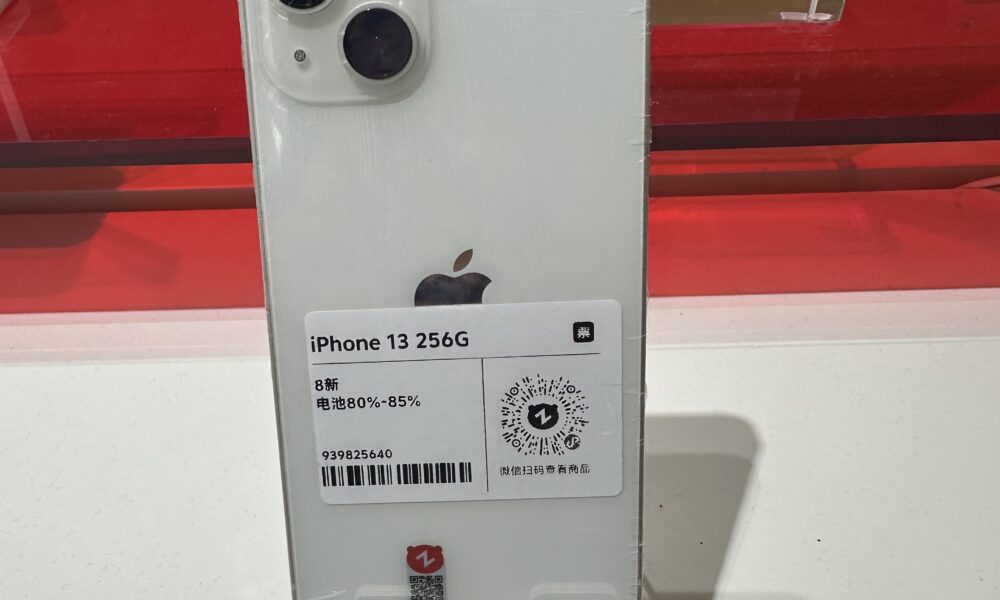
Featured photograph: white iPhone 13 by 茅野ふたば, licensed under CC BY-SA 4.0. Image resized by WordPress for web display. It illustrates the device, not a screenshot of the reset menu.

Other Articles