
Minecraft texture packs change how the game looks without changing its basic rules. In Java Edition, these downloads are usually called resource packs: they can replace block textures, item art, sounds, interface graphics and other client-side assets. The term “texture pack” remains popular, but a modern resource pack can do more than textures alone. For Bedrock Edition, the download and activation process differs, and not every Java pack works on Bedrock.
This guide shows how to choose a trustworthy pack, install it on each edition, fix common problems and understand the difference between texture packs, shaders and gameplay add-ons.
Texture pack vs resource pack: what is the difference?
Players often use the two terms interchangeably. “Texture pack” emphasizes changes to the appearance of blocks and items. “Resource pack” is Minecraft Java Edition’s broader term for a pack that may also change sounds, fonts, menus and other assets. A resource pack does not automatically add new gameplay mechanics or new blocks to the game.
| Download type | Main purpose | Typical installation |
|---|---|---|
| Java resource pack | Textures, sounds, user interface and other assets | Java Edition’s Resource Packs screen |
| Bedrock resource pack | Bedrock-compatible visual and asset changes | Import and activate in Bedrock settings |
| Shader pack | Lighting and visual effects when supported | Compatible shader system, not the ordinary texture-pack workflow |
| Behavior pack or add-on | Gameplay changes where supported | Bedrock world/add-on settings |
Where to find Minecraft texture packs safely
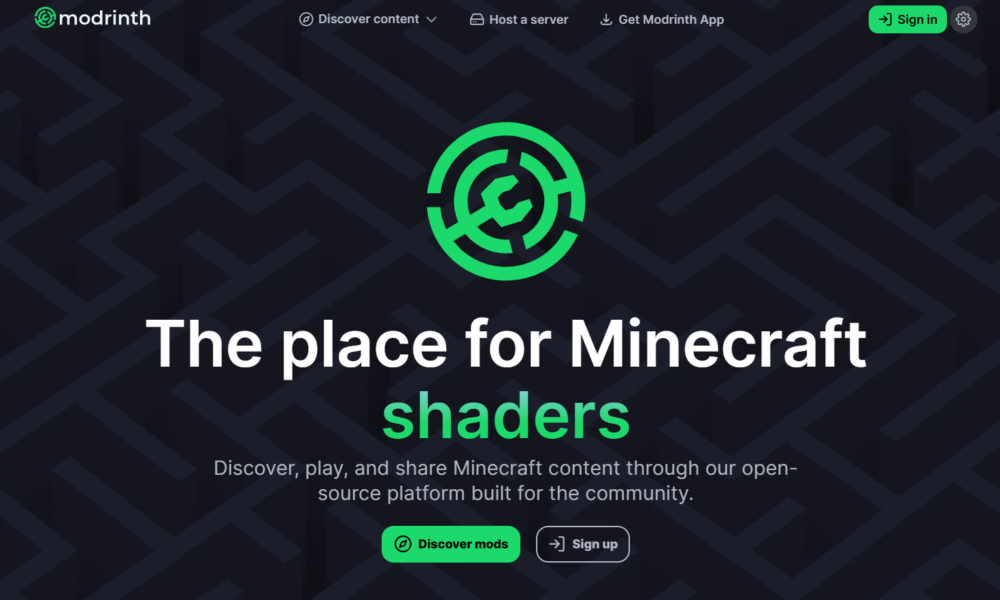
Start with a project’s official download page and read the edition, supported version, license and installation notes before downloading. On Java Edition, established project platforms such as Modrinth’s resource-pack directory and CurseForge’s Minecraft resource-pack section help you compare available projects. Their listings are discovery tools, not a guarantee that every third-party file is safe or compatible.
For Bedrock, use Minecraft’s built-in Marketplace or a publisher’s official Bedrock-compatible distribution. Avoid pages that ask you to install an unrelated browser extension, disable antivirus protection or download an executable merely to apply textures. A normal Java resource pack generally arrives as a ZIP archive; a Bedrock pack may be packaged as an .mcpack file.
Check these details before choosing a pack: whether it supports Java or Bedrock; the version it targets; its texture resolution; whether its author permits redistribution; whether the download is current; and whether its screenshots show actual in-game results.
How to install a texture pack in Minecraft Java Edition
- Download a resource pack made for your edition and version from the creator’s official listing.
- Keep the downloaded ZIP file intact unless its author specifically instructs you to extract it. Do not run installers or executable files offered by unrelated mirrors.
- Launch Minecraft: Java Edition and open Options → Resource Packs.
- Select Open Pack Folder. Minecraft opens the directory where it looks for installed resource packs.
- Move or copy the downloaded pack ZIP into that folder, then return to Minecraft.
- Find the pack under Available, move it to Selected, and apply the change. Depending on the interface, you may need to click Done.
- Load a world and check blocks, items and menus to confirm the appearance changed.
If a pack is marked as incompatible, read its author’s supported-version notes rather than assuming it is safe to force-enable. Some visual changes still work across versions, while others produce missing textures or interface problems.
Can you use multiple resource packs?
Yes. Java Edition lets you enable more than one pack and arrange their priority. When two packs replace the same resource, the higher-priority pack normally determines what you see. This is useful when combining a broad visual overhaul with a smaller interface or accessibility pack. If something looks wrong, disable packs one at a time to isolate the conflict.
How to install Minecraft Bedrock texture packs
Bedrock Edition uses a different system. The easiest option is to obtain a compatible pack through the in-game Marketplace and follow its installation prompts. For a creator-provided .mcpack download, opening the file with a supported Bedrock installation can import it into Minecraft; availability and file handling vary by platform.
- Confirm the download specifically supports Minecraft: Bedrock Edition.
- Import the pack using the method documented by its creator and your device.
- Open Minecraft and locate the relevant Resource Packs settings, either globally or within the target world’s settings.
- Activate the imported pack where available, then open the world to verify the change.
Console and mobile platforms can differ in how they handle external files. Do not assume a Java ZIP can be copied into Bedrock or that every device allows the same manual import process. Mojang’s official Minecraft Marketplace is a useful starting point for supported Bedrock content.
Do high-resolution texture packs lower FPS?
They can. Packs with larger textures may use more graphics memory and take longer to load, particularly on older computers or devices with limited GPU memory. A simple, low-resolution pack may be lighter, but performance depends on the number of assets, the device, other installed mods and what the pack changes. A high-resolution label alone does not predict your frame rate.
| If you want… | Look for… | What to check |
|---|---|---|
| A familiar look | Subtle or “vanilla-style” packs | Before-and-after screenshots |
| A stylized world | Cartoon, medieval or minimalist themes | Coverage of blocks and items |
| Better visibility | Clear UI and readable textures | Accessibility and server rules |
| Sharper details | Higher-resolution packs | VRAM, loading time and FPS |
Test one pack at a time before installing several. For lighting effects rather than new textures, see our separate guide to Minecraft shaders and Iris.
Minecraft texture pack not showing up? Try these fixes
1. Check the edition
A Java resource pack is not automatically compatible with Bedrock. Verify the creator’s download page and obtain the correct version.
2. Check the archive layout
In Java Edition, the ZIP should contain the resource-pack files in the expected layout, including its pack metadata. Some downloads contain an extra outer folder or several versions; follow the project’s instructions to choose the actual pack ZIP.
3. Check the version and enable the pack
Move the pack into the folder opened by Minecraft itself, return to the Resource Packs menu and make sure the pack appears under Selected. If it reports an incompatible format, use a supported version rather than renaming files at random.
4. Check pack order and conflicts
Disable other packs temporarily. A higher-priority pack can override the textures you expected to change.
5. Test without extra mods or shaders
If the game crashes or visuals break, test the resource pack by itself. Update or disable conflicting mods and shader loaders, then reintroduce them one by one.
6. Use the author’s support notes
Some packs depend on optional features or companion mods. The project’s documentation is the best source for those requirements. Avoid copying random configuration fixes from unrelated download sites.
Are Minecraft texture packs free?
Many Java resource packs are available at no charge, while other creators charge for access or accept donations. Bedrock Marketplace content can be free or paid. Free to download does not mean free to redistribute. If you plan to repost screenshots, host a mirror or reuse pack artwork, check the creator’s license and permission terms.
Frequently asked questions
Can a texture pack change Minecraft gameplay?
A normal resource pack primarily changes assets such as textures and sounds. Gameplay changes generally require other systems, such as mods, data packs or Bedrock behavior packs.
Do friends need the same texture pack?
For a personal visual pack, usually not: your client can display different textures from another player’s. Some servers or worlds can provide or require resource packs, so follow the server’s instructions.
Can I use a texture pack and shaders together?
Often yes, if the Minecraft version, shader system and resource pack are compatible. They do different jobs: packs change assets, while shaders alter rendering effects.
What if my texture pack turns blocks pink and black?
That often indicates missing or incompatible resources. Check the edition, pack version, archive layout and conflicts. Disable the pack to see whether the default appearance returns.
Should I extract the ZIP before installing it?
Not usually for a standard Java resource pack. Keep the ZIP intact unless the creator provides specific instructions to extract an outer download archive.
Bottom line
The safest way to customize Minecraft’s appearance is to choose a pack built for your edition, download it from the creator’s official page, install it through Minecraft’s own resource-pack controls and test it before adding other modifications. Start with a simple, well-documented pack and only move to higher-resolution or more complex combinations once everything works.
Related reading: Minecraft block palettes for better builds · Minecraft Survival beginner guide · How Minecraft shaders work.
Reference links: Minecraft official website; Modrinth resource packs; CurseForge resource packs. Availability and settings can change by edition and game version.

Other Articles
Minecraft Iron Farm Guide (2026): Java vs Bedrock, Steps and Fixes
