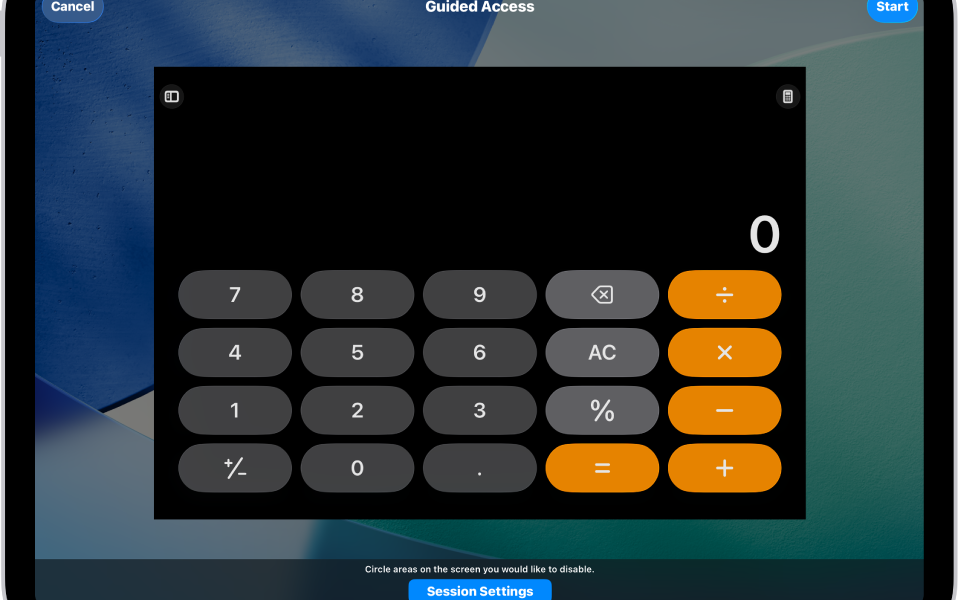

Quick answer: Guided Access can temporarily restrict an iPad to a single app. Go to Settings → Accessibility → Guided Access, turn it on, set a Guided Access passcode or enable Face ID/Touch ID, then open the app you want to use and start a Guided Access session with the Accessibility Shortcut, Control Center or Siri.
What Guided Access does
Apple designed Guided Access for situations where you want an iPad to stay focused on one app. Parents, teachers, caregivers and anyone trying to avoid distractions can use it to limit touch, hardware buttons, motion, the software keyboard or specific areas of the display.
Set up Guided Access
- Open Settings.
- Tap Accessibility → Guided Access.
- Turn on Guided Access.
- Open Passcode Settings and set a separate Guided Access passcode.
- Optionally enable Face ID or Touch ID for ending sessions.
Do not rely on a passcode that a child or guest already knows. Guided Access is useful only if the person using the restricted app cannot immediately exit it.
Start a Guided Access session
Open the app you want to keep on screen. Start Guided Access using Siri, Control Center if you added the control there, or the Accessibility Shortcut. Apple lets you circle areas of the screen you want to disable before the session begins.
Choose what the user can control
In Session Settings, you can allow or block the top button, volume buttons, motion, software keyboards and touch. You can also set a time limit. For a kiosk-style activity, disabling the top button and selected touch areas can stop accidental navigation; for a learning app, leaving volume or keyboard access enabled may make more sense.
End Guided Access safely
Triple-click the top button on an iPad without a Home button, or the Home button on supported older models. Enter the Guided Access passcode, or use Face ID/Touch ID if you enabled it in Guided Access settings, then choose to end the session.
If Guided Access will not start
Confirm that the feature is enabled under Accessibility and that the Accessibility Shortcut is configured if you are trying to start it with a triple-click. If the shortcut opens a menu with several accessibility features, choose Guided Access from that menu.
If you forgot the Guided Access passcode
A Guided Access passcode is not the same as the normal iPad unlock passcode. If biometric exit was enabled, try the configured Face ID or Touch ID method. Avoid random “bypass” utilities; use Apple’s current accessibility and device-recovery guidance if you cannot exit normally.
FAQ
Can Guided Access lock the iPad to one website?
It locks the device to the app. In Safari, the user may still navigate within whatever controls remain available unless you disable relevant screen areas or use additional content restrictions.
Can I disable part of the screen?
Yes. Apple lets you circle areas of the screen before starting the session.
Can I set a time limit?
Yes. Guided Access includes a Time Limit option.
Official reference
Apple iPad User Guide: Lock iPad to one app with Guided Access

Other Articles

Minecraft Skeleton Horses: Spawns, Traps and Safe Handling
Minecraft Snow Golem: How to Build One and Where It Survives
