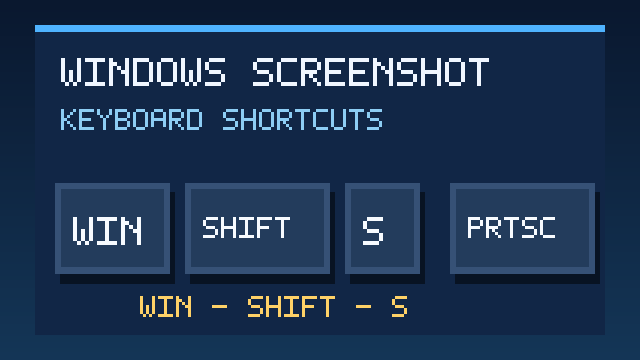

Quick answer: On Windows 11 or Windows 10, press Windows + Shift + S to select a region of your screen, PrtSc to capture the screen to the clipboard (depending on your keyboard settings), or Windows + PrtSc to capture the full screen and save a file. If you need to annotate or delay a capture, open Snipping Tool from Start. The best method depends on whether you need a picture file, a quick paste, or just one window.
Windows screenshot shortcuts at a glance
| What you want | Shortcut or tool | What happens |
|---|---|---|
| Select part of the screen | Windows + Shift + S | Opens the Snipping Tool capture overlay |
| Capture the entire display | PrtSc | Copies the display to the clipboard on conventional configurations; some PCs open the snipping overlay instead |
| Save the entire screen as a file | Windows + PrtSc | Typically saves a screenshot in Pictures > Screenshots |
| Capture the active window only | Alt + PrtSc | Copies the focused window to the clipboard |
| Choose a delay, annotate, or crop | Snipping Tool | Lets you capture and edit before sharing |
| Screenshot on some compact laptops | Fn + shortcut | Activates the PrtSc function when it shares a key |
Keyboard labels differ: PrtSc, PrtScn, and Print Screen all refer to the same function. Laptop manufacturers sometimes place it behind an Fn key.
Method 1: Screenshot a selected area with Windows + Shift + S
- Open the app, webpage, game menu, or error message you want to capture.
- Press Windows + Shift + S together.
- Choose the rectangular, freeform, window, or full-screen mode in the small capture toolbar.
- For a rectangular selection, drag around the part you need. For a window capture, click the desired window.
- Open the capture notification to edit the image in Snipping Tool, or paste the copied capture directly into a document or message using Ctrl + V.
This is the most flexible method for sharing a bug, showing a setting, or saving only the relevant part of a webpage. A cropped screenshot is easier to read than a full desktop image, and it is less likely to reveal unrelated tabs or notifications.
Where did the screenshot go?
The image is placed on your clipboard and can be pasted immediately. On recent Snipping Tool versions, automatic saving may also be enabled. Open Pictures > Screenshots and check the Snipping Tool settings to confirm whether your PC saves a file automatically. Do not assume every clipboard capture has been saved as a separate file.
Method 2: Save a full-screen screenshot with Windows + PrtSc
When you need a permanent image file rather than something to paste, press Windows + PrtSc. Windows normally saves the resulting image to the Screenshots folder inside Pictures. On a laptop with a shared Print Screen key, try Windows + Fn + PrtSc.
- Arrange your windows so the content you want is visible.
- Press the shortcut once.
- Open File Explorer and select Pictures > Screenshots.
- Sort by date modified if you cannot immediately spot the new file.
If you use OneDrive folder backup, your Pictures folder may live inside OneDrive instead of the local profile folder. Search File Explorer for Screenshots if the location is unfamiliar. Microsoft explains that screenshot backup depends on whether your Pictures folder is included in OneDrive backup; there is no longer a separate OneDrive “save screenshots” toggle.
Method 3: Copy just the active window with Alt + PrtSc
Click the window you want to capture so it is in focus, then press Alt + PrtSc. Open Paint, Word, an email composer, or a chat and press Ctrl + V. This captures the active window instead of your whole desktop, which is especially helpful when you are reporting an application error without exposing your background or other open apps.
Need a file? Paste into Paint, then use File > Save as. PNG is usually the clearest format for screenshots containing text, icons, or user-interface elements.
Method 4: Use Snipping Tool without remembering a shortcut
- Open Start and search for Snipping Tool.
- Choose the screenshot capture mode you want.
- Select New, then draw your selection or click a window.
- Use the built-in crop, pen, or highlighter to draw attention to the important part.
- Save the result, or copy it into the app where you want to share it.
Snipping Tool also supports a timed capture. This is useful for a drop-down menu that closes when you move the mouse. Choose a short delay, start the capture, and open the menu before the countdown finishes.
Windows 11 vs. Windows 10: what changes?
The core shortcuts work on both systems. Windows 11 emphasizes the modern Snipping Tool interface, which can also offer screen recording and newer editing options depending on the installed version. Windows 10 installations can look different, and older versions may use a simpler capture interface. If a tutorial screenshot does not match your screen, search Start for Snipping Tool rather than relying on the precise location of a toolbar button.
Why does Print Screen open Snipping Tool instead of copying the screen?
Some Windows installations configure the PrtSc key to open the snipping overlay. This is a shortcut preference, not a broken keyboard. Search Windows Settings for Print Screen or screen snipping and look for the option that controls what the key opens. The setting’s exact name and location can vary with Windows version.
If you want to copy a whole screen quickly, you can use the full-screen capture mode in the overlay. If you want a saved file, the Windows + PrtSc shortcut or Snipping Tool’s save command is more explicit.
How to take a screenshot on a laptop without a Print Screen key
Use Windows + Shift + S; it does not require a dedicated Print Screen key. If the keyboard has a tiny PrtSc label on another key, try holding Fn while pressing it. On a touchscreen device, you can also open Snipping Tool from Start and use the touch controls. For Microsoft Surface devices, supported hardware button combinations differ by model, so consult the device-specific support page.
How to screenshot multiple monitors
With more than one monitor connected, full-screen captures may include the entire extended desktop. If you only need one monitor, use Windows + Shift + S and draw a rectangle around that display, or choose a window capture for the particular app. This avoids unintentionally sharing material on a second monitor.
How to screenshot a scrolling webpage
The Windows screenshot shortcuts capture what is currently visible; they do not automatically stitch an entire long page. For a long article or document, check whether the browser or application has a built-in full-page capture or export option. You can also capture multiple sections with Snipping Tool, but manually stitching screenshots is usually slower and more error-prone than using the app’s own export feature.
Troubleshooting: screenshot shortcuts not working
Nothing happens when I press PrtSc
First test Windows + Shift + S. If that works, the capture service is available and the issue is probably your Print Screen key or its assigned behavior. On a laptop, try the Fn modifier. Also check whether keyboard remapping software has reassigned the key.
The shortcut works, but I cannot find the image
Clipboard capture and file capture are not the same thing. Paste with Ctrl + V to check whether the screenshot is waiting on the clipboard. For saved screenshots, inspect Pictures > Screenshots and any OneDrive-backed Pictures folder. Open Snipping Tool settings to check automatic saving.
The screenshot is black
Some games, streaming services, protected video players, or hardware-accelerated apps may not be captured as expected. Try capturing a normal desktop window first. If that works, the problem may be limited to the application or its content-protection behavior; changing a Windows-wide screenshot setting will not necessarily fix it.
Snipping Tool will not open
Restart the application and your PC, check Windows Update and Microsoft Store app updates, and try launching Snipping Tool from Start. If it still fails, look for the app’s repair options under installed apps. Avoid downloading “screenshot fix” executables from unfamiliar websites.
Privacy checklist before sharing a screenshot
- Crop out email addresses, account IDs, payment information, and browser tabs you do not want others to see.
- Blur or cover personal details rather than relying on a tiny image preview.
- Check the whole image at full size before posting it publicly.
- Save a copy of the original privately if you may need an unedited version for troubleshooting.
Frequently asked questions
What is the easiest way to screenshot on Windows?
Press Windows + Shift + S, select the area, then paste the result or open Snipping Tool to save it. It works well on both Windows 10 and Windows 11.
How do I take a screenshot without the Snipping Tool?
Use Alt + PrtSc for the active window, PrtSc for the screen clipboard on conventional configurations, or Windows + PrtSc to save a full-screen image. Some keyboard configurations change the behavior of the bare PrtSc key.
Where are screenshots saved in Windows 11?
Usually under Pictures > Screenshots, including a OneDrive-backed Pictures folder when configured. Clipboard-only captures may need to be pasted or saved manually.
Can I screenshot just one window?
Yes. Select the window and press Alt + PrtSc, or use the Window mode in Snipping Tool.
Can I screenshot a Windows error without showing my desktop?
Yes. Use Windows + Shift + S to select the error message or the window capture mode, then crop or redact sensitive details before sharing.
Related AVARIXO guides
Need to capture another device? See our Mac screenshot guide and Chromebook screenshot guide. For a video rather than a still image, read Windows 11 screen recording: Snipping Tool vs Xbox Game Bar.
Reference checked: Microsoft: Use Snipping Tool to capture screenshots; Microsoft: Copy the window or screen contents.