
To screen record on an iPhone, open Control Center, tap the Screen Recording control, and wait for its three-second countdown. When you’re finished, tap the red recording indicator and stop the capture. The video is saved automatically in the Photos app. To include your voice, touch and hold the Screen Recording control and turn on Microphone before starting. You do not need to install an extra recording app for basic screen captures.
These steps follow Apple’s iPhone User Guide. Control Center layouts can vary between iOS versions and device models, but the built-in recording workflow is the same in principle.
How to start an iPhone screen recording
- Open the app or page you intend to demonstrate. Clear notifications or personal information you do not want to show.
- On an iPhone with Face ID, swipe down from the top-right corner to open Control Center. On older home-button models, Control Center may open by swiping up from the bottom edge.
- Look for the Screen Recording icon: a solid circle inside a thin outline.
- Tap that control once. Wait for the three-second countdown, then close Control Center so you capture the app rather than the controls.
- Use your phone normally while recording. Avoid entering passwords or displaying private messages.
- When done, tap the red timer or recording indicator and choose Stop. On supported Dynamic Island models, Apple also documents a red-circle stop control.
A short countdown gives you a moment to get ready. Screen recording creates a video of your display, not a still screenshot. To capture a single image instead, use your iPhone’s hardware screenshot shortcut.
How to add the Screen Recording button if it’s missing
If the circular recording icon is not visible, the control may simply be missing from your Control Center layout. Open Control Center and enter its control-customization view. Use the interface’s Add a Control option and choose Screen Recording; the position and gesture differ slightly across iOS releases. Return to the normal Control Center and check whether the icon appears.
On older iOS versions, the route may instead be under Settings → Control Center. Do not assume the absence of an icon means the iPhone cannot record. If customization is restricted by a managed device or a family policy, a parent or administrator may control the setting.
Record your voice or outside sounds with the microphone
- Open Control Center.
- Press and hold the Screen Recording icon rather than tapping it briefly.
- Tap Microphone so its state changes to On.
- Choose Start Recording, wait for the three-second countdown, then narrate naturally.
- Stop recording and open the resulting video in Photos to confirm the narration was captured.
The microphone records sounds near the device, such as your spoken commentary. It is not a guarantee that every app will include its internal audio. Some apps restrict audio or video capture to protect protected content. Check the finished clip before sharing it.
Where do screen recordings save on iPhone?
Apple saves recordings to your Photos library. Open Photos → Collections → Media Types → Screen Recordings to locate them. On older Photos layouts you may find Screen Recordings under Albums or Media Types instead. The video can then be trimmed, shared or deleted like other videos.
| Need | Where to go | Result |
|---|---|---|
| Review the clip | Photos → Screen Recordings | Play the saved video |
| Trim the beginning or end | Open recording → Edit | Remove unwanted setup or stopping moments |
| Send a recording | Photos → recording → Share | Choose Messages, Files or another eligible destination |
| Protect privacy | Review clip before sharing | Notice visible messages, usernames and passwords |
Why a screen recording is black, silent or stops unexpectedly
The app blocks its content
Apple warns that some apps may not permit recording of their content. A black result from a streaming or protected app is not necessarily a malfunction, and changing ordinary recording settings will not always remove that restriction.
Your voice was not captured
The microphone may have been turned off. Repeat the long-press setup and explicitly toggle Microphone on; speak briefly and play back a test clip. Make sure no other device or app unexpectedly owns the microphone input.
You are using screen mirroring
Apple says iPhone screen recording and screen mirroring cannot be used at the same time. End the mirror session before starting a local recording.
Insufficient free storage
Long recordings can consume significant storage. Check Settings → General → iPhone Storage, remove unneeded downloads safely, and try a short capture. Do not delete videos you have not backed up.
You cannot find the recording
Check the Photos Screen Recordings media type and the Recents view, then confirm that you actually stopped the recording. If the device restarted or the app blocked capture, the video may not have saved as expected.
Screen recording versus Screen Time
Screen recording creates a video you can watch; Screen Time reports how long apps have been used and can help manage limits. If you want an activity report rather than a video, follow our iPhone Screen Time guide. If your recording contains sensitive apps, also review our guide to hiding apps on iPhone; hiding an app is different from making a video private.
Frequently asked questions
Does the iPhone record with sound automatically?
It may capture some permitted app audio, but microphone narration is a separate option. Press and hold Screen Recording and turn on Microphone when you need your voice.
Can I screen record a FaceTime or other private conversation?
Recording may be restricted, and consent and privacy rules matter. Inform other participants and follow applicable laws rather than assuming a conversation is automatically appropriate to record.
Can I record while mirroring to another screen?
Apple’s guide says screen recording and screen mirroring cannot run simultaneously. Disconnect mirroring first.
Where is the stop button?
Tap the red indicator at the top of the screen, or use the red stop control on supported Dynamic Island models, and confirm Stop.
Primary source: Apple Support: Take a screen recording on iPhone, consulted October 11, 2026.
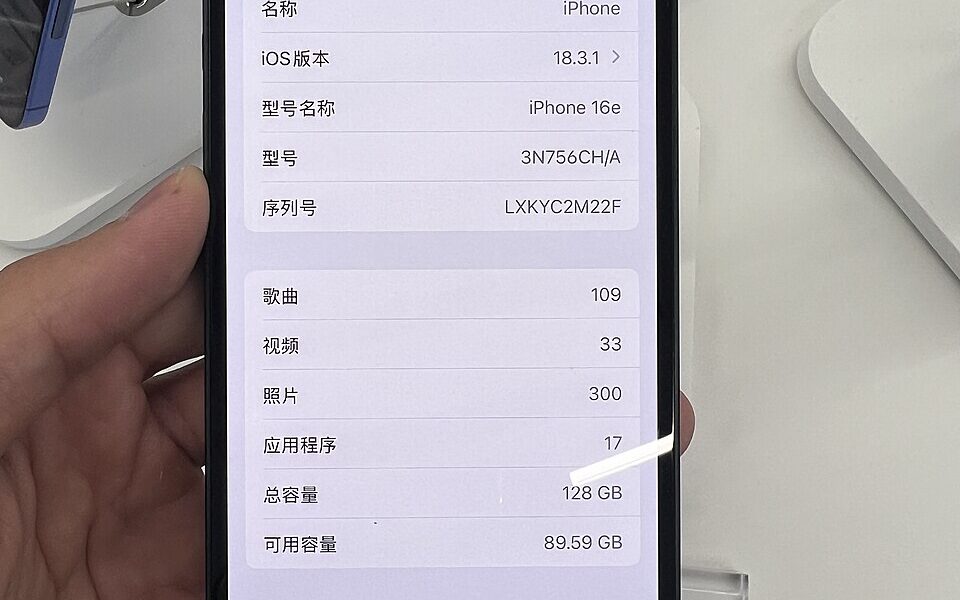
Featured photograph: 茅野ふたば, black iPhone 16e front view, CC BY-SA 4.0. Unmodified phone photograph; not presented as a screenshot of a particular iOS interface.

Other Articles

Fortnite Save the World Is Free: How to Play in 2026
How to Change Your Birthday on Roblox: ID Checks and Parent Options