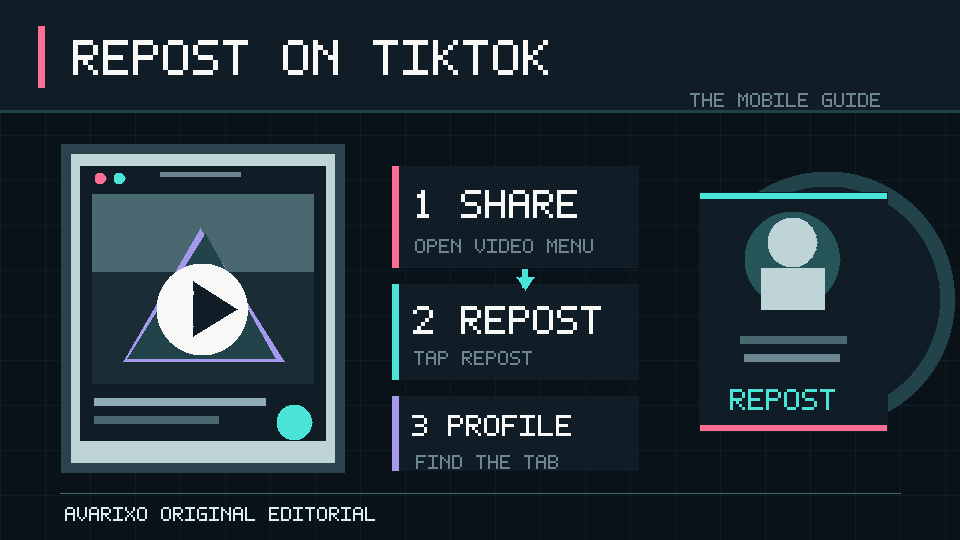

Quick answer (reviewed October 13, 2026): To repost on TikTok, open a video in the TikTok mobile app, tap the Share arrow and choose Repost. You can also press and hold a video, then select Repost. Your repost can appear to friends and your community in their For You feeds with a label identifying you as the person who shared it. To reverse the action, open that video again and select Share → Remove repost.
The key detail: a TikTok repost does not create a separate uploaded copy of the video on your account the way publishing a new post does. It recommends an existing creator’s video through TikTok’s repost feature. The original video remains associated with its creator. TikTok also provides a Repost tab on your profile for finding videos you have shared this way.
This guide covers the official steps, alternative gestures, finding previous reposts, removing one accidentally reposted video, privacy questions and missing-button troubleshooting. The instructions follow TikTok’s official Repost help page, rather than an unofficial app.
How to repost on TikTok: the three-tap method
This is the simplest and most familiar route for someone watching a TikTok video on iPhone or Android.
- Open TikTok. Sign in to your account in the official mobile app and find the video you want to recommend.
- Tap Share. Select the arrow-shaped Share button on the side of the video.
- Select Repost. In the sharing options, tap Repost. TikTok will register the repost when you select it; there is no separate publishing page to finish.
- Confirm the video. If you tapped the wrong video, follow the removal steps below immediately rather than assuming the change will disappear by itself.
There is no need to download someone else’s video, crop off a watermark, re-upload the file or claim ownership to use the built-in repost feature. A repost is intended to share an existing TikTok post, not impersonate the original creator.
Two other ways to repost a TikTok video
According to TikTok’s help center, the Share sheet is not the only interface for reposting. Depending on what is on screen, you may see one of these options.
Method 2: Long-press the video
- Find a video you want to recommend.
- Press and hold the video rather than tapping the Share arrow.
- From the available action menu, select Repost.
This path can be useful if the Share arrow is hard to reach. The Repost button is the same action, not a distinct “private repost” mode.
Method 3: Repost something a friend already reposted
- Find a video displaying the profile photo of a friend who reposted it.
- Tap their profile photo in the repost context.
- Choose Repost if the option appears.
This feature is designed for passing along interesting videos in the same community. It does not let you inherit ownership or copyright over the original post.
Where do TikTok reposts appear?
TikTok explains that reposted videos can appear in other people’s For You feeds. A reposted video is labeled with the profile photo and nickname of the person who reposted it. That label gives viewers a reason the video may be circulating in their social circle; it is not a new upload owned by the person sharing it.
You can also find the videos you have reposted through the Repost tab on your profile. If you rarely use the feature, you might need to identify the tab by its repost-style icon rather than a large written label. TikTok can change the appearance and placement of profile tabs between app versions.
How to find your reposted TikTok videos
- Open the official TikTok app and tap Profile at the bottom.
- Look for your profile’s Repost tab alongside the available content tabs.
- Open the tab and select the video you want to revisit or un-repost.
- For removal, open the video’s Share options and select Remove repost.
If you do not see the Repost tab, do not assume the app permanently deleted your videos or that an external repost tracker is required. Try opening a specific video you know you reposted, then check its Share menu for Remove repost. The action label is often a more direct indication of your current repost state than a profile-layout change.
How to remove a repost on TikTok
If you shared the wrong video or no longer want to recommend it, TikTok provides multiple ways to reverse the repost. You are removing your repost action, not deleting the original creator’s video.
Method 1: Share → Remove repost
- Open the video that you previously reposted.
- Tap Share.
- Choose Remove repost.
- Return to your Repost tab if you want to check that it is no longer listed there.
Method 2: Long-press → Remove repost
Press and hold the same video and select Remove repost from the context menu. This changes your repost status for the original video; it does not erase the source post or other users’ independent reposts.
Method 3: Tap your repost label
TikTok also documents a removal route involving your profile photo on the reposted video: tap your profile photo, select the Reposted context, then choose Remove repost. Use this when the repost label is more visible than the standard Share menu.
What happens after removing a repost?
The video should stop appearing as your repost in the places TikTok uses to present your reposts. This does not delete the original video, reverse any other user’s interactions, or provide a documented guarantee that no one previously saw the repost. If the video’s creator removes the underlying post, that is a separate action entirely.
How to repost a TikTok on iPhone versus Android
TikTok’s official instructions are written for the TikTok app and use the same essential steps on supported mobile platforms. Both iPhone and Android users should start with the video itself, tap Share, and look for Repost. Some button placements, icon sizes, or app menus can differ by version, but the workflow is conceptually the same.
| Task | iPhone | Android |
|---|---|---|
| Repost a video | Share → Repost | Share → Repost |
| Alternative gesture | Press and hold → Repost | Press and hold → Repost |
| Find earlier reposts | Profile → Repost tab | Profile → Repost tab |
| Undo a repost | Share → Remove repost | Share → Remove repost |
If you are using a web browser on a desktop, do not assume it provides every option found in the mobile app. TikTok’s official Repost article specifically explains the app workflow, making the mobile client the most reliable documented place to use these controls.
Who can see your TikTok reposts? Privacy explained
The repost feature is designed to recommend videos within TikTok’s social experience, not to create an invisible bookmark that only you can see. On the For You feed, TikTok can identify the person who reposted a video through a visible label and profile information.
What if your TikTok account is private?
TikTok’s official guide says that on a private account, only your followers can see all your reposted content on your profile and in their For You feeds. That is an important distinction from making a standard repost on a public account. Private-account settings limit who can view your repost activity, but they do not turn a repost into a personal, unshared saved-video collection.
Is reposting the same as saving a video to Favorites?
No. A repost is meant to recommend the video to a social audience. Favorites or saved collections, when available, serve a different purpose: remembering content for your own later viewing. If your intention is not to draw your followers’ attention to the video, use a private saving feature where supported instead of reposting it.
Can you choose a separate audience for each repost?
TikTok’s documented Repost workflow does not describe a separate post-publication audience picker for every repost. Your overall account privacy matters. Do not trust tutorials promising that an external extension can secretly change the distribution of a repost without using TikTok’s own settings.
Repost versus Share, Duet and Stitch: which should you use?
TikTok offers several ways to pass along a video. Selecting the right action helps creators get attribution and helps friends understand what they are receiving.
| Feature | What it does | Creates a new video by you? |
|---|---|---|
| Repost | Recommends an existing TikTok in For You and your repost activity | No separate newly recorded video |
| Share | Sends a video/link through a supported destination | No |
| Duet | Lets you record alongside another eligible creator’s video | Yes |
| Stitch | Lets you incorporate a portion of another eligible video into your own | Yes |
| Copy link | Copies a video URL for sharing in a message or elsewhere | No |
TikTok documents the Duet and Stitch features separately, and creators may limit their availability through account or per-post reuse permissions. A Repost should not be confused with those editing workflows.
Why can’t you repost on TikTok? Troubleshooting
If the Repost action is missing or does not behave as expected, start with checks that do not risk your account or delete app data.
1. Confirm you are viewing a normal eligible video
Try more than one video. Available menu actions may not be identical across all content types, accounts, regions or app versions. If one specific video’s Share menu behaves differently, it does not necessarily indicate a permanent problem with your entire account.
2. Check whether you already reposted it
When you open Share for a video that is already reposted, the menu may offer Remove repost rather than a second Repost action. A missing Repost label can therefore mean the action has already been applied.
3. Update TikTok from the official store
Use the App Store or Google Play to check for an update, then restart the app. Do not sideload untrusted “unlocked repost” packages or give a third-party website your TikTok login credentials. Menu positions can change with legitimate app updates.
4. Check connectivity and account sign-in
A temporary connection failure may stop an action from saving. Try a reliable network and make sure the app is logged into the intended account. If you use multiple accounts, verify that you are viewing the same profile in which you expect the repost to appear.
5. Report a persistent issue through TikTok
If the feature remains unavailable in the official updated app and across suitable videos, use the app’s built-in Report a problem route. Describe your device, app version and which steps failed. Avoid sharing passwords, verification codes or private account details.
Common repost mistakes and how to avoid them
- Re-uploading someone else’s file instead of tapping Repost. That can strip creator attribution or create copyright and moderation issues. Use the official share feature for ordinary recommendations.
- Confusing repost with sending a DM. Repost affects distribution in TikTok’s social feeds; Share-to-message sends the video directly to recipients.
- Assuming a repost is visible to nobody. TikTok explicitly describes how friends and community members can see reposted videos.
- Panicking after an accidental repost. Open that exact video and use Remove repost. You do not need to delete your TikTok account.
- Trusting automated bulk-repost tools. Third-party extensions and services may be unauthorized and often request unnecessary account access.
- Expecting every repost to reach everyone. TikTok describes where reposts may appear, but does not guarantee an exact number of impressions or viewers for every action.
If you are managing account privacy more broadly, read our guide to deleting or deactivating a TikTok account. It explains a separate, much more consequential action than undoing a repost.
Frequently asked questions
How do I repost a video on TikTok?
Open the video in the mobile app, tap Share, then choose Repost. Alternatively, press and hold the video and select Repost from the menu.
Can I undo a TikTok repost?
Yes. Open the previously reposted video, tap Share, then choose Remove repost. TikTok also documents removing it from a long-press menu or repost badge.
Where can I see my TikTok reposts?
Open your TikTok Profile and look for the Repost tab. The exact icon and position may change between app versions.
Does reposting create a video on my profile’s main posts grid?
No. TikTok treats it as a repost of the existing creator’s video, with its own repost label and profile tab. It is not a new upload filmed or published by you.
Will the original creator be credited?
Reposting retains the existing video and its original account association. The repost label indicates you are the person sharing it through TikTok’s feature.
Can someone see my repost if my TikTok is private?
TikTok says your followers can see the reposted content on your private profile and in their For You feeds. Private does not mean invisible to followers.
How do I stop a TikTok repost from showing?
Use Remove repost on the exact video. That removes your repost action; it does not delete other people’s posts or guarantee that nobody previously saw it.
Why does it say “Remove repost” instead of “Repost”?
You may already have reposted the video. Use the profile Repost tab or examine the video’s repost label to confirm which account made the action.
Does Repost give me ownership of another creator’s video?
No. Repost is an in-app recommendation mechanism, not a transfer of ownership, license or creator attribution.
Official TikTok sources
- TikTok Help Center — Repost: How to Repost, Remove Repost, and Privacy
- TikTok Help Center — Duets
- TikTok Help Center — Stitch
- TikTok Help Center — Liking and Liked-Video Privacy
AVARIXO editorial review: October 13, 2026. TikTok may change interface labels, eligibility and feature availability. The app’s current menus and official help pages take precedence over any outdated screenshot or third-party tutorial.

Other Articles