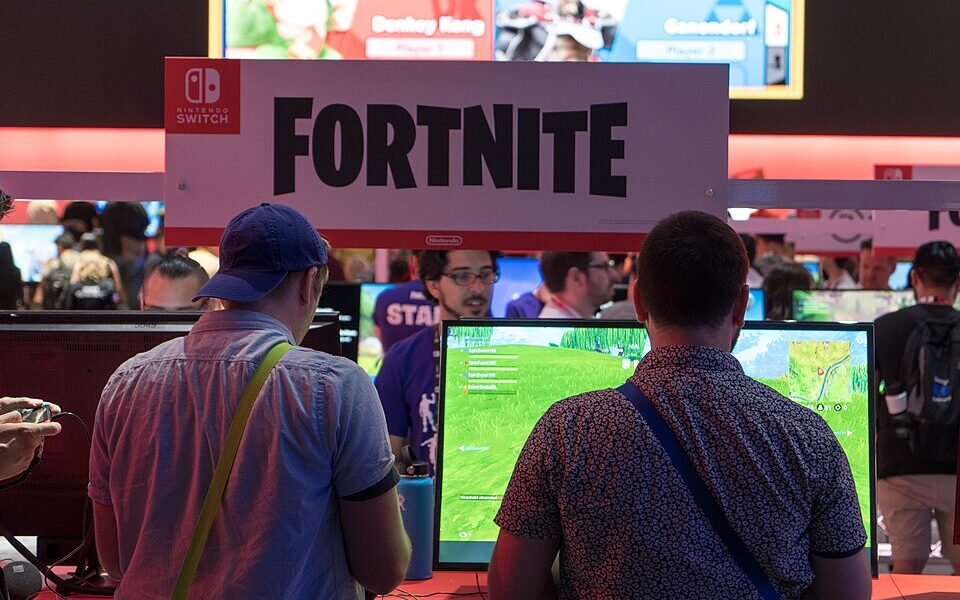

Fortnite split-screen multiplayer works on supported PlayStation and Xbox consoles. Start Fortnite, reach the lobby, connect a second controller, select the second player’s separate console account, and follow the prompts to connect that player to their Epic Games account. The second person appears in the lobby, and local multiplayer starts automatically when you enter a supported experience. Split-screen is not supported on PC, Nintendo Switch or mobile devices. Fortnite calls this feature Local Multiplayer, so the menu may not use the exact words “split screen.”
How to set up Fortnite split screen, step by step
- Turn on the PlayStation or Xbox and sign in to the account that will be player one.
- Open Fortnite and wait for the lobby screen.
- Connect and power on a second controller.
- When asked, select the second person’s own console user account. Guest or Quick Play profiles are not supported.
- Follow the Epic account sign-in/linking prompts for player two. Do not use a stranger’s account.
- Wait for player two to appear in the lobby.
- Choose an experience displaying support for Local Multiplayer, then start the match.
This procedure follows Epic Games’ Local Multiplayer instructions. The on-screen prompts can differ slightly depending on whether each person has previously linked an Epic profile to the console account.
Which Fortnite modes support split screen?
Epic lists Battle Royale, Zero Build, and suitable LEGO Fortnite experiences among local-multiplayer possibilities on PlayStation and Xbox. A supported experience should carry a Local Players tag in its details, and Discover may feature a Great for Local Multiplayer row.
| Fortnite experience or platform | Split-screen guidance |
|---|---|
| Battle Royale and Zero Build | Supported play variants may allow local multiplayer; inspect the specific mode. |
| Supported LEGO Fortnite experiences | Epic lists LEGO Fortnite among local-multiplayer examples. |
| Solo | Not supported for local multiplayer. |
| Ranked | Not supported for local multiplayer according to Epic’s feature guidance. |
| Save the World | Not supported in local multiplayer. |
| Creative / limited-time modes | Not supported as a general split-screen option under the cited Epic guidance. |
| PC, Switch or mobile | No official Fortnite split-screen support. |
When game lists or modes change, the Local Players indicator in the game’s details is more reliable than an old list of compatible islands from a fan site.
Is Fortnite split screen available on PS5 and PS4?
Yes, compatible Fortnite local-multiplayer experiences are available on supported PlayStation consoles. Sign in to a separate account for the second player, connect the second controller, and start a supported match. If the expected join prompt is missing, verify controller connectivity and make sure that the second account is properly linked to Epic Games. See Epic’s PlayStation troubleshooting steps.
Avoid using a guest account: Epic says Guest and Quick Play console accounts are not supported for Local Multiplayer. Create an appropriate account for the second player through the console’s normal user-management process instead.
Is split screen available on Xbox?
Epic includes Xbox consoles in its Local Multiplayer support instructions. The workflow is conceptually the same: two connected controllers, two console users and each player’s own linked Epic identity. Then open a compatible experience. If an account-linking prompt appears, follow Epic’s official flow carefully and do not unlink a profile merely to “refresh” the feature.
Why Fortnite split screen is not working
| Symptom | Likely cause | What to do |
|---|---|---|
| Second player cannot join | Controller or console-user issue | Reconnect controller two and choose a real second user profile. |
| Prompt says account not connected | Epic link incomplete | Follow the official linking prompt for the intended account. |
| Split-screen option disappears in one mode | Mode not supported | Look for the Local Players tag and try a supported experience. |
| Player two joins but session closes | One player disconnected or left | Reconnect both accounts and start a fresh session. |
| Fortnite runs but local multiplayer fails repeatedly | Software or networking issue | Update Fortnite and console firmware; restart and test network stability. |
| Two screens do not appear while in the lobby | Lobby UI design | Epic says Local Multiplayer screen sharing applies during matches, not to the whole lobby. |
For a more focused checklist when a second controller will not join a PlayStation match, read our Fortnite PS5 split-screen troubleshooting article, once you confirm that destination is available.
Important limitations before inviting a friend
Players do not share their inventories. Each person should keep their own login information and account progress. Epic says both players must use the same language setting for Local Multiplayer. If one person leaves or disconnects, the session ends. Internet connectivity is still required even though both people sit at the same console, so local multiplayer is not an offline mode.
Frequently asked questions
Can two people play Fortnite on the same PlayStation?
Yes, when both have supported console/Epic accounts and select a compatible Local Multiplayer experience.
Can you split screen Fortnite on Nintendo Switch?
No. Epic’s official documentation lists Nintendo Switch among platforms where Fortnite Local Multiplayer is not supported.
Does Fortnite split screen work on PC?
No official support on Windows PC, according to Epic. A second monitor alone does not enable it.
Can you play Fortnite split screen with one controller?
No. Each local participant needs their own controller and user account.
Why is my friend’s skin or inventory missing?
Local Multiplayer does not merge Epic accounts. Sign in to the correct Epic account for each player; inventories remain separate.
Primary references: Epic Games Local Multiplayer setup and limitations; Epic Games PlayStation troubleshooting. Updated October 11, 2026.

Other Articles