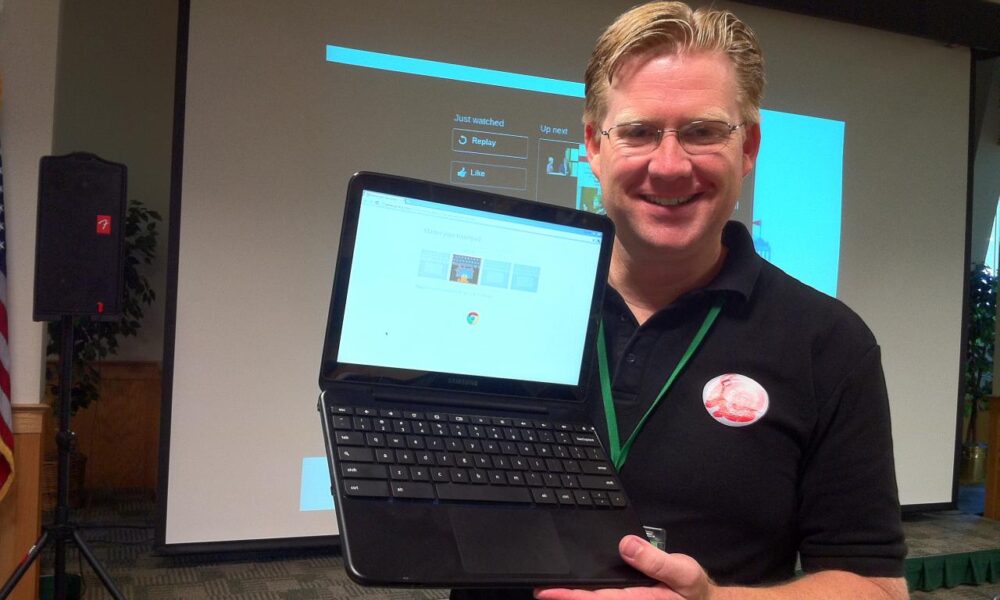

A Chromebook uses familiar copy-and-paste shortcuts, but the trackpad and clipboard controls can feel different if you previously used a Mac or Windows laptop. The basic answer to how to copy and paste on Chromebook is Ctrl + C followed by Ctrl + V. The rest of this guide covers selecting text, pasting without formatting and fixing common problems.
Chromebook copy-and-paste shortcuts
| Action | Shortcut |
|---|---|
| Copy selected text or a file | Ctrl + C |
| Paste copied content | Ctrl + V |
| Cut selected content where supported | Ctrl + X |
| Paste without formatting in supported apps | Ctrl + Shift + V |
| View clipboard history on supported ChromeOS versions | Launcher/Search + V |
ChromeOS provides a comprehensive keyboard shortcuts reference. App-specific shortcuts can differ, especially in remote desktops, Linux apps and web editors.
How to copy and paste text with the keyboard
- Click and drag across the words you want to copy.
- Press Ctrl + C.
- Open the destination document, form or message.
- Click where the text should go.
- Press Ctrl + V.
Copy leaves the original text intact. Cut removes the original content in editable areas when you paste or move it. If nothing happens, make sure the text was actually selected and that the destination allows editing.
How to copy and paste with a touchpad
Select the words you need by dragging. To open a context menu on many Chromebooks, tap the touchpad with two fingers or use the device’s right-click method. Choose Copy, then right-click where you want to insert the text and choose Paste. The available menu options depend on the app and whether the content can be edited.
Paste plain text without strange formatting
Copying from a website into a document may carry over fonts, colors, large headings or hyperlinks. In many ChromeOS apps, Ctrl + Shift + V pastes unformatted text instead. If your target app does not support this shortcut, paste into a plain-text field first or use its own ‘Paste without formatting’ command.
What is Chromebook clipboard history?
ChromeOS can offer a clipboard manager that keeps multiple recently copied items, subject to device version and policy. On compatible devices, try the Launcher/Search key with V and select an item. Clipboard contents are temporary and may change after restarting, signing out or copying new items; do not rely on clipboard history as permanent storage.
How to copy and paste images or files
For pictures, select an image and use Copy image if available, then paste into a compatible editor. Pasting an image is not the same as copying its web address. For files in the Files app, select the file and use copy and paste within supported locations. Some websites block image or file paste because of permissions or input-type restrictions.
Why won’t Ctrl + V paste?
The destination is read-only
Read-only files, disabled form fields or locked documents can prevent changes. Confirm that editing is allowed.
The shortcut is captured by a different app
Some remote desktop sessions and virtual machines interpret keyboard combinations differently. Check the app’s keyboard settings and try its context menu.
Nothing is on the clipboard
Try copying a short test phrase from a document you own, then pasting into a new blank document. This separates selection problems from destination restrictions.
A managed Chromebook restricts clipboard sharing
School or workplace policies may limit copy/paste between apps. Ask the device administrator if a policy blocks your workflow.
FAQ
Do I use Command or Ctrl on a Chromebook?
Use Ctrl for the standard ChromeOS copy and paste shortcuts.
Can I paste only text from a webpage?
Often yes, with Ctrl + Shift + V in a compatible editor.
Why does copied formatting look different in Docs?
The original webpage’s formatting may carry over. Try plain-text paste and apply document styles afterward. See our Google Docs table of contents and headings guide for organizing longer documents.
Can I copy and paste on a touchscreen Chromebook?
Yes. Touch and hold text to select it, then use the available Copy and Paste controls when supported.

Other Articles

Steam Badges Guide (2026): Trading Cards, Crafting and Profile XP
