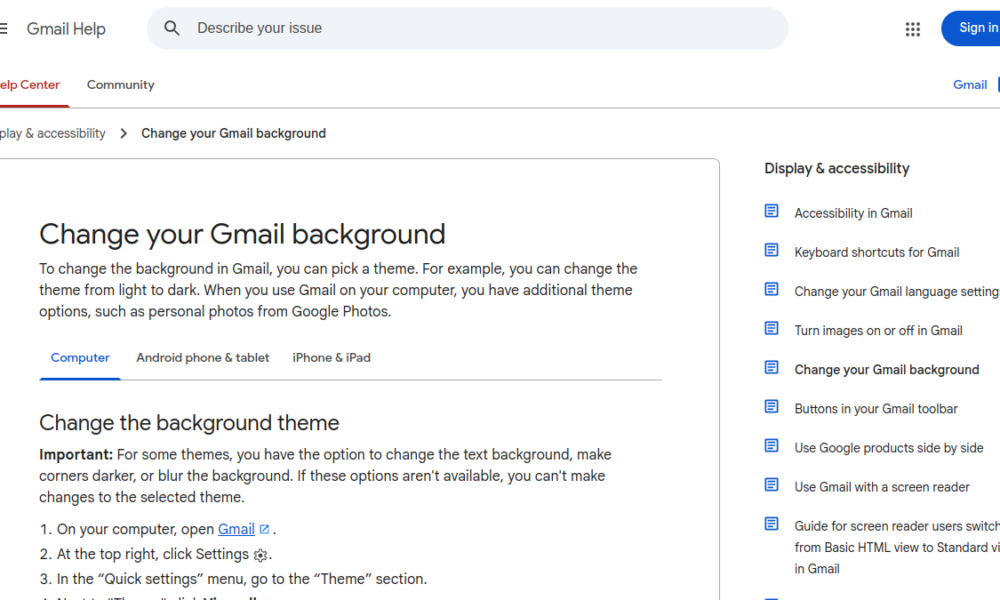

Gmail dark mode changes the appearance of the email interface to make it more comfortable for some people in dim environments. On the web, Gmail offers themes; on mobile, dark appearance may depend on both the Gmail app and the device’s system settings. That distinction explains why your desktop inbox may look dark while the same account’s phone app stays light.
Enable dark mode in Gmail on a computer
- Open Gmail in a browser while signed in.
- Click the gear-shaped Settings control.
- Find the theme gallery in Quick settings or open the full theme selection dialog.
- Choose a dark appearance if available and save the selection.
- Refresh if the old color scheme remains displayed.
Google’s official Gmail theme documentation explains the current background and theme controls. These personalize your account’s interface; they do not alter how recipients see an email you send.
Gmail dark mode on Android
Many Android versions offer a device-level dark theme, and Gmail can follow that choice or expose an app-specific appearance preference depending on version. Start with the device’s Display or Appearance settings. Then check Gmail’s Settings area if you want a different result for the mail app. If dark mode does not appear immediately, update the app and reopen it.
Gmail dark mode on iPhone and iPad
iOS uses a system-wide appearance setting under Display & Brightness. Gmail’s appearance may follow the system mode, depending on the app’s supported settings. If your goal is a dark Gmail inbox, switch the system appearance temporarily and check the app before installing third-party tools.
Why the message body is still white
An email can contain its own HTML styles, logos and background colors. A dark Gmail interface does not guarantee every email renders with a dark body, because messages are authored separately. This is not necessarily a failure of dark mode. For accessibility, prioritize readability over forcing every message through a browser extension.
Common troubleshooting steps
The desktop theme will not save
Confirm you’re signed into the intended Google account and not viewing a different browser profile. Refresh the inbox and check whether an extension is overriding colors.
The phone app ignores system mode
Check the device appearance setting, app updates and any Gmail-specific theme option. Mobile controls can change between versions and account deployments.
Dark text is hard to read
Some third-party theme extensions invert colors imperfectly. Disable them temporarily to compare against Gmail’s native rendering.
If your inbox behaves unusually beyond its appearance, our Gmail missing messages checklist covers delivery diagnostics rather than themes.
FAQ
Does Gmail dark mode change sent emails?
No. It mainly changes the viewer’s interface, not the recipient’s settings.
Can my computer and phone look different?
Yes. They can have separate appearance controls.
Do I need a browser extension?
Usually not to select a built-in Gmail theme.
Will a dark theme save battery?
Potential battery effects depend on screen technology, brightness and usage; no fixed percentage is guaranteed.

Other Articles

How to Unsend an Email in Gmail (2026): Undo Send and Time Limits
