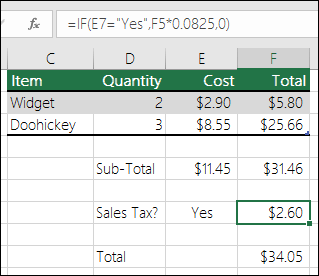

Quick answer: IF returns one result when a logical test is true and another when it is false.
Start with the right setup
Use =IF(B2>=70,”Pass”,”Review”) to label a score. The test can compare numbers, dates or text.
Build the core result
Combine IF with AND or OR for multiple conditions. Avoid deeply nested formulas when a lookup table would be easier to maintain.
Choose a reliable output
Check whether numbers are stored as text and whether blank cells should count as zero. These details can change outcomes.
Check quality and avoid mistakes
Use clear labels and test boundary values such as exactly 70. A correct formula should handle edge cases as well as typical records.
Practical checklist
- Confirm that the tool, version and settings match your intended result.
- Review your source information before editing or exporting.
- Test the finished output on the device or application where it will be used.
- Keep a backup of important work and protect private account information.
Frequently asked questions
Can I use the same steps on every device?
Not always. Menu labels, supported file types and feature availability may differ by device, account plan and software version. Check the current official help center when an option is missing.
What if the result looks wrong?
Check the source data or design, confirm your selected format and test a simple example. Change one setting at a time to identify the cause rather than starting over immediately.
Official documentation
For updated instructions, see official help documentation.

Other Articles
INDEX MATCH in Excel: Flexible Lookup Examples
Google Translate Extension for Chrome: Install and Translate Pages