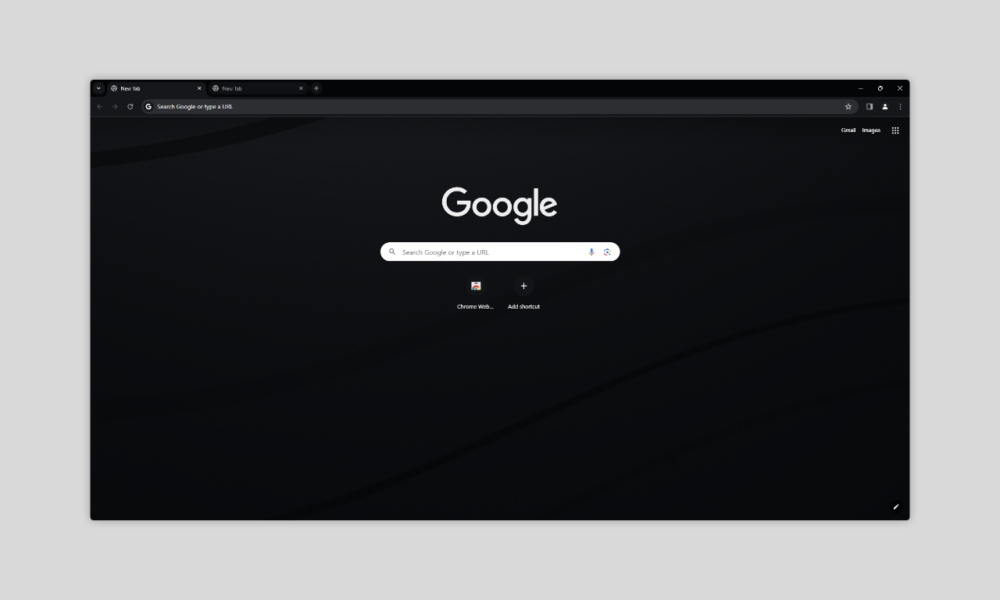

Quick answer: Chrome themes change the browser’s appearance — such as browser borders and the New Tab background — without changing the content of the websites you visit. On desktop, open Chrome → Settings → Appearance → Themes, choose a theme from the Chrome Web Store and select Add to Chrome. To remove it, return to Appearance and choose Reset to default.
Install a Chrome theme
Open Chrome Settings, choose Appearance and open Themes. Preview the store listing and add the theme you want. Google says the theme applies immediately, and Chrome can offer an Undo action right after installation.
What a Chrome theme changes
A theme can change colors and imagery around the browser interface and New Tab page. It does not redesign every website. If you want dark colors inside webpages, that is a different task and may require site settings, Chrome’s own rendering features or an extension such as Dark Reader.
Themes can follow your Google Account
Google says Chrome themes are stored in your Google Account, so the same theme can appear when you sign in to Chrome on another computer. If you want different appearances on work and personal computers, use separate Chrome profiles or review sync settings.
Restore the default Chrome theme
Go to Settings → Appearance and select Reset to default. Chrome returns to its standard theme. You do not need to reinstall Chrome just to remove a theme.
Why a theme may not install
Google notes that extensions and themes are desktop features and cannot be installed from Chrome mobile in the same way. Installation also fails in Incognito/Guest mode, and managed work or school devices can block themes through policy.
If the theme will not go away
Use Reset to default first. If browser colors, New Tab behavior or the search engine remain altered afterward, check installed extensions because an extension can control settings separately from a theme. Google specifically recommends reviewing suspicious software if normal theme reset does not restore Chrome.
Choose themes for readability
Appearance should not make inactive tabs, toolbar icons or text hard to see. If a very bright or very dark theme reduces contrast, switch to another theme or restore default rather than forcing an uncomfortable design.
FAQ
Does a Chrome theme change websites?
No. It mainly changes Chrome’s own interface and New Tab appearance.
How do I uninstall a theme?
Use Settings → Appearance → Reset to default.
Can I have multiple themes active?
No. Chrome applies one browser theme at a time.
Official reference

Other Articles
BlockSite Chrome Extension: Block Websites and Understand Limits
Google Password Manager in Chrome: Save, Check and Secure Passwords