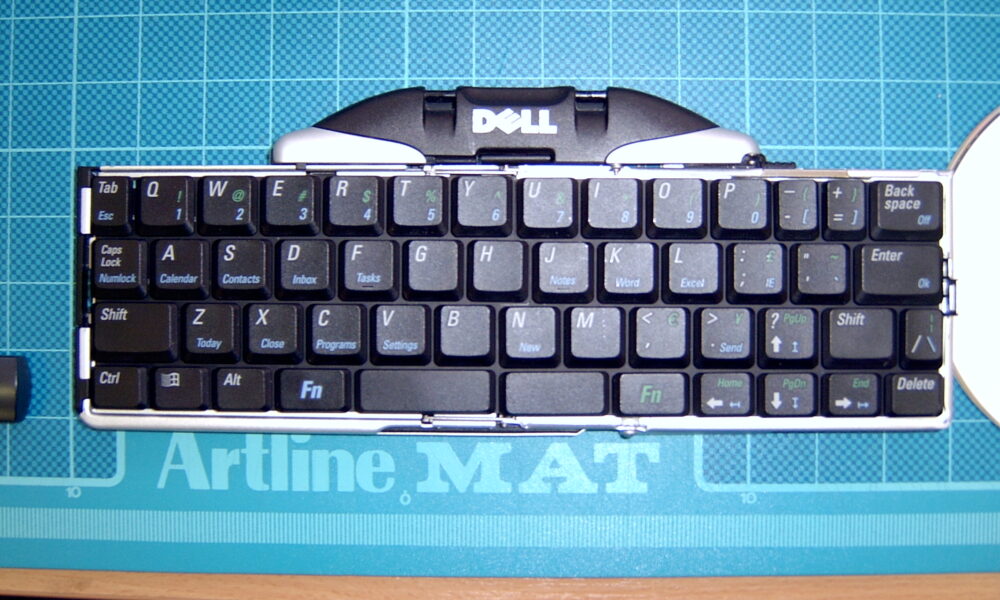

If your Bluetooth keyboard is not connecting to a Windows 11 laptop or desktop, the first question is whether the keyboard actually uses Bluetooth. Many wireless keyboards rely instead on a USB receiver, and their setup steps are different. When the keyboard truly supports Bluetooth, pairing usually takes only a few steps once the keyboard is in discoverable mode.
How to connect a Bluetooth keyboard in Windows 11
- Make sure the keyboard has power. Replace or charge batteries if needed.
- Follow its manual to put the keyboard in pairing mode; a blinking LED is common but not universal.
- Open Settings → Bluetooth & devices on the Windows PC.
- Turn Bluetooth on, then choose Add device and select Bluetooth.
- Select the keyboard when its correct model name appears.
- If Windows shows a pairing code, type it on the new keyboard and press Enter when prompted.
Microsoft’s Pair a Bluetooth device in Windows guide covers the official flow. Manufacturers may add a dedicated shortcut such as Fn plus a numbered Bluetooth key for different paired devices.
Bluetooth keyboard vs 2.4GHz USB receiver
| Connection | What you need | Pairing method |
|---|---|---|
| Bluetooth | Working Bluetooth adapter in the PC | Windows Bluetooth settings and keyboard pairing mode |
| USB wireless receiver | The matching USB receiver | Plug in receiver; follow brand-specific pairing instructions |
| USB cable | Compatible wired port/cable | Usually no Bluetooth pairing |
A keyboard advertised as ‘wireless’ is not necessarily Bluetooth-compatible. Look for the Bluetooth symbol or the device’s specifications.
Why doesn’t Windows find the keyboard?
Pairing mode has expired
Some keyboards are discoverable only briefly. Start the pairing process again while Windows’ Add device screen is open.
It is still connected to another device
Some keyboards automatically reconnect to a previously paired tablet or phone. Disconnect it there, or switch to the keyboard’s dedicated second-device slot if supported.
The computer has Bluetooth turned off
Check Bluetooth & devices and any hardware switch or airplane mode. If Windows shows no Bluetooth setting at all, check that an adapter exists and is working.
The battery is weak
A keyboard may light up while having too little power for stable pairing. Charge it or use fresh batteries before repeatedly resetting devices.
How to reconnect a keyboard that worked before
Open Bluetooth & devices → Devices, select the previously paired keyboard and use its available connection or removal controls. Remove and re-pair only if an ordinary reconnect fails, because re-pairing may discard the previous pairing state. When typing a pairing code, make sure the new keyboard rather than another attached keyboard receives the keys.
Bluetooth keyboard still disconnecting?
Distance and interference can matter, especially around crowded USB 3 equipment and multiple wireless devices. Test the keyboard closer to the PC, away from metal obstacles. If only one peripheral fails, investigate its firmware and batteries before changing your whole PC’s drivers. If every Bluetooth device drops, Microsoft provides a Bluetooth troubleshooting guide.
Don’t install random driver packages
Use Windows Update or the official support page for your computer or Bluetooth adapter. Unofficial ‘driver update’ programs can bundle unwanted software or misidentify hardware. On corporate devices, ask IT if policy restricts wireless peripherals.
Other keyboard settings to review
If pairing succeeds but typing behaves strangely, test the layout and language under Time & language. Accessibility settings can also change key behavior. For an unrelated but common input nuisance, our Windows 11 Sticky Keys guide explains how to stop surprise Shift-key popups.
FAQ
Can I connect a Bluetooth keyboard without a dongle?
Yes, if the computer has a functioning built-in Bluetooth adapter. Otherwise, a compatible adapter may be required.
Why does Windows ask me to type a number?
Some keyboards confirm pairing by having you enter a displayed code on the keyboard itself.
Can a keyboard pair with two devices?
Some models have multi-device slots, but not all. Consult the model’s manual.
Will a normal USB wireless receiver appear in Bluetooth settings?
Not necessarily. A receiver-based keyboard may bypass the ordinary Windows Bluetooth pairing interface.