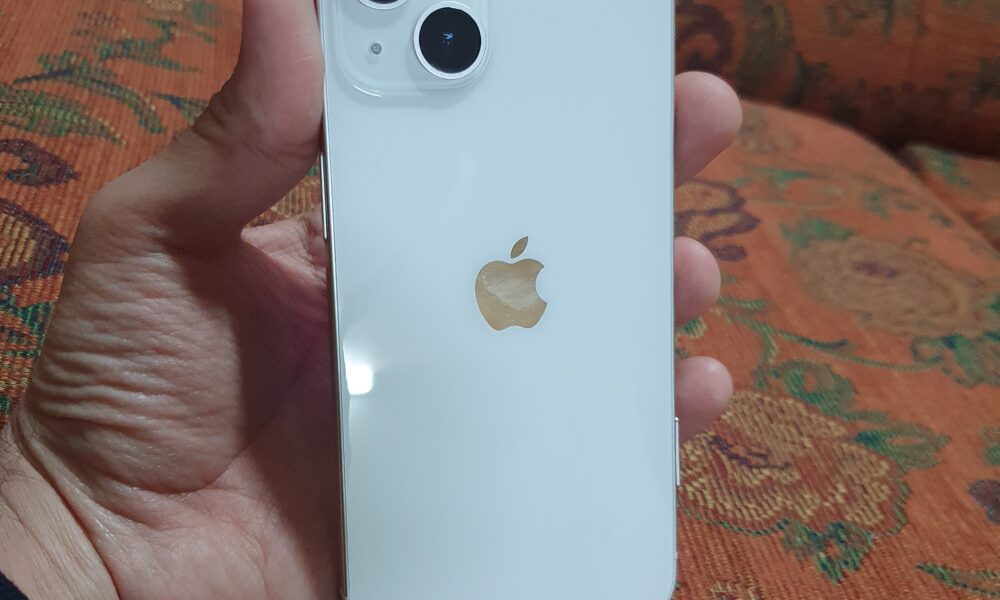

Quick answer: Go to Settings > Cellular > Wi-Fi Calling and turn on Wi-Fi Calling on This iPhone. If you use two SIMs, first select the line you want to enable. Follow the carrier’s prompts and confirm an emergency address when requested. Wi-Fi Calling requires support from your wireless provider, not merely a Wi-Fi connection.
Wi-Fi Calling lets compatible phones carry ordinary calls over a Wi-Fi connection when cellular coverage is weak. It differs from FaceTime Audio, WhatsApp or other internet-calling apps because it generally uses your carrier number. We checked Apple’s current setup and troubleshooting steps on October 13, 2026.
Before you start: three requirements
- An active iPhone cellular line from a carrier that supports Wi-Fi Calling on your plan.
- A reliable internet connection through Wi-Fi and a compatible, up-to-date iOS version.
- The required carrier setup, including any emergency-service address or confirmation screen.
Enable Wi-Fi Calling step by step
- Join a trusted Wi-Fi network.
- Open Settings > Cellular.
- For Dual SIM devices, select the appropriate mobile line beneath the SIMs section.
- Select Wi-Fi Calling and enable Wi-Fi Calling on This iPhone.
- Choose Enable and follow the onscreen prompts; provide or verify your emergency address when requested.
- Open Control Center and look for your carrier’s Wi-Fi Calling indicator when the feature is available. Indicator wording can vary by provider and iOS version.
Place a short test call in a location with weak mobile reception but strong Wi-Fi. Do not rely on a status label alone. A call may still use the cellular network when it is available, depending on your carrier and device.
Wi-Fi Calling vs. Personal Hotspot vs. FaceTime
| Feature | Primary purpose | What it requires |
|---|---|---|
| Wi-Fi Calling | Make regular phone-number calls using Wi-Fi | Carrier support and suitable Wi-Fi |
| Personal Hotspot | Share iPhone’s cellular data with another device | Cellular data and hotspot eligibility |
| FaceTime Audio | Internet voice calling to supported contacts | Internet access and compatible app/service |
Enabling Wi-Fi Calling does not turn your iPhone into a hotspot, and Airplane Mode is not equivalent to enabling the carrier service. Emergency calling deserves particular attention: Apple states calls may use Wi-Fi if cellular service is unavailable, and location/address handling can differ from ordinary calls.
Fix Wi-Fi Calling if the switch is missing
First confirm that your carrier offers the feature for your line, country and current plan. Some operators support it only on certified devices or with specific account settings. Check that your SIM/eSIM is active and that the phone has current carrier settings and iOS updates. If the setting is still absent, contact the carrier instead of installing apps promising to unlock it.
Fix Wi-Fi Calling if calls do not connect
- Confirm the Wi-Fi network actually reaches the internet.
- Verify Wi-Fi Calling is enabled for the correct cellular line.
- Restart the iPhone, then retry the same call.
- Test another private Wi-Fi network. Some public, corporate or filtered networks interfere with voice services.
- Turn Wi-Fi Calling off and back on, following any carrier prompts.
- As a later troubleshooting step, consider resetting network settings; understand the saved-Wi-Fi and other settings consequences first.
Call your carrier if the line remains unprovisioned. Avoid assuming Wi-Fi Calling is free everywhere: domestic and international billing follows the provider’s plan, and roaming conditions vary.
Frequently asked questions
Does Wi-Fi Calling need mobile signal?
It is intended to help when mobile coverage is poor, but the line must be active and carrier-provisioned. Setup itself may need service or additional verification.
Will it work on public Wi-Fi?
Sometimes, but captive portals, firewalls, congestion and security policies can interfere. A trusted home connection is a better troubleshooting test.
Can I use both SIM lines?
Only if both lines and their carriers support the service. Select and configure them separately.
Can I call emergency services through Wi-Fi?
Emergency routing has important location and carrier limitations. Keep your registered emergency address current and follow Apple’s safety guidance.
Verification and image credit
Cross-checked with Apple Support: Make a call with Wi-Fi Calling and Apple iPhone User Guide. Photo: Kskhh, Wikimedia Commons, CC BY-SA 4.0, unmodified. The featured photograph identifies an iPhone, not a live Wi-Fi Calling settings screen.

Other Articles

Roblox 3008 Guide: Survive Nights, Build a Base and Manage Energy