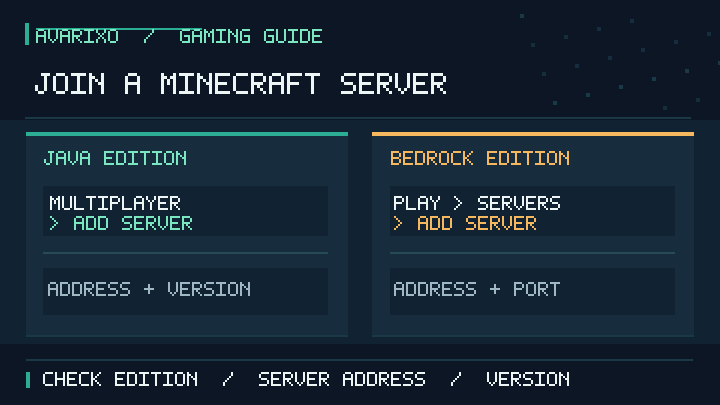

Quick answer: To join a Minecraft server, first check whether you play Java Edition or Bedrock Edition and get the server address from its owner or a trusted listing. In Java Edition, choose Multiplayer → Direct Connection (or Add Server) and enter the address. On Bedrock for Windows and mobile, go to Play → Servers → Add Server for a custom address, or pick a featured server. Consoles normally provide the featured-server list rather than a native custom-server address form. These are different procedures; using the wrong edition is one of the fastest ways to get stuck.
Checked against official Minecraft help and guides on October 13, 2026. This guide is about joining a multiplayer server, not creating or renting one. It also explains server ports, Realms, console restrictions and what to check when the connection fails.
Before you join: the five things to check
- Know your edition. Java Edition runs on supported Windows, macOS and Linux computers. Bedrock runs on Windows and several consoles and mobile platforms. The ordinary server networks are not interchangeable.
- Get the actual address. An online server may provide a domain such as
server.example.comor an IP address. This is an illustration, not a playable server. Copy the real address directly from the owner or the server’s verified website. - Ask for the correct port if needed. Most Java servers use port
25565; Bedrock’s common default is19132. A particular host may use something else, so follow its instructions. - Sign in and check permissions. Minecraft multiplayer can require a Microsoft account and permission to join online worlds. Child and family-managed accounts may have additional restrictions.
- Match the version and access rules. A server may require a particular game version, whitelist approval or a specific modpack. Ask the owner before troubleshooting your internet connection.
How to join a Minecraft Java Edition server on PC
The following menu path applies to the standard Java Edition client on Windows, macOS and Linux.
- Open the Minecraft Launcher, choose Java Edition and start a version supported by the server.
- From Minecraft’s main menu, click Multiplayer. Read the online-play notice if you are shown one.
- If you want to connect just once, choose Direct Connection. Paste the server address and select Join Server.
- If you want to save it, choose Add Server. Enter a recognizable name and the correct address, then select Done. Choose the saved entry and click Join Server.
- When you enter, read the welcome information and any server rules. Some servers make you accept terms or complete an in-game tutorial before building.
Direct Connection versus Add Server
Direct Connection is best for a temporary visit: it joins using the address without adding a permanent entry to your server list. Add Server saves a name and address for repeat visits. You do not need a Realms subscription to join an ordinary Java server. See the official Java multiplayer instructions.
What should you type in the address field?
Enter only the address supplied by the administrator. Some Java hosts use a domain, such as server.example.com; others share a numeric address and a custom port in a format such as 203.0.113.10:25566. Those examples use reserved demonstration values and are not real Minecraft servers. When a hostname already routes to the correct port, the owner may not need you to type one.
Never assume a random address is safe. If you want a community server, start with the official Minecraft Server List and check the server’s rules, age guidance and moderation information.
How to join a Minecraft Bedrock server on Windows, Android or iPhone
Bedrock has a Servers tab. A supported computer or phone generally lets you join its featured servers or add a custom address. Exact button wording may vary slightly by platform or app version.
- Open Minecraft: Bedrock Edition and choose Play.
- Select the Servers tab.
- To use a featured server, select it from the list, review the description and choose Play.
- To use a separate private or community server, select Add Server (available on supported PC and mobile clients).
- Enter a friendly Server Name, the correct Server Address, and the Port supplied by its administrator. Bedrock’s standard port is
19132, unless the host specifies otherwise. - Choose Play to connect now or Save to keep the server in your list for another session, following the options shown in your edition.
On mobile devices the tabs may be positioned differently to fit the screen. If a friend has shared a server address, do not paste it into a search engine or the Xbox friend search: it belongs in the appropriate Bedrock server form. The Minecraft Bedrock multiplayer help center describes featured and manually added servers. If the address input is missing, check whether you are actually on a console rather than on Windows or mobile.
Can you join a custom Minecraft server on Xbox, PlayStation or Nintendo Switch?
Not through the same native Add Server workflow used on Bedrock for Windows or mobile. Official Minecraft support says console editions are limited to the featured servers list for ordinary server browsing. Open Play → Servers and select an available featured server. Do not expect the manual address-and-port option to be present.
You may see tutorials promoting DNS changes or third-party applications as ways around this limitation. They are not the standard, officially documented method, may stop working after system updates, and can create privacy or connection risks. For a private session with friends, a supported friend-hosted world or a Minecraft Realm is often the more practical route.
Some multiplayer features also depend on the console’s online-access entitlement and your account’s multiplayer settings; check what the platform and Minecraft currently require. Joining a Realm is different from entering a public dedicated-server address.
Minecraft Java vs Bedrock: which server can you join?
| Feature | Java Edition | Bedrock Edition |
|---|---|---|
| Typical devices | Windows, macOS, Linux | Windows, mobile, modern consoles |
| Join a saved server | Multiplayer → Add Server | Play → Servers → Add Server (supported PC/mobile) |
| Join once | Multiplayer → Direct Connection | Choose a featured server or add a custom server on supported devices |
| Common default server port | 25565 | 19132 |
| Crossplay between these two editions | Not native on ordinary Java and Bedrock server networks | |
| Console custom-address input | Not applicable | Not provided in the usual native console interface |
If a friend sends a Java server address to someone playing Bedrock, it will not ordinarily work just by entering it. A few third-party community networks use bridging software, but compatibility depends on the operator’s setup and is not a built-in promise of the two editions. For a fuller comparison, read our Java vs Bedrock servers, Realms and crossplay guide.
Servers, Realms and LAN worlds are not the same thing
Community and private online servers
An online server runs a shared world or minigame network managed by an operator. The server may run 24/7 independently of whether one particular friend is online. Each operator controls access, rules, compatible versions and whether features such as PvP or mods are enabled.
Minecraft Realms
Realms is Mojang’s managed subscription-based hosting service for a private group. The owner pays for the service; invited players generally do not need their own Realms hosting subscription to join. A Realm invitation or join code is not something you paste into Java’s normal Direct Connection address box. Choose the appropriate Realms interface for your game edition. Our Minecraft Realms trial and renewal guide explains the subscription side separately.
LAN (local network) worlds
If everyone is connected to the same local network, Java players can use Open to LAN from the host’s single-player world. Other Java clients then check Multiplayer for the discovered local game. LAN discovery is not a substitute for an internet-facing public server address. Firewalls, guest Wi-Fi isolation and different network segments can interfere with local discovery.
Why can’t you join a Minecraft server? Troubleshoot by symptom
Check the exact error on screen and the edition before changing settings. Start with the least disruptive steps; reinstalling Minecraft is rarely the best first move.
| What you see | Likely explanation | First action |
|---|---|---|
| Outdated client / outdated server | Your game version differs from what the server accepts | Ask the operator which stable version to launch; see the matching guide below |
| Unknown host / address cannot resolve | Incorrect hostname, typo or DNS issue | Copy the address exactly from the server owner |
| Connection timed out / cannot connect | Server is offline, unreachable, or the network blocks the route | Check server status and test your network with another trusted server |
| Whitelist / not allowed to join | Administrator has restricted access | Ask the owner to approve your Minecraft account |
| Multiplayer disabled | Microsoft account or family permissions block online play | Review account settings with the account organizer |
| Incompatible client, mod or protocol | Edition or optional server modpack requirements do not match | Confirm Java vs Bedrock and any officially provided modpack instructions |
1. Confirm that the server is online
Check the official server status channel, not a random site claiming to know. If everyone is disconnected at once, the issue may be on the host. A temporary maintenance window is not fixed by clearing files from your computer.
2. Match the Minecraft edition and version
In Java, select the compatible release in your launcher installations rather than assuming the newest snapshot works everywhere. On Bedrock, update the app through its official platform store. If the error explicitly says the client or server is outdated, follow our Minecraft Outdated Client or Server troubleshooting guide.
3. Check access rights, account rules and whitelist settings
A private server may admit only approved usernames. Child-managed accounts may be blocked from multiplayer by their parent or family organizer. Our multiplayer disabled for child accounts guide covers that separate account issue. Do not try to bypass family controls.
4. Inspect the address and port
Verify the spelling, punctuation and port with the operator. Java and Bedrock defaults are different. If you are joining a private server on Bedrock, entering the correct domain but the wrong port may fail even though the host is online.
5. Test the network without taking unnecessary risks
Restart the game, then try a known-good connection if possible. Public or school Wi-Fi may block traffic. Ask the network administrator about legitimate access rather than trying to evade restrictions. Do not turn off your firewall, disable antivirus protections or forward router ports just to join a public server. Router port forwarding is a separate concern for certain people who host servers, not a general joining requirement.
Where to find reputable Minecraft servers
A friend’s direct invitation is usually the easiest place to start. For public games, use the official Minecraft Server List to discover communities and then read their server rules. Compare the listed game edition, gameplay type, age suitability and moderation options before joining. Avoid unofficial launchers or files that claim you must install them to access an ordinary server; download software only when you understand why it is required and trust the source.
If you want to operate the world instead, that is a different project. Begin with our official Minecraft Java server download and setup guide rather than confusing hosting steps with the simple task of joining.
Frequently asked questions
What is a Minecraft server IP address?
It is the address your Minecraft client uses to locate a multiplayer host. It may be a recognizable domain name or a sequence of numbers. Always get the real address from the server’s administrator or trusted listing. The illustrative addresses in this article are not live servers.
Can Minecraft Java players join Bedrock servers?
Not on standard separate Java and Bedrock server networks. Third-party bridges exist, but they must be deliberately configured by the server operator; they are not native crossplay between editions.
How do I join a friend’s Minecraft world instead of a server?
For a Bedrock friend’s online world, open Play → Friends and look for their joinable session, subject to multiplayer permissions. For Java on a shared local network, the host can open a world to LAN. For an invited Realm, use the dedicated Realms interface.
Do I need a Realms subscription to join a Minecraft server?
No. A normal Java or Bedrock multiplayer server is separate from the Realms hosting product. The Realm owner generally pays for that subscription and invites participants; other platform online-service requirements may still apply.
Why is Add Server missing on my console?
The normal Xbox, PlayStation and Nintendo Switch Bedrock console interfaces are restricted to featured servers for native server browsing. PC and mobile have the supported custom server-list workflow described by Minecraft’s help center.
Which port does a Minecraft server use?
Java’s common default is 25565 and Bedrock’s is 19132. Servers can use other ports, so verify the actual value with the operator rather than guessing.
Is joining a public Minecraft server safe?
It can be a positive experience, but you should follow the game’s online-safety guidance: never share passwords, real-world identity, address or private account details; use appropriate chat and reporting tools; and leave communities that pressure players to disclose personal information or install questionable software.
Official sources and further reading
- Minecraft.net — How to Play on a Minecraft Server (Java, Bedrock, LAN and safety)
- Minecraft Help — Java Edition Online Multiplayer Server
- Minecraft Help — Bedrock Edition Multiplayer Servers
- Minecraft.net — Java or Bedrock Edition?
- Official Minecraft Server List
Editorial note: Menu labels, platform requirements and supported versions can change after this article is checked. For changing compatibility details, use the linked official help pages and the server owner’s current instructions.


