
Steam Deck battery storage mode is a special low-power state used when the handheld will be stored for a long time or when Valve’s troubleshooting instructions specifically call for it. It is not the same as Sleep mode, and it is not a setting that makes your Steam Deck run games for longer.
Storage mode changes how the Deck responds to its battery and power button. That is why a device in this mode can appear completely unresponsive until external power is connected. The instructions below follow Valve’s official Steam Deck troubleshooting guidance, with the different LED confirmations for LCD and OLED models.
What is battery storage mode on Steam Deck?
Battery storage mode places the Steam Deck in a condition intended for extended storage. When enabled, the handheld powers down and is not expected to wake just from a normal short press of the power button. To return it to normal operation, connect the supplied power adapter and turn it on.
Because this setting requires a trip into the device’s BIOS or Setup Utility, it can look intimidating. The procedure does not involve formatting the SSD, deleting game saves, or reinstalling SteamOS. Still, it is wise to save open work and ensure any important game synchronization has completed before shutting down.
How to enable Steam Deck battery storage mode
- From SteamOS, open the power menu and select Shut Down. Wait for the Deck to switch off fully.
- Hold down the Volume Up (+) button. While holding it, press the Power button once.
- Keep holding Volume Up until the boot or BIOS interface appears, then release it.
- Use the D-pad and A button to enter Setup Utility.
- Navigate to the Power section and select Battery storage mode.
- Confirm the selection. The Steam Deck should power itself off.
Valve describes an LED indication when the operation succeeds. On an LCD Steam Deck, the power LED blinks three times. On an OLED Steam Deck, Valve says to wait roughly eight seconds for two blue power-LED blinks. Do not assume the same LED pattern applies to both models.
How to wake a Steam Deck from battery storage mode
Connect the provided power supply, allow the Deck to register the connection, and start it normally using the power button. If the device remains off, first check the outlet, charging cable, and connector rather than assuming the system is damaged. Valve specifically instructs users to attach power to wake a Deck from this mode.
If the screen is black after attempting to wake it, distinguish a charging or power issue from a display issue. Our Steam Deck black screen guide has a separate decision path for those symptoms. Do not open the device simply because it fails to wake on the first button press.
When should you use storage mode?
When putting the handheld away for a long time
If you will not use your Steam Deck for an extended period, the mode provides the behavior Valve designed for battery storage. Store the handheld in a suitable environment, avoiding extreme temperatures. Periodically review Valve’s own battery and storage recommendations rather than relying on a single internet rule about a “perfect” charge percentage for all conditions.
When Valve recommends it for a specific troubleshooting step
Valve’s Steam Deck docking help includes a battery-storage-mode procedure as one troubleshooting step in some USB-C dock problems. Use that procedure only when it fits the symptoms. For a TV or monitor that fails to display a picture, read our Steam Deck TV and dock connection guide for checks that do not require entering the BIOS.
Not as an everyday battery-life trick
Battery storage mode is not a frame-rate limiter, a brightness control, or a quick setting for longer play sessions. If your goal is to make the device last longer during active gaming, use the separate suggestions in our Steam Deck battery life guide, which explains why workload, frame-rate targets, and LCD-versus-OLED hardware matter.
Common mistakes to avoid
- Confusing Sleep with storage mode: Sleep is for normal pauses between gaming sessions; storage mode is entered through Setup Utility.
- Pressing Power repeatedly after enabling the mode: first connect the official power supply to exit the storage state.
- Using LCD LED timing as an OLED test: the documented confirmation patterns differ.
- Factory resetting the Deck: that is a separate, destructive action and is not necessary to enable battery storage mode.
- Trying to fix unrelated game performance: storage mode is not a universal fix for lag or low FPS.
FAQ
Does Steam Deck battery storage mode delete games?
No. Entering battery storage mode is a power-management procedure, not a storage wipe. It does not itself command SteamOS to erase installed games.
Why won’t my Deck turn on after enabling storage mode?
The mode is designed to prevent ordinary wake behavior. Attach the supplied charger, then power it on as Valve instructs.
Is battery storage mode available on Steam Deck OLED?
Yes. Valve provides instructions for both LCD and OLED models and documents different confirmation LED patterns.
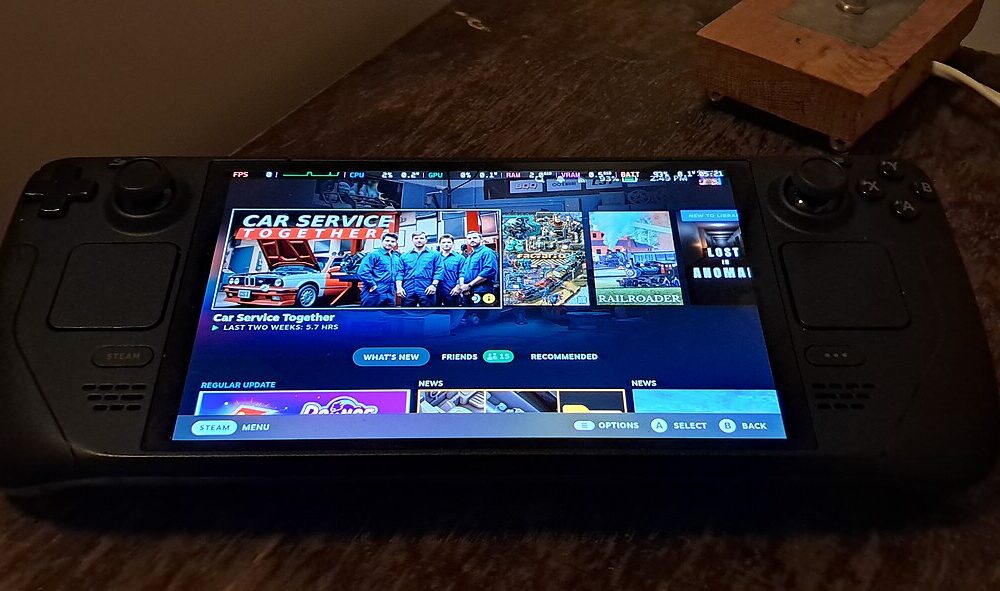
Featured photograph: SparklesTrainNerd / Wikimedia Commons, CC BY-SA 4.0. License and photo information; image used unchanged.

Other Articles

How to Clear Cache on Nintendo Switch Without Losing Saves
Windows 11 Touchpad Not Working? Fix Settings and Drivers First
