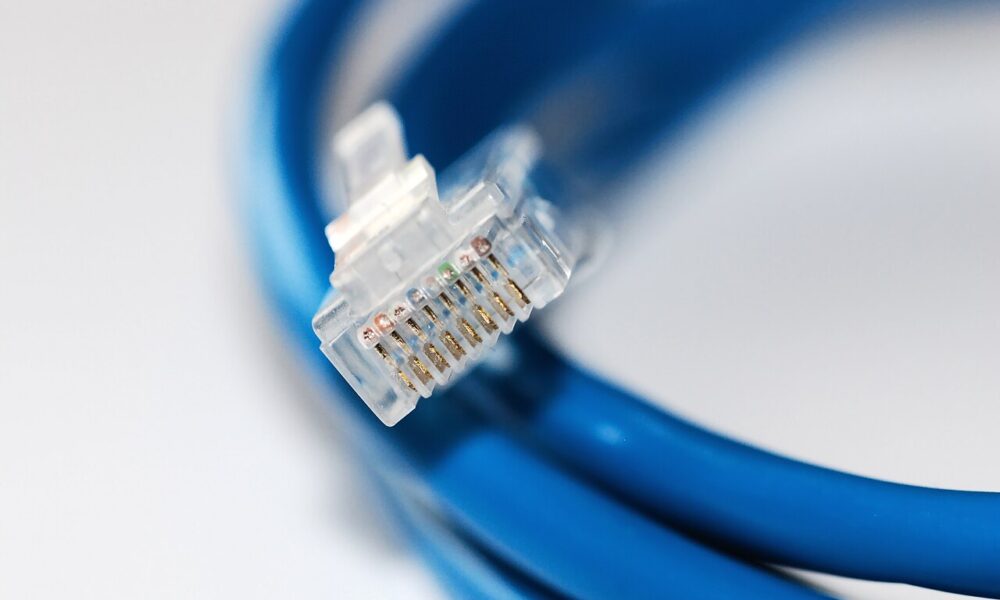

Quick answer: An Ethernet cable is a physical networking cable that connects a computer, gaming console, smart TV, router or switch to a wired network. The familiar home version contains four twisted pairs of copper conductors and generally has an eight-contact plug people call RJ45. Plugging it into a network port can provide a reliable connection with stable latency, but it cannot make your internet faster than your plan, your device port or your network equipment allows.
If you are holding a cable and wondering where it goes, look for a rectangular eight-contact Ethernet plug, find the matching LAN port on a router or switch and the Ethernet port on the device, and connect the two until each end clicks into place. Most modern home equipment configures the link automatically. Below we explain cable categories, differences from Wi-Fi, exact setup steps and how to diagnose a wired connection that appears slow.
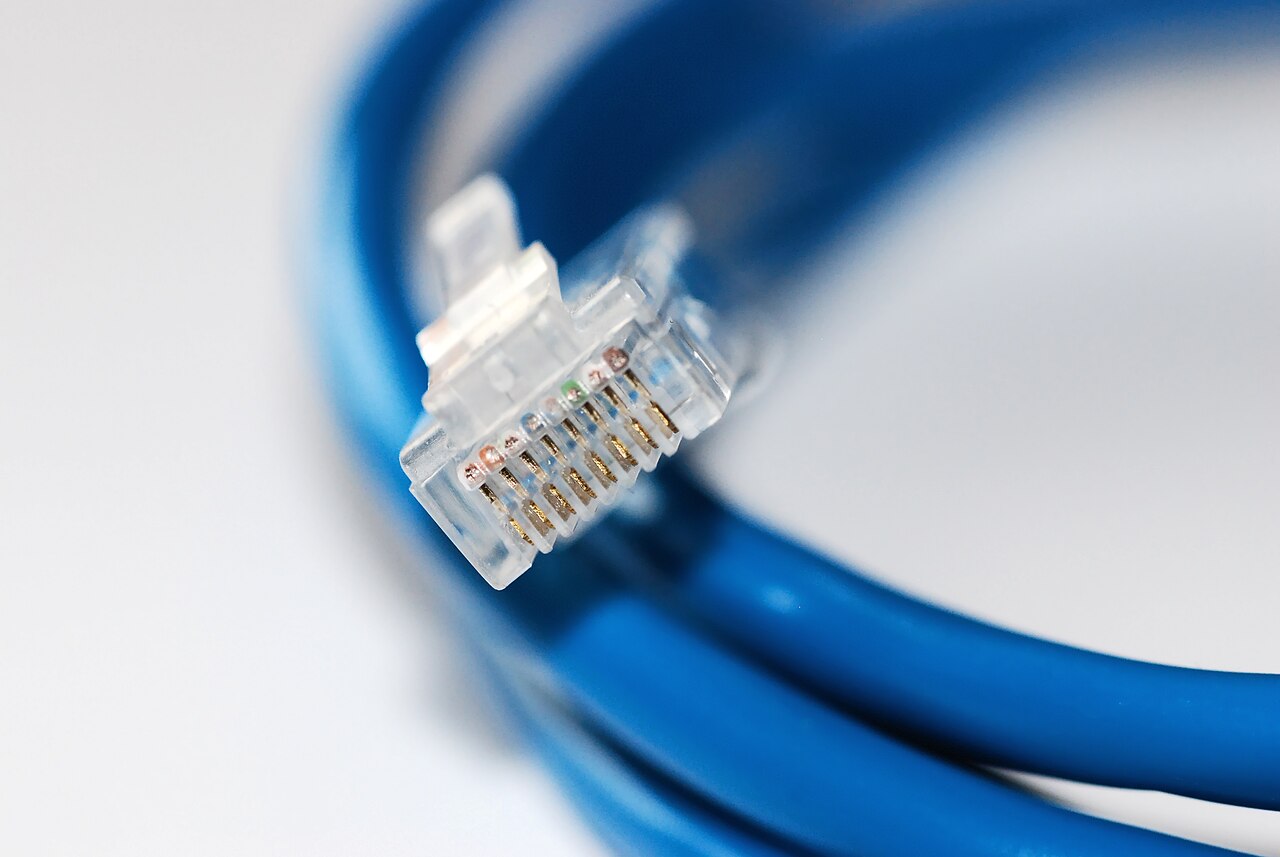
What does an Ethernet cable look like?
The most common household Ethernet patch cable has a plastic plug on each end, similar to a large telephone plug but usually with eight metal contacts. A latch keeps it in an Ethernet jack. The plug type used for typical copper Ethernet patch cords is technically 8P8C; the term RJ45 is widely used in stores and product instructions. Either term normally gets you to the familiar connector, but “RJ45” alone does not tell you the cable’s certified performance category.
Look along the cable jacket for printed words such as Cat5e, Cat6 or Cat6A. That marking tells you more about intended transmission characteristics than the cable’s color. A blue Cat5e cable is not inherently slower or faster than a yellow Cat5e cable because of its color.
Does an Ethernet cable connect to a modem or a router?
Both are possible, depending on your setup. A cable modem or fiber ONT commonly connects to the router’s WAN/Internet port. Your computer or console usually connects to a LAN port on the router or a connected network switch. A modem may have only one usable customer-facing Ethernet output, while a home router often has several LAN jacks. Follow the labels on your specific devices rather than assuming every port does the same job.
Ethernet versus a phone cable
An Ethernet plug is often wider than a telephone plug. Do not force a plug into an incorrectly sized jack. Some devices have proprietary-looking modular connectors; read the labeling and the device’s documentation if unsure. Similarly, an Ethernet patch lead does not plug into a USB-C-only laptop without a compatible USB-C or USB-A Ethernet adapter.
How does an Ethernet cable actually work?
Ethernet is a family of wired-network technologies defined under IEEE 802.3. Modern home copper cabling uses balanced twisted pairs: conductors are twisted to help control electromagnetic interference and unwanted coupling between pairs. A network interface on each end transmits electrical signals through the cable; Ethernet switches and routers then forward data where it needs to go.
The endpoints usually auto-negotiate a supported link speed such as 100 Mbps, 1 Gbps, 2.5 Gbps or 10 Gbps. Three different limits can matter at once: the cable and its condition, the capabilities of the two connected ports, and your internet service speed. The negotiated link rate is not the same thing as the speed of a file download from the internet.
For example, a laptop with a 1 Gbps network adapter connected to a 1 Gbps router port may show a 1,000 Mbps link even if the household internet plan is 300 Mbps. Conversely, a 2 Gbps internet subscription does not turn a 1 Gbps Ethernet port into a 2 Gbps port.
Cat5e vs Cat6 vs Cat6A vs Cat8: the differences that matter
Marketing often makes categories sound like software upgrades. They are really specifications for the electrical performance of cable assemblies, and the entire installed channel—including connectors, termination quality, distance and interference—affects the achievable speed. These are typical standards-based expectations, not measurements of any particular cable.
| Cable category | Common supported Ethernet use | Relevant distance | Good fit |
|---|---|---|---|
| Cat5e | 1 Gbps; in suitable installations 2.5G/5GBASE-T may also be possible with compatible equipment | Up to 100 m for standard gigabit channel | Most existing home networks and gigabit internet |
| Cat6 | 1 Gbps at normal channel length; 10GBASE-T may work over shorter, suitable runs | 100 m for gigabit; often about 55 m for 10G on typical unshielded Cat6 installations | New short household runs and desktop gaming setups |
| Cat6A | Designed for 10GBASE-T | Up to 100 m for standards-compliant 10G channels | Longer 10G runs and planned multi-gig upgrades |
| Cat8 | Specialized 25G/40GBASE-T infrastructure | Short channels, commonly 30 m | Specific high-speed data-center links, not a general home-internet upgrade |
The Ethernet Alliance’s 10GBASE-T cabling reference distinguishes shorter unshielded Cat6 channels from 100-meter Cat6A installations. Its NBASE-T technical overview also describes how 2.5G and 5G links can reuse suitable existing Cat5e/Cat6 networks with compatible network equipment.
Is Cat6 faster than Cat5e for normal internet browsing?
Not automatically. If both your router and laptop have 1 Gbps ports and a working Cat5e cable is already negotiating a 1 Gbps connection, replacing it with Cat6 usually will not change that negotiated maximum or your broadband plan. Cat6 can provide better electrical performance margins, especially for some faster or noisier installations, but it is not a speed multiplier for a 1 Gbps interface.
Should you buy Cat7 for a home network?
Many products labeled Cat7 appear in retail listings. However, a category label does not automatically make a cable more appropriate for ordinary RJ45 home equipment. Check whether a product is genuinely standards-compliant and suitable for the connectors in your setup. For most homes, quality Cat6 is a practical default; for a planned 10G installation over longer distances, Cat6A is easier to specify than a vaguely advertised “ultra-fast” cable.
Does Cat8 reduce gaming ping?
It does not confer a special low-latency mode. If Cat5e or Cat6 already provides a healthy wired link, in-game latency is mostly shaped by the game server location, ISP routing, congestion and the computer/console—not a jump from Cat6 to Cat8. You can verify the difference between in-game ping and the quality of a local wired link in our Fortnite network latency guide.
How to connect an Ethernet cable to a PC, laptop, console or TV
These steps cover a typical home router setup. Exact icon names differ between Windows, macOS, consoles and televisions, but the physical wiring principle remains the same.
- Locate the LAN output. Find a LAN port on the router or a network switch that connects to the router. Do not unplug your household modem-to-router WAN connection by mistake.
- Identify your device’s Ethernet port. Desktop PCs, many TVs and consoles have one. Thin laptops may require a USB-C-to-Ethernet adapter, dock or hub.
- Insert the cable. Push an RJ45 plug gently into each compatible jack until the latch clicks. Do not pull by the cable when disconnecting: press the retaining tab first.
- Wait for the network link. Port LEDs may blink, but their colors and meanings vary by equipment. Your device should generally report a wired connection automatically.
- Check the device’s network settings. On Windows 11, open Settings → Network & internet → Ethernet. On a Mac, inspect System Settings → Network. Consoles and TVs usually have their own connection-test screen.
- Test both local connectivity and internet access. Loading a website confirms access beyond the local router. A direct file transfer or the displayed port/link speed can help distinguish the local network’s potential from your ISP plan, but those are different measurements.
If a Windows PC reports a wired connection but browsers still cannot load websites, the physical cable may be working while the DNS settings or upstream internet connection is not. Follow our DNS troubleshooting and setup guide only after establishing the actual cause; changing DNS does not fix a broken cable.
Can an Ethernet cable connect two computers directly?
Modern Ethernet interfaces generally support automatic cable-pair detection (auto MDI-X), so a normal patch cable can connect two compatible ports without needing a historical “crossover cable.” But physically connecting two computers does not automatically share files or create an internet connection: they still need compatible network addresses, firewall and sharing configuration.
How long can a home Ethernet cable be?
Typical structured-cabling standards specify a total channel length of up to 100 meters for common Cat5e/Cat6 gigabit installations, including patch leads and in-wall runs, when the installation meets the standard. That is not a guarantee for low-quality, damaged or poorly terminated cables. Higher-rate technologies may have shorter limits for some cable categories. For a longer route, use a designed network extension solution (for example, fiber and switches) rather than assuming an extremely long copper cable will work.
Ethernet cable vs Wi-Fi: which should you use?
Ethernet is usually a good choice for stationary devices and workloads where predictable performance matters. Wi-Fi is excellent for mobile devices and locations where a cable would be inconvenient. A modern Wi-Fi network can sometimes be faster than an older 100 Mbps wired port, so neither technology is always faster in every real setup.
| Question | Ethernet | Wi-Fi |
|---|---|---|
| Does it need a cable? | Yes, or an Ethernet-capable dock/adapter | No network cable to each device |
| Radio interference? | No wireless hop to the router | Potential signal/interference and channel congestion |
| Moving around? | Limited by physical reach | Easy for phones and portable computers |
| Stable gaming or video calls? | Often preferable when the entire path is healthy | Can work very well with good coverage |
| Maximum speed? | Depends on port speed, cable quality and distance | Depends on Wi-Fi standard, radio conditions and device support |
There is no requirement to disable Wi-Fi on every other device just because one computer uses Ethernet. Most households use both. If your computer is connected to both at once, the operating system chooses routes according to its network configuration.
Why is Ethernet slow? A useful troubleshooting order
A slow wired connection does not always mean you bought the wrong cable. Work from the simplest checks toward settings changes, and distinguish the negotiated link rate from actual throughput.
1. Check whether the wired link is negotiating 100 Mbps or 1 Gbps
In Windows, open Settings → Network & internet → Ethernet for connection information. Some versions expose additional hardware properties or a link speed; you can also find the adapter’s status using Control Panel network settings or the PowerShell command Get-NetAdapter. The latter lists adapter link speeds but does not directly measure internet download speed.
If a gigabit-capable device negotiates only 100 Mbps, inspect the actual port capabilities and cable. Gigabit twisted-pair Ethernet typically uses all four pairs; a damaged conductor or badly terminated pair can force a lower negotiated speed. Try a different known-good cable and another gigabit-rated LAN port before making system-wide changes.
2. Verify the router, switch, dock and USB adapter
The slowest Ethernet port in the path can constrain traffic even if a cable supports more. For example, an old USB 2.0 Ethernet adapter may have an additional interface bottleneck. A switch with 100 Mbps ports can limit an otherwise gigabit network segment. Read the exact port specifications rather than judging by the shape or color of the jack.
3. Inspect the connectors and the whole run
Check for a broken retaining tab, crushed cable jacket, severe bends or unseated connectors. If the cable is routed through a wall, patch panel or coupler, every connection is part of the channel. Avoid pulling, sharply bending or crushing a cable as a quick installation shortcut.
4. Check speed/duplex settings, but do not randomly force values
Leave Ethernet auto-negotiation enabled on ordinary consumer equipment unless the device vendor specifically directs otherwise. Forcing one side to a manual speed/duplex that the other side does not match can produce errors or unstable connections. Drivers, firmware and adapter energy-saving options may matter in particular cases, but changes should follow a verified symptom and product-specific guidance.
5. Distinguish DNS or ISP problems from a cable problem
A device may successfully negotiate a 1 Gbps LAN link yet be unable to load a webpage because the internet service is down or DNS requests fail. Likewise, a speed-test result can be limited by the remote test server, Wi-Fi on a different device or household congestion. Test methodically instead of assuming the most expensive cable will solve every issue.
What do UTP, STP, solid copper and CCA mean?
These terms are useful when evaluating a patch lead or installing cable inside a building. UTP generally means unshielded twisted pair. Shielded cable designs add foil or braided protection in various configurations, useful in some noisy environments—but proper bonding and grounding requirements make them less of a casual upgrade for a normal living room.
Solid copper identifies the conductor material. CCA means copper-clad aluminum: a different construction sometimes marketed as a cheaper alternative. For standards-compliant structured cabling and particularly Power over Ethernet applications, verify that your cable meets the required electrical and fire-safety standards rather than buying purely by category text in a listing.
What is Power over Ethernet (PoE)?
Power over Ethernet can carry both network data and electrical power over a compatible Ethernet cable, commonly for certain security cameras, Wi-Fi access points and desk phones. The power comes from a compatible switch or injector, not from any ordinary RJ45 socket by itself. Match PoE standards, wattage, cable rating and manufacturer instructions; do not assume any improvised wiring arrangement is safe.
What cable should you use outdoors or inside walls?
Choose a cable jacket explicitly rated for the location and installation method. Outdoor runs can require weather/UV protection and protection from surge or lightning risks; in-wall installations need the applicable building and fire rating. A basic indoor patch cord is not automatically suitable for burial, outdoor exposure, air-handling spaces or long permanent in-wall runs. Follow local electrical and building requirements, and consult a qualified installer for difficult or hazardous routes.
Ethernet cable buying checklist: practical specifications to verify
- Speed of both ports: Confirm whether the computer and router support 100 Mbps, 1 Gbps, 2.5 Gbps, 5 Gbps or 10 Gbps.
- Length: Measure the actual route plus reasonable slack; avoid extra-long coils when a shorter patch cable is enough.
- Category: For a typical modern home, a reputable Cat6 patch cord is often sufficient. Use Cat6A where a standards-based 10G run requires it.
- Construction: Prefer a genuine, standards-compliant copper cable. Check for unsuitable CCA marketing where compliance or PoE safety matters.
- Connectors: Check for clean, securely terminated eight-contact plugs and proper strain relief.
- Installation environment: Pick the correct jacket and rating for a desk, wall, outdoor route or cable tray.
- Problem you’re solving: Replacing a faulty lead can restore performance. Replacing an already adequate cable may offer no measurable improvement.
The NETGEAR Ethernet primer describes familiar home connection use cases, while the Ethernet Alliance references above provide more technical detail about link rates and cable channel limitations.
Frequently asked questions
Does an Ethernet cable give you internet without Wi-Fi?
It can connect your device to a router or modem without using Wi-Fi for that device. You still need a functioning internet service to access the internet. An Ethernet cable alone does not provide an ISP connection.
Is Ethernet always faster than Wi-Fi?
No. Wired links often give more consistent performance, but a 100 Mbps wired port can be slower than a strong modern Wi-Fi connection. Compare your actual port capabilities and link conditions.
Is an Ethernet cable the same as a LAN cable?
In home networking, “LAN cable” usually refers to a copper Ethernet patch cable. Technically a LAN can use other technologies, so the terms are not perfect synonyms in every context.
Can I plug an Ethernet cable into a PS5 or Xbox?
Yes, where the console has an Ethernet port. Connect it to a LAN port on the router or compatible switch, then use the console’s network settings to verify the wired connection. It does not remove the need for game service access or an internet subscription.
What is the difference between Cat6 and Cat6A?
Cat6A is designed to support standards-compliant 10-gigabit Ethernet over full 100-meter channels. Ordinary unshielded Cat6 10G use is typically limited to a shorter run, depending on installation conditions. Both can support gigabit Ethernet.
Will a Cat8 cable boost my 300 Mbps internet plan?
No. If your current link is healthy and already faster than 300 Mbps, the internet plan remains the main limit. Cat8 is designed for much shorter, high-speed specialized installations.
Can Ethernet cables carry electricity?
Compatible Power over Ethernet systems can deliver regulated electrical power with network data. Do not assume all devices or all cables support every PoE class or power level.
Why does my Ethernet cable show 100 Mbps instead of 1 Gbps?
The connected port may support only 100 Mbps, the cable may have damaged pairs, or connectors/terminations may be faulty. Test a known-good cable and confirm both Ethernet ports’ rated speeds before changing driver settings.
Can I use Ethernet and Wi-Fi at the same time?
Yes. A household commonly uses wired and wireless devices simultaneously. A laptop may connect to both, with the operating system selecting which route to use; there is usually no benefit from leaving two parallel connections active on a simple home setup.
Sources and editorial scope
This guide draws on Ethernet Alliance technical material on 10GBASE-T distances, the Alliance’s 2.5G/5G networking explanation, and NETGEAR’s practical home-networking explanation. It explains published standards and general setup behavior; AVARIXO did not laboratory-test any particular cable, port or household connection for this article. Reviewed October 13, 2026. Product specifications and software labels can change; verify your device’s own documentation.

Other Articles

All Star Tower Defense Codes (October 2026): Gems and Stardust