
Quick answer: The Discord desktop app offers the service’s voice, chat, and community features outside a browser tab. Download it from Discord’s official website, then sign in and check microphone permissions before your first call.
This guide focuses on the steps you can verify yourself, the differences that matter in practice, and the mistakes most likely to waste your time. Menu names can change after software updates; when they do, use the product’s official help center rather than an unverified download or workaround.
Download the official app
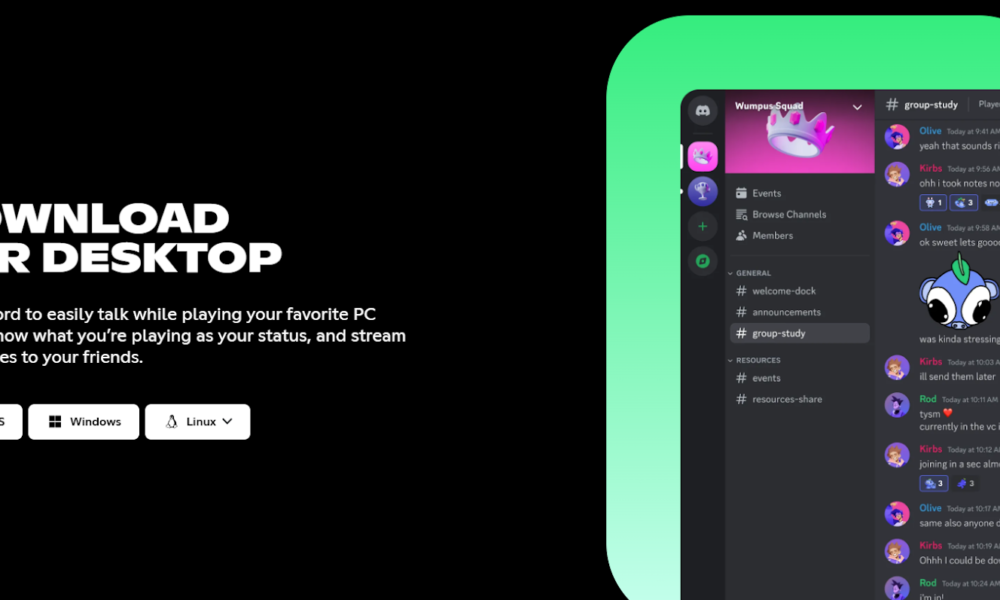
Visit discord.com/download on Windows or macOS and select the version for your device. Avoid mirror sites bundling unknown installers. On a managed computer, ask your administrator whether installing Discord is permitted.
Sign in securely
Open the installed app and use your normal Discord account. If a QR-code login option appears, confirm the prompt inside the official mobile app and only approve sign-ins you initiated. A QR code sent by a stranger may be a phishing attempt.
Configure voice settings
Open User Settings and locate Voice & Video. Choose the correct input and output devices, test the microphone, and grant operating-system microphone permission if prompted. Headsets may appear under multiple device names.
Fix an app that will not open
Restart the app and computer, check for updates, and confirm that your internet connection is working. If the app repeatedly fails, use Discord’s official troubleshooting steps. Reinstalling should be a later step after checking permissions and security software.
Desktop versus browser
The browser version is convenient on shared devices, while the desktop client may integrate more directly with operating-system features. Available streaming, overlay, and audio behaviors can differ, so compare them for your specific task.
Practical checklist
- Download the official app: Visit discord.
- Sign in securely: Open the installed app and use your normal Discord account.
- Configure voice settings: Open User Settings and locate Voice & Video.
- Fix an app that will not open: Restart the app and computer, check for updates, and confirm that your internet connection is working.
Frequently asked questions
Do I need Discord Nitro to use the desktop app?
No. Basic messaging and voice features do not require Nitro.
Can I use the same account in the browser?
Yes. The desktop and web clients can access the same Discord account.
Why is my microphone silent?
Check the selected input device, system privacy permission, and Discord’s input sensitivity settings.
Official resources and next steps
Check official support and documentation before following instructions that request credentials, downloads or sensitive permissions. Return to the checklist above if your software version differs from the screenshots in older tutorials.